
1. Introduction
The Grandstream GXP2100 is an enterprise-grade IP phone designed for business communication. It features support for four lines, a backlit graphical LCD, and various programmable keys to enhance user experience. This manual provides detailed instructions for the installation, configuration, and operation of your GXP2100 IP phone.
2. Package Contents
Upon unpacking your Grandstream GXP2100, verify that all items are present and in good condition. The standard package typically includes:
- Grandstream GXP2100 IP Phone Unit
- Handset with coiled cord
- Phone stand
- Ethernet cable
- Power adapter
- Quick Installation Guide (this manual provides more detail)
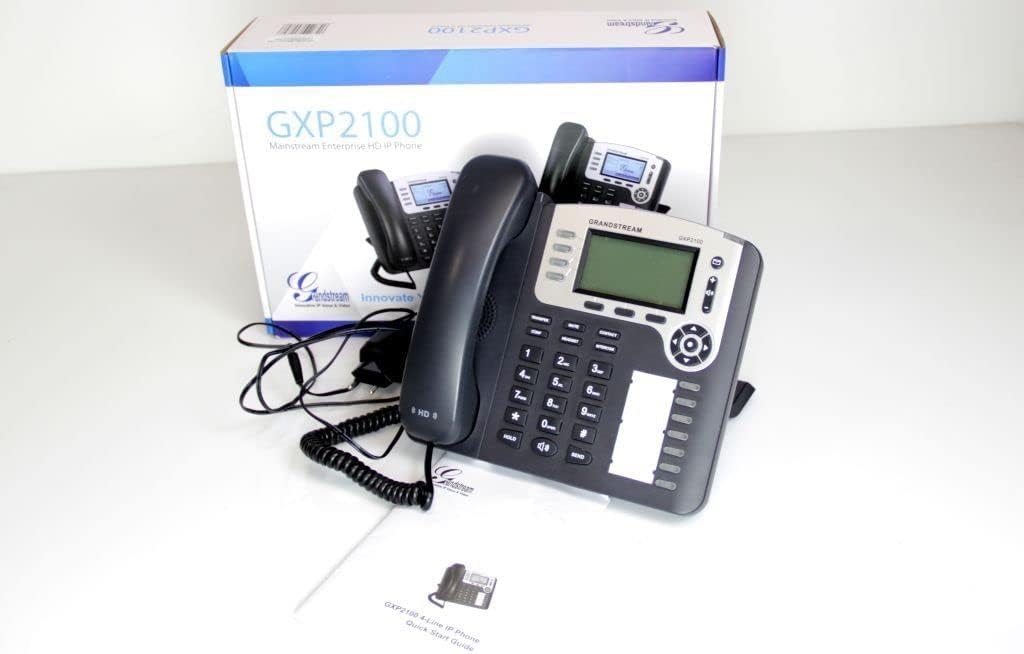
Image 2.1: Grandstream GXP2100 IP Phone unit, handset, coiled cord, power adapter, Ethernet cable, and quick start guide, displayed with its retail packaging.
3. Product Features
The GXP2100 IP phone offers a range of features designed for efficient business communication:
- Line Keys: 4 dual-color line keys supporting up to 4 SIP accounts.
- Soft Keys: 3 XML programmable context-sensitive soft keys for dynamic functions.
- BLF Extension Keys: 7 dual-color BLF (Busy Lamp Field) extension keys, supporting up to 11 call appearances.
- Conference Calling: Up to 5-way conference capability.
- Audio Quality: HD wideband audio and a superb full-duplex hands-free speakerphone with advanced acoustic echo cancellation.
- Network Connectivity: Dual network ports with integrated Power over Ethernet (PoE).
- Phone Book: Automated phone book synchronization with directory servers using XML.
- Applications: Integrated real-time web applications (e.g., weather, stock, currency, RSS news).
- Security: Advanced security protection for privacy.
- Deployment: Supports automated provisioning for easy deployment.

Image 3.1: Front view of the Grandstream GXP2100 IP Phone, highlighting the display, keypad, and function buttons.
4. Setup
4.1 Physical Connection
Follow these steps to connect your GXP2100 IP phone:
- Connect the Handset: Plug the coiled cord into the handset port on the side of the phone and into the handset.
- Connect the Headset (Optional): If using a headset, plug it into the dedicated headset port.
- Connect to Network:
- If using PoE: Connect one end of the Ethernet cable to the LAN port on the phone and the other end to a PoE-enabled switch or hub.
- If not using PoE: Connect one end of the Ethernet cable to the LAN port on the phone and the other end to your network switch/router. Then, connect the power adapter to the phone's power jack and to an electrical outlet.
- Connect to PC (Optional): If you wish to connect a computer through the phone, connect an Ethernet cable from the PC port on the phone to your computer's Ethernet port.

Image 4.1: Side view of the Grandstream GXP2100 IP Phone, showing the various connection ports for handset, headset, LAN, and PC.
4.2 Initial Configuration
After physical connection, the phone will attempt to obtain an IP address via DHCP. You can access the phone's web configuration interface for detailed setup:
- Obtain IP Address: Press the Menu button on the phone, navigate to Status, then Network Status to find the phone's IP address.
- Access Web Interface: Open a web browser on a computer connected to the same network and enter the phone's IP address in the address bar.
- Login: Enter the administrator username and password (default values are typically 'admin' for both, refer to your network administrator or Grandstream documentation for specific defaults).
- Configure SIP Accounts: Navigate to the Accounts section to configure your SIP account details provided by your VoIP service provider. This includes SIP Server, SIP User ID, Authenticate ID, and Password.
- Save and Apply: After making changes, save and apply the configuration. The phone may reboot.
5. Operating Instructions
5.1 Basic Call Functions
- Making a Call:
- Pick up the handset, press the Speaker button, or press an available Line key.
- Dial the desired number.
- Press the SEND button or wait a few seconds for automatic dialing.
- Answering a Call:
- Pick up the handset.
- Press the flashing Line key.
- Press the Speaker button.
- Ending a Call: Hang up the handset or press the Speaker button if using speakerphone.
5.2 Advanced Call Functions
- Hold: During an active call, press the HOLD button. The line key will flash. To resume, press the flashing Line key.
- Transfer:
- During an active call, press the TRANSFER soft key. The active call will be put on hold.
- Dial the number to which you want to transfer the call.
- Press the TRANSFER soft key again to complete the transfer (blind transfer) or wait for the party to answer and announce the call before pressing TRANSFER (attended transfer).
- Conference:
- During an active call, press the CONF soft key. The active call will be put on hold.
- Dial the number of the next participant and press SEND.
- Once the second party answers, press the CONF soft key again to establish the conference call. Repeat for additional participants (up to 5-way).
- Mute: Press the MUTE button to mute your microphone during a call. Press again to unmute.
- Speakerphone: Press the Speaker button to toggle speakerphone mode on or off.
- BLF Keys: The BLF (Busy Lamp Field) keys can be programmed to monitor the status of other extensions. A green light indicates idle, red indicates busy, and flashing red indicates ringing. Pressing a BLF key can initiate a call to that extension or pick up a ringing call.
- Soft Keys: The three soft keys below the LCD display change their function based on the phone's current state (e.g., during a call, idle, or in a menu). Their current function is displayed on the LCD directly above them.
6. Maintenance
- Cleaning: Use a soft, dry cloth to clean the phone's surface. Avoid abrasive cleaners or solvents.
- Firmware Updates: Grandstream periodically releases firmware updates to improve performance and add features. Firmware updates are typically performed via the phone's web interface. Consult your network administrator or Grandstream's official support resources for the latest firmware and update procedures. Manual firmware updates often require downloading files from the manufacturer and hosting them on a local web server.
- Environmental Conditions: Operate the phone within recommended temperature and humidity ranges to ensure optimal performance and longevity.
7. Troubleshooting
This section addresses common issues you might encounter with your GXP2100 IP phone.
| Problem | Possible Cause | Solution |
|---|---|---|
| Phone does not power on. | No power from adapter or PoE switch. |
|
| No dial tone / Cannot make or receive calls. | Network connectivity issue, SIP account not registered, incorrect configuration. |
|
| One-way audio (you can hear, but the other party cannot, or vice-versa). | Network firewall/NAT issues, incorrect audio codec settings. |
|
| Phone frequently loses registration. | Unstable network connection, SIP server issues, incorrect registration expiration. |
|
8. Specifications
Key technical specifications for the Grandstream GXP2100 IP Business Phone:
| Attribute | Value |
|---|---|
| Model Number | GXP2100 |
| Brand | Grandstream |
| Product Dimensions (L x W x H) | 8.7 x 8.3 x 3.6 inches |
| Item Weight | 2.4 pounds |
| Color | Gray |
| Telephone Type | Corded |
| Power Source | Corded Electric (PoE capable) |
| Dialer Type | Single Keypad |
| Answering System Type | Digital |
| Conference Call Capability | 5-way |
| Multiline Operation | Multi-Line Operation (4 lines) |
| ASIN | B004PAS3SM |
| Date First Available | February 9, 2011 |
9. Warranty and Support
For warranty information, technical support, or further assistance with your Grandstream GXP2100 IP Phone, please refer to the official Grandstream website or contact your product vendor. Keep your purchase receipt and product serial number handy when seeking support.
Official Grandstream Website: www.grandstream.com


