1. Introduction
The LG ST600 Smart TV Upgrader is a device designed to enable an HDTV to access digital streaming services and internet content. It provides access to various streaming platforms and downloadable applications, along with a built-in web browser for internet browsing on the connected television.
This manual provides instructions for setting up, operating, and maintaining your LG ST600 Smart TV Upgrader.
2. Package Contents
Verify that all items are present in the product packaging:
- LG Smart TV Upgrader ST600 Unit
- Remote Control with Batteries
- Power Cable
- Documentation (User Manual, Quick Start Guide)

Figure 2.1: LG ST600 Smart TV Upgrader Unit
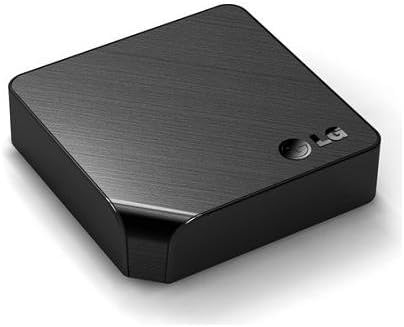
Figure 2.2: Angled view of the LG ST600 unit

Figure 2.3: Top view of the LG ST600 unit

Figure 2.4: LG ST600 Remote Control
3. Setup
3.1 Physical Connection
- Connect to TV: Use an HDMI cable (not included) to connect the HDMI OUT port on the ST600 to an available HDMI IN port on your HDTV.
- Connect Power: Plug the power cable into the DC IN port on the ST600, then plug the other end into a wall outlet.
- Power On: Press the power button on the ST600 unit or the remote control to turn on the device.
- Select Input: On your TV, select the corresponding HDMI input source using your TV remote control.
3.2 Network Connection
The ST600 supports both wired and wireless internet connections.
Wired LAN Connection (Ethernet)
- Connect an Ethernet cable from your router or modem to the LAN port on the ST600.
- The device should automatically detect the wired connection.
Wireless LAN Connection (Wi-Fi)
- Navigate to the Network Settings menu on the ST600.
- Select 'Wireless Network' and choose your Wi-Fi network from the list of available networks.
- Enter your Wi-Fi password (if required) using the on-screen keyboard and remote control.
- Confirm the connection.
4. Operating Instructions
4.1 Remote Control
The included remote control is used to navigate the ST600 interface. Key functions include power, navigation (up, down, left, right, enter), home, back, and media playback controls. A smartphone application is also available to control the ST600.
4.2 Navigating the Interface
Upon startup, the ST600 displays a home dashboard. Use the remote control's navigation buttons to move between menu items and select applications or features.
4.3 Streaming Services
The ST600 provides access to various streaming services. Available services include:
- Netflix
- Vudu
- YouTube
- CinemaNow
- Hulu Plus
- Pandora
- Picasa Web Albums
- AccuWeather
Access these services from the home screen or the Premium Content menu. A valid subscription may be required for some services.
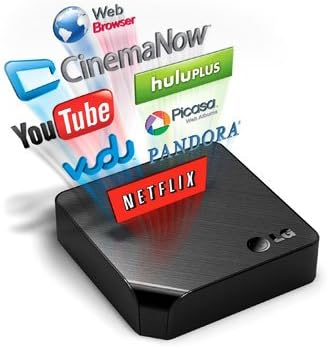
Figure 4.1: LG ST600 with supported streaming services
4.4 Web Browser
The integrated web browser allows full internet browsing on your television screen. Select the Web Browser icon from the home dashboard to launch. An internet connection is required.
4.5 LG Apps
The LG App Store provides access to various applications. You can customize your home dashboard with preferred apps. Availability of services may vary by region and time.
4.6 Smart Share (DLNA & Media Link)
Smart Share functionality enables wireless media streaming from compatible digital devices, such as cameras, mobile phones, tablets, and PCs, to your television via DLNA. This feature reduces the need for physical cable connections.
Media Link, a component of Smart Share, automatically searches the web for detailed information about content on your digital devices, displaying plot summaries, cast, director, and viewer ratings.
4.7 USB Media Playback
Connect an external USB storage device (e.g., hard drive, USB flash drive) to the USB 2.0 port on the ST600 to play back supported media files.
5. Maintenance
- Cleaning: Use a soft, dry cloth to clean the exterior of the ST600 unit. Do not use liquid cleaners or abrasive materials.
- Firmware Updates: The ST600 may receive automatic network software updates to improve performance and add features. Ensure the device is connected to the internet for these updates.
- Placement: Place the unit on a stable, flat surface with adequate ventilation to prevent overheating.
6. Troubleshooting
If you encounter issues with your LG ST600, consider the following:
- No Power: Ensure the power cable is securely connected to both the unit and a working power outlet.
- No Picture/Sound: Verify that the HDMI cable is properly connected and that your TV is set to the correct HDMI input source.
- No Internet Connection: Check your network cables (for wired connection) or Wi-Fi settings (for wireless connection). Restart your router/modem if necessary.
- Slow Performance/Unresponsive: Restart the ST600 unit by unplugging it from the power outlet for a few seconds and then plugging it back in. Ensure the device has the latest firmware updates.
- Remote Control Issues: Check the batteries in the remote control and replace them if needed. Ensure there are no obstructions between the remote and the ST600 unit.
For persistent issues, refer to the official LG support website or contact customer service.
7. Specifications
| Feature | Specification |
|---|---|
| Model Name | ST600 |
| Dimensions (W x H x D) | 110 x 110 x 29 mm (4.3 x 4.3 x 1.2 inches) |
| Weight | 0.8 kg (2 pounds) |
| Color | Black |
| Resolution | 720p |
| Connectivity Technology | Wi-Fi, Ethernet |
| Connector Type | HDMI Output (1), Digital Audio Output (Optical) (1), USB 2.0 Input (1), Ethernet (RJ-45) (1) |
| Supported Internet Services | Netflix, Vudu, CinemaNow, YouTube, Pandora, Picasa, AccuWeather |
| Supported Audio Codecs | Dolby Digital / Dolby Digital Plus, DTS, LPCM, MP3, WMA, AAC |
| Supported Video File Formats | MPEG2, MPEG4, SMPTE VC1, DivX, DivX HD, MKV, TS TP, M4V, WMV |
| Supported Image File Formats | JPG/JPEG, PNG |
| Controller Type | Remote Control |
| Batteries Required | 2 AAA batteries (for remote) |
8. Warranty and Support
For warranty information, please refer to the documentation included with your product or visit the official LG website. For technical support, product registration, or service inquiries, please contact LG customer support directly.