1. Product Overview
The Belkin N150 Wireless/Wi-Fi N Router is designed to provide a high-speed internet connection for various online activities, including email, social networking, web browsing, and video chat. This router operates at speeds up to two times faster than standard G technology, ensuring a reliable and efficient home network experience. Featuring MultiBeam technology, it delivers a high-powered signal throughout your home, minimizing dead zones.

Image: Front view of the Belkin N150 Wireless Router, showcasing its sleek black design.
2. What's in the Box
Upon opening your Belkin N150 Wireless/Wi-Fi N Router package, please verify that all the following items are included and that the packaging is intact:
- Belkin N150 Wi-Fi Router
- Power Supply Unit
- Setup CD
- User Manual (this document)
- Networking Cable (Ethernet cable)
The router itself should be neatly enclosed within a plastic bag, and the box should be tightly shrink-wrapped. Important network details such as the SSID, password, and security type are typically taped to the router for easy access during setup. The setup CD is usually located under the router, while the power cord and networking cable are nested under a cardboard flap, often with white tags illustrating their connection points.
If any items are missing or the packaging appears damaged, please report it immediately to your retailer.

Image: The Belkin N150 Wireless Router shown within its retail packaging, highlighting the initial setup guide.
3. Setup Instructions
Setting up your Belkin N150 Wi-Fi Router is a straightforward three-step process designed for quick and easy network activation. The router comes with preconfigured Wi-Fi encryption, eliminating the need for manual security settings during initial setup.
3.1. Basic Setup Steps
- Connect to Modem: Plug one end of the included networking cable into the WAN port (usually yellow) on the back of your Belkin N150 router. Connect the other end of this cable to your modem.
- Power On: Connect the power supply unit to the router's power port and then plug the power adapter into a wall outlet. The router will begin to power on.
- Install Setup CD: Insert the included setup CD into your computer's CD/DVD drive and follow the on-screen instructions to complete the network configuration. This guided process will help you connect your devices and customize settings if desired.
Your network should now be up and running securely.

Image: The retail box of the Belkin N150 Wireless Router, illustrating the three easy setup steps.
3.2. Visual Setup Guide
Video: An official Belkin video demonstrating the setup process for the Belkin Wireless/WiFi N Router, guiding users through physical connections and initial configuration.
4. Operating Instructions
The Belkin N150 router provides a reliable high-speed wireless connection for various devices. It is compatible with both newer 802.11n networks and older G technology, offering versatility for your existing devices.
4.1. Connecting Devices
Once the router is set up, you can connect your devices wirelessly or via Ethernet cables:
- Wireless Connection: On your laptop, desktop, smartphone, or other Wi-Fi enabled device, search for available wireless networks. Select the SSID (network name) that matches your router's preconfigured name (or the one you set during installation). Enter the network password when prompted.
- Wired Connection: For devices requiring a stable wired connection, use an Ethernet cable to connect the device's Ethernet port to one of the four 10/100M LAN ports on the back of the router.
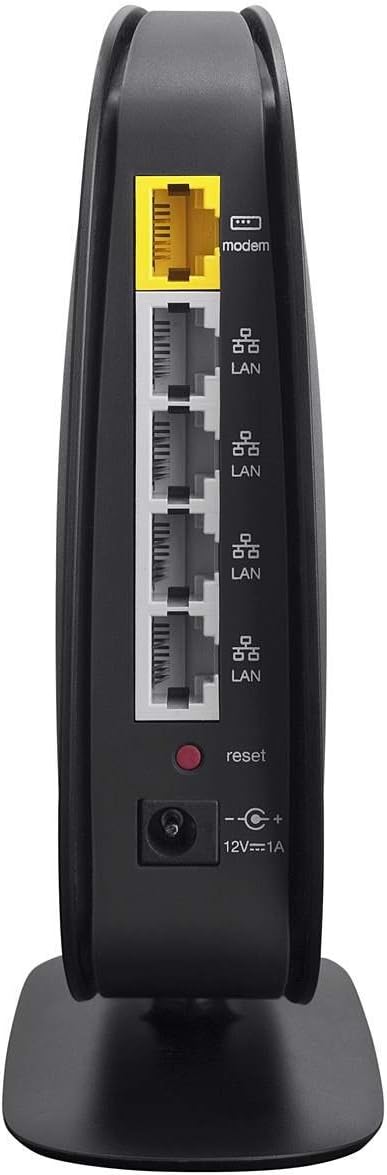
Image: Rear view of the Belkin N150 Wireless Router, clearly showing the yellow WAN port and four gray LAN ports for wired connections.
4.2. Optimizing Performance
The N150 router is designed to deliver speeds up to 150Mbps, ideal for general internet use. For optimal performance:
- Place the router in a central location in your home, away from obstructions and other electronic devices that may cause interference.
- Ensure your devices are within the router's effective wireless range.
- Utilize the 10/100M LAN ports for devices that require consistent bandwidth, such as gaming consoles or desktop computers.
4.3. Connecting Gaming Consoles
Video: An official Belkin video demonstrating how to connect gaming consoles to your Belkin router, ensuring a stable connection for online gaming.
5. Maintenance
To ensure the longevity and optimal performance of your Belkin N150 Wireless/Wi-Fi N Router, regular maintenance is recommended:
- Keep Firmware Updated: Periodically check the Belkin support website for firmware updates. Keeping your router's firmware current can improve performance, add new features, and enhance security.
- Clean Regularly: Gently wipe the exterior of the router with a soft, dry cloth to remove dust. Ensure ventilation openings are clear to prevent overheating.
- Optimal Placement: Avoid placing the router in enclosed spaces, near large metal objects, or close to devices that emit strong electromagnetic fields (e.g., microwaves, cordless phones).
- Power Cycle: If you experience slow speeds or connectivity issues, try power cycling the router by unplugging it from the power outlet for 10-15 seconds, then plugging it back in.
6. Troubleshooting
If you encounter issues with your Belkin N150 Wireless/Wi-Fi N Router, try the following troubleshooting steps:
- No Internet Connection:
- Check all cable connections between the modem and router, and between the router and your computer. Ensure they are secure.
- Power cycle both your modem and router. Unplug them for 30 seconds, then plug the modem back in first, wait for it to fully boot, then plug in the router.
- Verify that your Internet Service Provider (ISP) is not experiencing an outage.
- Slow Wireless Speeds:
- Relocate the router to a more central location to improve signal strength.
- Reduce interference by moving the router away from other electronic devices.
- Ensure your device's wireless adapter drivers are up to date.
- Cannot Connect to Wi-Fi Network:
- Double-check the Wi-Fi network name (SSID) and password.
- Ensure your device's wireless adapter is enabled.
- If your device is older, it might not be fully compatible with 802.11n. Try updating its wireless adapter drivers.
- Router Lights Not Functioning:
- Ensure the power adapter is securely connected to both the router and a working power outlet.
- If the power light is off, try a different power outlet.
If these steps do not resolve your issue, please refer to the support section for further assistance.
7. Specifications
| Feature | Specification |
|---|---|
| Brand | Belkin |
| Model Name | F9K1001 |
| Wireless Type | 802.11n |
| Frequency Band Class | Single-Band |
| Speed | Up to 150Mbps (2.4GHz) |
| Ports | 1 x 10/100M WAN; 4 x 10/100M LAN |
| Special Feature | WPS (Wi-Fi Protected Setup) |
| Connectivity Technology | Wi-Fi |
| Compatible Devices | Gaming Console, Laptop, Printer, Smart Television, Smartphone |
| Item Weight | 1.15 pounds |
| Product Dimensions | 9.13 x 2.69 x 7.5 inches |
| Color | Black |
| Voltage | 12 Volts |
8. Warranty and Support
The Belkin N150 Wi-Fi Router is backed by Belkin's two-year limited warranty, covering defects in materials and workmanship under normal use. For warranty claims or technical assistance, please contact Belkin customer support.
For the most up-to-date support information, FAQs, and troubleshooting guides, please visit the official Belkin support website. You can also find additional resources and contact options there.
Belkin Support: http://bknqr.com/F9K1001