1. Introduction
This instruction manual provides essential information for the safe and efficient use of your Toshiba 40SL412U 40-Inch 1080p 60 Hz LED-LCD HDTV. Please read this manual thoroughly before operating the television and retain it for future reference. This model features a 40-inch screen, 1080p Full HD resolution, LED backlight technology, and a 60 Hz refresh rate, designed to deliver a clear and vibrant viewing experience.
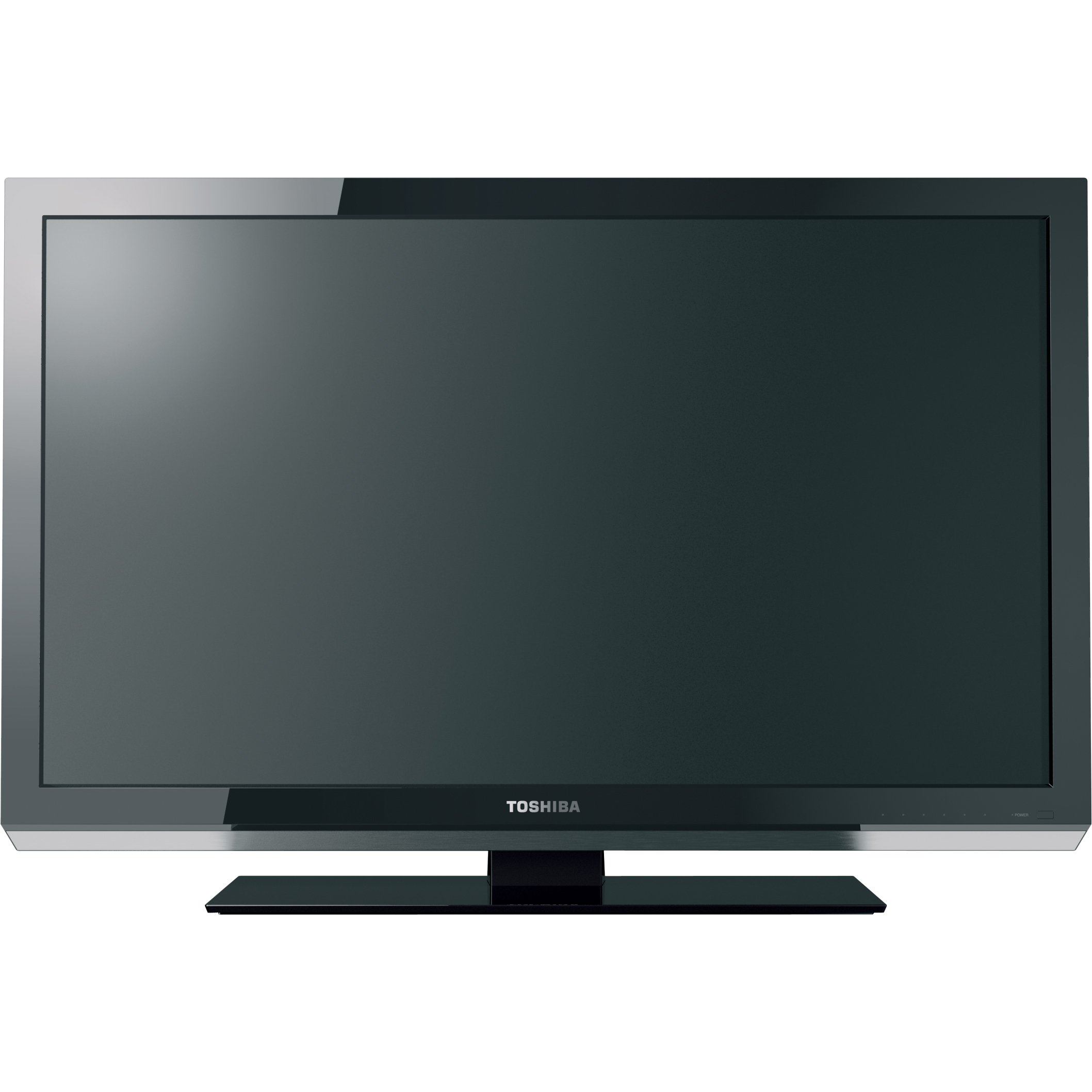
This image shows the front view of the Toshiba 40SL412U LED-LCD HDTV, featuring its slim black bezel and screen.
2. Safety Information
To ensure safe operation and prevent damage, observe the following precautions:
- Power Source: Connect the TV only to the specified power supply.
- Ventilation: Ensure adequate ventilation around the TV. Do not block ventilation openings.
- Liquid Exposure: Do not expose the TV to rain or moisture. Avoid placing objects filled with liquids on the TV.
- Cleaning: Unplug the TV before cleaning. Use a soft, dry cloth. Avoid liquid cleaners.
- Placement: Place the TV on a stable, level surface or mount it securely to a wall using a VESA-compatible mount.
- Lightning: Unplug the TV during lightning storms or when unused for long periods.
3. Package Contents
Verify that all items are present in the package:
- Toshiba 40SL412U LED-LCD TV
- TV Stand
- Remote Control
- AA Batteries (2)
- Owner's Manual (this document)
4. Setup
4.1. Stand Assembly or Wall Mounting
Stand Assembly: Attach the provided stand to the television using the screws included. Ensure the stand is securely fastened before placing the TV on a flat, stable surface. Use a #2 Phillips screwdriver for proper tightening.
Wall Mounting: The TV supports a VESA mount standard of 200 x 200 mm. Use a compatible wall mount kit (sold separately) and follow the instructions provided with the mount for secure installation.
4.2. Connecting Devices
Locate the connection ports on the rear or side of your TV. Ensure all devices are powered off before making connections.
- HDMI (3 ports): Connect high-definition devices such as Blu-ray players, game consoles, or cable/satellite boxes. These ports support HDMI with CEC for integrated control.
- Component A/V (1 port): Connect devices using component video (YPbPr) and analog audio cables for high-quality standard definition or progressive scan video.
- Composite A/V (1 port): Connect older devices using composite video (yellow) and analog audio (red/white) cables.
- Ant/Cable (1 port): Connect an antenna for over-the-air broadcasts or a cable TV connection.
- PC Input (H-Res): Connect a computer via a VGA cable for use as a high-resolution monitor.
- USB (1 port): Connect USB storage devices for viewing photos or playing music.
- Digital Audio Output (1 port): Connect to a home theater system or soundbar for digital audio.
- Analog Audio Output (1 port): Connect to an external audio system using RCA cables. Note that this output is not volume-controlled by the TV remote.
5. Operating Instructions
5.1. Basic Operation
- Power On/Off: Press the POWER button on the remote control or the TV to turn the unit on or off.
- Input Selection: Press the INPUT button on the remote to cycle through available input sources (HDMI 1, HDMI 2, Component, etc.).
- Channel Selection: Use the CH +/- buttons to change channels or enter channel numbers directly using the numeric keypad.
- Volume Control: Adjust the volume using the VOL +/- buttons.
5.2. Picture Settings
- 1080p Resolution: The TV supports 1920 x 1080 pixel resolution, providing Full HD picture quality.
- LED Technology: Utilizes LED backlighting for improved contrast, deeper blacks, brighter whites, and vivid colors compared to traditional LCDs.
- 60Hz Refresh Rate: Ensures smooth motion for standard viewing content.
- DynaLight: This feature automatically adjusts backlight intensity based on the video content to enhance contrast and detail, creating deeper blacks and a more balanced image.
- CineSpeed LED Panel: Designed for superior high-speed video performance and wide viewing angles.
- Native Mode: Allows the TV to display content at its original resolution (e.g., 480i, 720p) without unnecessary scaling, preserving image quality and displaying content edges often lost to over-scanning.
5.3. Sound Settings
The TV features integrated speakers with a total RMS output power of 14 W (7W + 7W). Audio settings can be adjusted via the TV's on-screen menu to suit your preferences.
5.4. Special Features
- Gaming Mode: Reduces input lag for a more responsive gaming experience. Activate this mode through the TV's menu when playing video games.
- HDMI with CEC: Consumer Electronics Control (CEC) allows compatible devices connected via HDMI to communicate and be controlled with a single remote.
- USB with Music and Photo: Plug in a USB drive to view photos or play music files directly on your TV.
6. Maintenance
To maintain the performance and appearance of your TV:
- Screen Cleaning: Gently wipe the screen with a soft, lint-free cloth. For stubborn marks, lightly dampen the cloth with water or a specialized screen cleaner, then wipe dry. Do not spray liquid directly onto the screen.
- Exterior Cleaning: Wipe the TV's cabinet with a soft, dry cloth.
- Ventilation: Periodically check that the ventilation openings are free from dust and obstructions.
7. Troubleshooting
If you encounter issues with your TV, refer to the following common solutions:
- No Power: Ensure the power cord is securely plugged into both the TV and a working electrical outlet.
- No Picture/Sound: Verify the correct input source is selected. Check all cable connections to external devices.
- Remote Control Not Responding: Ensure the remote control batteries are fresh and inserted correctly. Point the remote directly at the TV's remote sensor, typically located at the bottom right of the screen. Obstructions can weaken the signal.
- Poor Sound Quality: If using the TV's internal speakers, check audio settings in the menu. If connected to an external sound system, ensure connections are secure and the external system's volume is adjusted. Note that the TV's analog audio output is not volume-controlled by the TV remote.
- TV Turns On/Changes Channels Unexpectedly: Check for any programmed timers or sleep settings that might be causing this behavior. If the issue persists, try unplugging the TV from power for a few minutes to reset it.
- No Signal/Poor Signal: If using an antenna, ensure it is properly connected and positioned. Perform a channel scan through the TV's menu. A stronger antenna may be required in some areas.
8. Specifications
| Model Number | 40SL412U |
| Screen Size | 40 Inches |
| Display Technology | LED-LCD |
| Resolution | 1080p (1920 x 1080) |
| Refresh Rate | 60 Hz |
| Aspect Ratio | 16:9 |
| Backlight Technology | Direct LED |
| RMS Output Power | 14 W (7W + 7W) |
| HDMI Ports | 3 (with CEC) |
| USB Ports | 1 |
| Component A/V Inputs | 1 |
| Composite A/V Inputs | 1 |
| PC Input | 1 (H-Res VGA) |
| Digital Audio Output | 1 |
| Analog Audio Output | 1 |
| VESA Mount Standard | 200 x 200 mm |
| Product Dimensions (W x H x D) | 37.8 x 23.5 x 1.4 inches (without stand) |
| Weight (Approximate) | 31.31 lb (without stand) |
| Energy Compliance | Energy Star |
| Date First Available | March 1, 2011 |
9. Warranty and Support
This Toshiba 40SL412U HDTV comes with a 1 Year Limited Warranty. For warranty claims, technical support, or additional product information, please refer to the official Toshiba support channels or visit their website. Keep your purchase receipt as proof of purchase for warranty service.


