
1. Introduction
The Nikon COOLPIX L120 is a 14.1-megapixel digital camera designed for ease of use and powerful zoom capabilities. Featuring a 21x optical zoom NIKKOR glass lens, this camera allows you to capture detailed photos and HD videos from a distance. Its intuitive design and automatic features make it suitable for various photography situations, from everyday snapshots to sporting events.
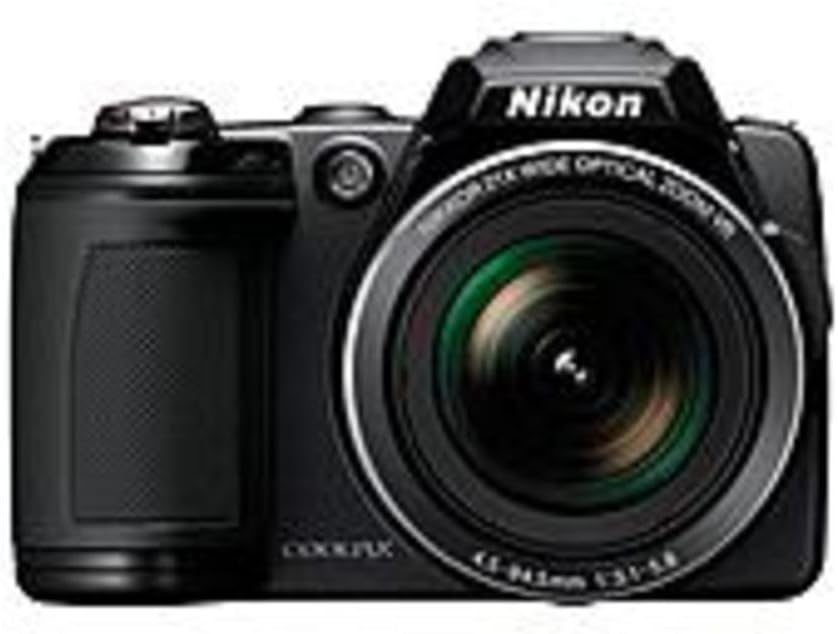
Front view of the Nikon COOLPIX L120 Digital Camera, showcasing its lens and grip.
2. Setup
2.1 Installing Batteries
The COOLPIX L120 operates on four AA batteries. For optimal performance and battery life, it is recommended to use alkaline, lithium, or rechargeable Ni-MH batteries.
- Open the battery chamber cover located on the bottom of the camera.
- Insert four AA batteries, ensuring correct polarity (+/-) as indicated inside the chamber.
- Close the battery chamber cover securely.
2.2 Inserting a Memory Card
The camera supports SD, SDHC, and SDXC memory cards. A memory card is required to store photos and videos.
- Open the memory card slot cover, usually located near the battery chamber.
- Insert the memory card with the label facing the front of the camera until it clicks into place.
- Close the memory card slot cover.
2.3 Attaching the Strap and Lens Cap
- Thread the camera strap through the strap eyelets on the camera body to prevent accidental drops.
- Attach the LC-CP22 lens cap to the lens when the camera is not in use to protect the lens surface.
3. Operating the Camera
3.1 Powering On/Off
Press the power button located on the top of the camera to turn it on or off. Ensure the lens cap is removed before powering on to avoid errors.
3.2 Basic Photography
- Point the camera at your subject.
- Use the zoom control to adjust the focal length.
- Press the shutter button halfway down to focus. The focus indicator will illuminate.
- Press the shutter button fully to take the picture.
3.3 Zoom Function
The camera features a 21x optical zoom lens. Use the zoom lever around the shutter button to zoom in (telephoto) or zoom out (wide-angle). The 5-way VR Image Stabilization system helps reduce blur, especially at longer zoom settings.
3.4 Scene Modes
The COOLPIX L120 offers 17 scene modes to optimize camera settings for specific shooting conditions. Rotate the mode dial to select a scene mode that matches your environment, such as Landscape, Portrait, or Sports.
3.5 Flash Control
The built-in flash can be set to Auto, On, Off, Slow Synch, or Rear Curtain Synch. Access flash settings through the camera's menu to adjust for different lighting needs.
3.6 Recording HD Videos
To record a video, simply press the dedicated movie-record button. The camera captures 720p HD video with stereo sound. You can use the optical zoom during video recording. Press the button again to stop recording.
3.7 Playback and Review
Press the playback button to view your photos and videos on the 3-inch, 921,000-dot LCD screen. Use the multi-selector to navigate through images and videos. The anti-glare coating and wide viewing angle enhance visibility.
3.8 Connecting to External Devices
- USB Connection: Use the supplied UC-E6 USB cable to connect the camera to a computer for transferring images and videos.
- HDMI Output: Connect the camera to an HDTV using an HDMI cable (not supplied) to view your media on a larger screen.
- Audio/Video Cable: Use the supplied EG-CP16 Audio/Video cable for standard definition output to a TV.
4. Advanced Features
4.1 Image Enhancement Technologies
- Smile Timer: Automatically takes a photo when a smile is detected.
- Blink Warning: Alerts you if a subject may have blinked, suggesting a retake.
- Face-Priority AF: Detects and focuses on up to 12 faces automatically.
- In-Camera Red-Eye Fix: Corrects red-eye automatically after a photo is taken.
- Skin Softening: Smoothes skin tones for improved portraits.
4.2 Continuous Shooting
The Sport Continuous Shooting mode allows the camera to take photos continuously in quick succession, ideal for capturing fast-moving subjects.
4.3 In-Camera Editing
After shooting, you can apply various edits directly on the camera:
- D-Lighting: Adjusts contrast and brightness to recover details in shadows and highlights.
- Color Options: Choose from Standard, Vivid, Black & White, Sepia, and Cyanotype.
4.4 Macro Photography
The COOLPIX L120 can focus on subjects as close as 0.4 inches (1 cm), enabling detailed close-up shots of small objects.
5. Maintenance
5.1 Cleaning the Camera
- Camera Body: Wipe gently with a soft, dry cloth. Do not use alcohol, thinners, or other volatile chemicals.
- Lens: Use a lens brush to remove dust, then gently wipe with a lens cleaning cloth. Avoid touching the lens surface with your fingers.
- LCD Monitor: Use a soft cloth to wipe the screen. For stubborn smudges, lightly dampen the cloth with water.
5.2 Battery Care
- Remove batteries when the camera will not be used for an extended period.
- Store batteries in a cool, dry place.
- Dispose of depleted batteries according to local regulations.
5.3 Storage
Store the camera in a dry, well-ventilated area away from direct sunlight, high temperatures, and humidity. Use a camera bag to protect it from dust and impacts.
6. Troubleshooting
| Problem | Solution |
|---|---|
| Camera does not turn on. | Check if batteries are inserted correctly and fully charged. Ensure the battery chamber cover is closed securely. |
| Images are blurry. | Ensure the lens is clean. Hold the camera steady or use a tripod. Check if VR Image Stabilization is active. Adjust lighting conditions. |
| Flash does not fire. | Check flash settings in the menu; ensure it's not set to "Off". The flash may not fire if the battery level is low. |
| Memory card error. | Ensure the memory card is inserted correctly. Try formatting the card (this will erase all data). Use a different compatible memory card. |
| Cannot transfer photos to computer. | Ensure the USB cable is securely connected to both the camera and the computer. Check computer's device recognition. Try restarting both devices. |
7. Specifications
- Model: COOLPIX L120
- Image Sensor: 14.1 Megapixel CCD
- Lens: NIKKOR 21x Optical Zoom Lens (25-525mm equivalent)
- Image Stabilization: 5-way VR Image Stabilization (Sensor-shift)
- LCD Monitor: 3-inch, 921,000-dot Clear Color Display
- ISO Sensitivity: Expanded ISO Minimum 80, Expanded ISO Maximum 6400
- Shutter Speed: 1/4000 to 4 seconds
- Video Recording: HD 720p (MJPEG format)
- Storage Media: SD, SDHC, SDXC memory cards
- Connectivity: USB 2.0, HDMI, Audio/Video Out
- Power Source: 4 AA Alkaline/Lithium/Ni-MH batteries
- Battery Life: Approximately 330 shots (Alkaline batteries)
- Dimensions (H x W x D): Approximately 3.03 inches (Height)
- Weight: Approximately 15.2 ounces (without batteries and memory card)
- Processor: EXPEED C2
- Focus Type: Auto Focus (Contrast Detection, Face Detection, Multi-area)
- Flash Modes: Auto, On, Off, Slow Synch, Rear Curtain Synch
8. What's in the Box
Upon opening your Nikon COOLPIX L120 package, you should find the following items:
- Nikon COOLPIX L120 Digital Camera
- LC-CP22 Lens Cap
- AN-CP22 Strap
- UC-E6 USB Cable
- EG-CP16 Audio/Video Cable
- 4 AA Alkaline Batteries
- Nikon View NX 2 CD-ROM (Software)
9. Warranty and Support
For warranty information, please refer to the warranty card included with your product or visit the official Nikon website. For technical support, product registration, or service inquiries, please contact Nikon customer support through their official channels. Keep your proof of purchase for warranty claims.
You can find more information and support on the Nikon Store on Amazon.


