
1. Introduction
This manual provides essential information for the safe and effective use of your Nikon COOLPIX S9100 digital camera. Please read this manual thoroughly before using the camera and keep it accessible for future reference.
2. Safety Information
To prevent damage to your Nikon COOLPIX S9100 and to avoid injury to yourself or others, please observe the following safety precautions:
- Do not disassemble or modify the camera.
- Keep the camera away from water and moisture.
- Use only Nikon-approved accessories and power sources.
- Avoid exposing the camera to extreme temperatures or direct sunlight for extended periods.
- Keep out of reach of children.
3. Unboxing and Package Contents
Verify that all items are present in the camera package:
- Nikon COOLPIX S9100 Digital Camera
- AN-CP19 Strap
- UC-E6 USB Cable
- EG-CP16 Audio/Video Cable
- EN-EL12 Rechargeable Li-ion Battery
- EH-69P AC Adapter/Charger
- Nikon View NX 2 CD-ROM
4. Camera Overview
Familiarize yourself with the main components of your Nikon COOLPIX S9100.
Front View
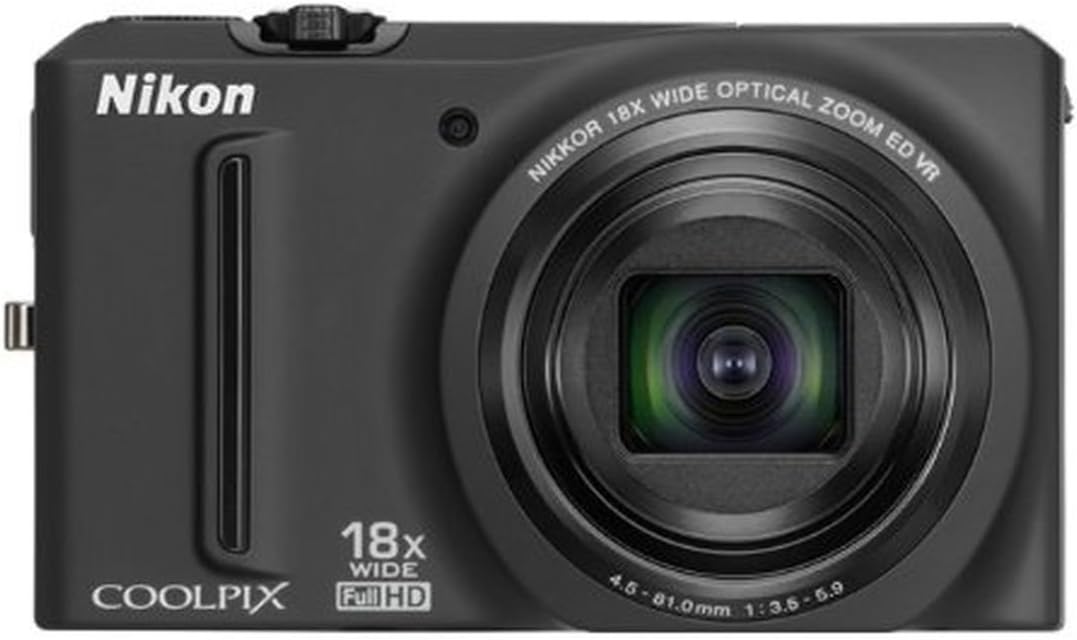
Figure 4.1: Front view of the Nikon COOLPIX S9100 with the lens retracted, showing the Nikon branding, COOLPIX logo, 18x wide optical zoom lens, and 12.1-megapixel CMOS sensor indicator.
Angled View with Lens Extended

Figure 4.2: Angled view of the Nikon COOLPIX S9100, showcasing the camera with its 18x NIKKOR ED wide-angle optical zoom lens fully extended, highlighting its compact design.
5. Setup
5.1. Charging and Inserting the Battery
The camera uses an EN-EL12 rechargeable Li-ion battery. Before first use, fully charge the battery using the EH-69P AC Adapter/Charger. Insert the charged battery into the battery compartment, ensuring correct orientation.
5.2. Inserting a Memory Card
The COOLPIX S9100 supports SD/SDHC/SDXC memory cards. Open the memory card slot cover and insert the memory card until it clicks into place. Ensure the card is inserted in the correct direction to avoid damage.
6. Basic Operation
6.1. Power On/Off
Press the ON/OFF button located on the top of the camera to power it on or off.
6.2. Taking Photos
Select your desired shooting mode using the mode dial. Frame your shot using the 3-inch Clear Color Display. Press the shutter button halfway to focus, then press it fully to capture the image.
6.3. Zoom Function
Use the zoom lever around the shutter button to adjust the 18x optical zoom. Push it towards 'W' for wide-angle and 'T' for telephoto.
6.4. Using the Flash
The camera features a built-in flash. Depending on the shooting mode, the flash may activate automatically or can be manually controlled via the flash mode settings.
7. Advanced Features
7.1. Scene Modes
The COOLPIX S9100 offers 19 optimized scene modes for various shooting situations. Use the mode dial to select 'SCENE' and then choose from options like Portrait, Landscape, Night Portrait, Night Landscape, and more. The Scene Auto Selector can also automatically detect the scene and apply the most appropriate settings.
7.2. Special Effects
Enhance your photos with in-camera special effects:
- Nostalgic Sepia: Creates a vintage, sepia-toned look.
- High-Contrast Monochrome: Produces striking black and white images.
- High Key / Low Key: Adjusts brightness to highlight bright or dark areas.
- Selective Color: Retains a chosen color while converting the rest of the image to monochrome.
- Soft Effect: Softens harsh elements for a gentler appearance.
- Creative Slider: Adjusts brightness, intensity, and hue.
7.3. Full HD (1080p) Video Recording
Record Full HD 1080p videos with stereo sound using the dedicated One-Touch movie recording button. Optical zoom and autofocus are available during recording. You can also capture still images while recording or experiment with fast or slow motion effects.
Video 7.3.1: An overview of the Nikon COOLPIX S9100's features, including its compact design, 18x optical zoom, 12.1 MP CMOS sensor, and Full HD 1080p video capabilities. The video demonstrates the camera's ease of use for capturing various scenes and moments.
8. Playback and Viewing
Review your photos and videos on the camera's 3-inch Ultra-High Resolution VGA (921,000-dot) Clear Color Display. Use the playback button to enter playback mode and the multi-selector to navigate through your media.
9. Connecting to a Computer/TV
Use the supplied UC-E6 USB Cable to connect your camera to a computer for transferring photos and videos. For viewing on a television, use the EG-CP16 Audio/Video Cable or an HDMI cable (sold separately) with the HDMI-CEC output.
10. Maintenance and Care
- Clean the camera body with a soft, dry cloth.
- Use a blower brush to remove dust from the lens. For stubborn smudges, use a lens cleaning cloth.
- Store the camera in a cool, dry place when not in use.
- Regularly charge the battery, even if not in use, to maintain its lifespan.
11. Troubleshooting
If you encounter issues with your camera, refer to the following common solutions:
- Camera does not turn on: Ensure the battery is charged and correctly inserted.
- Cannot take pictures: Check if the memory card has sufficient space or is correctly inserted. Ensure the lens cap is removed.
- Images are blurry: Verify that the camera is in focus. Use the image stabilization feature or a tripod in low light conditions.
- Flash does not fire: Check flash settings to ensure it is enabled for the current shooting mode.
For more complex issues, consult the full digital manual on the supplied CD-ROM or contact Nikon customer support.
12. Specifications
| Photo Sensor Resolution | 12.1 MP |
| Photo Sensor Technology | BSI CMOS |
| Optical Zoom | 18x |
| Maximum Focal Length | 450 Millimeters |
| Minimum Focal Length | 25 Millimeters |
| Image Stabilization | Optical |
| Video Resolution | Full HD 1080p |
| Screen Size | 3 Inches |
| Display Resolution Maximum | 921,000 dots |
| Supported File Format | JPEG, RAW |
| Connectivity Technology | HDMI, USB |
| Battery Type | Lithium Ion (EN-EL12) |
| Battery Average Life | 270 Photos |
| Item Weight | 0.47 Pounds |
13. Warranty and Support
For warranty information and customer support, please refer to the documentation included with your product or visit the official Nikon website. Keep your proof of purchase for warranty claims.


