
Introduction
This manual provides detailed instructions for the proper use and maintenance of your Sony ICD-AX412 Stereo Digital Voice Recorder. Please read this manual thoroughly before operating the device to ensure optimal performance and longevity. Keep this manual for future reference.
Product Overview
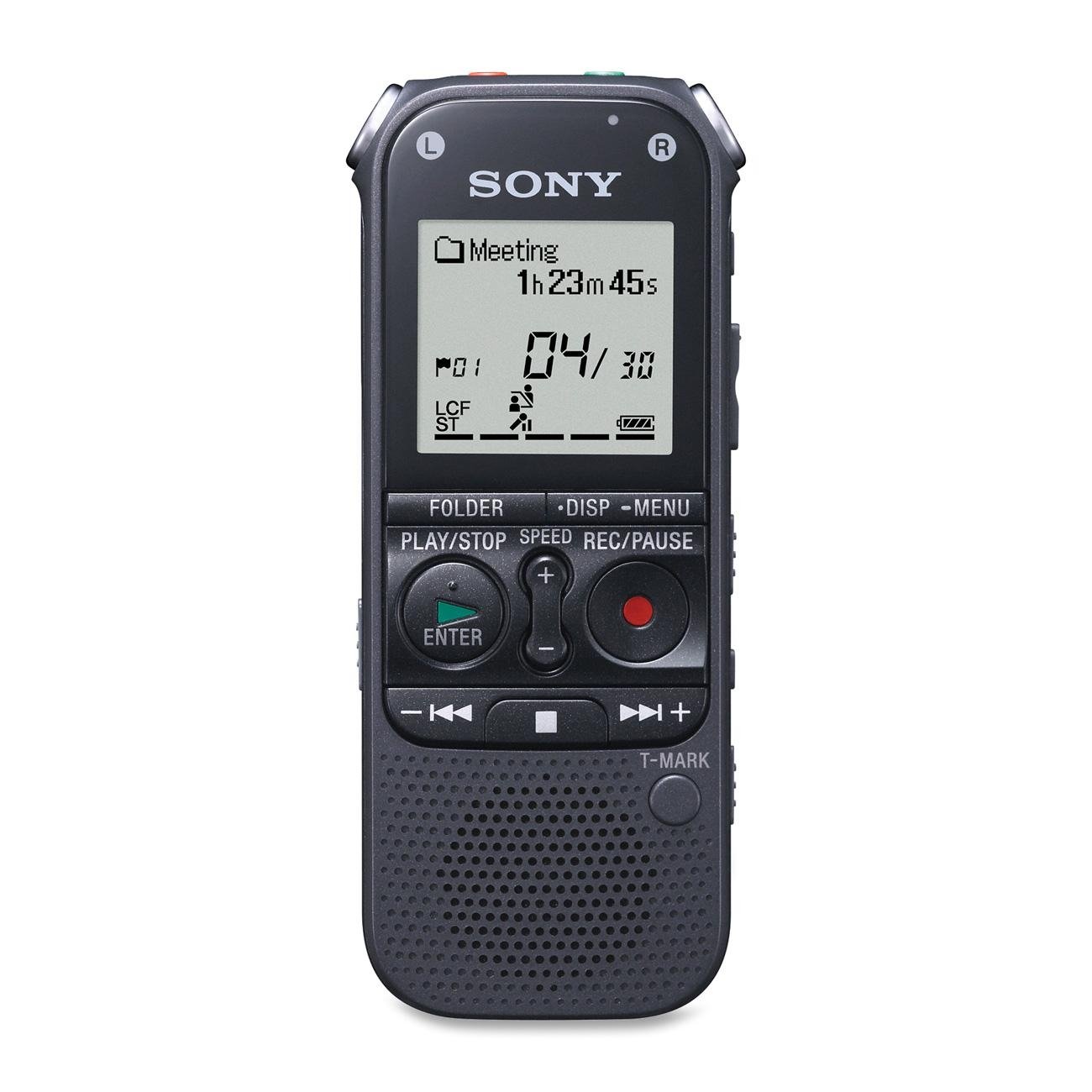
Figure 1: Front view of the Sony ICD-AX412 Digital Voice Recorder, displaying the LCD screen, navigation buttons, recording controls, and built-in speaker.
The Sony ICD-AX412 is a stereo digital voice recorder designed for high-quality audio capture. It features a built-in 2 GB flash memory, capable of recording over 500 hours of audio in MP3 format. The device supports recording bit rates from 8 kbps to 320 kbps. It offers approximately 72 hours of battery life during recording and includes a memory card expansion slot for microSD/M2 cards. Key controls visible on the device include a display screen, folder navigation, play/stop, speed control, record/pause, and a T-Mark button for marking specific points in recordings.
Setup
1. Battery Installation
The ICD-AX412 requires two AAA batteries for operation. To install:
- Locate the battery compartment cover on the back of the recorder.
- Slide the cover open.
- Insert two fresh AAA batteries, ensuring correct polarity (+/-) as indicated inside the compartment.
- Close the battery compartment cover securely.
2. Initial Power On and Settings
After installing batteries, slide the POWER switch to the ON position. The device will power on. Upon first use, you may be prompted to set the date and time. Follow the on-screen instructions using the navigation buttons to adjust these settings for accurate file timestamps.
Operating Instructions
Recording Audio
- Power On: Ensure the recorder is powered on.
- Select Folder: Use the FOLDER button to navigate and select a desired folder (e.g., Meeting, Lecture, Memo) for your recording.
- Start Recording: Press the REC/PAUSE button (red button) to begin recording. The recording indicator will illuminate, and the display will show the elapsed recording time.
- Marking a Point (T-Mark): During recording, press the T-MARK button to add a track mark. This allows for easy navigation to specific points during playback.
- Pause Recording: Press the REC/PAUSE button again to pause recording. Press it once more to resume.
- Stop Recording: Press the PLAY/STOP button (square button) to stop and save the recording.
Playback Audio
- Select File: Use the FOLDER button to navigate to the desired folder, then use the << or >> buttons to select the recording you wish to play.
- Start Playback: Press the PLAY/STOP button (green triangle) to begin playback.
- Adjust Volume: Use the VOL + and VOL - buttons on the side of the device to adjust the playback volume.
- Adjust Playback Speed: Use the SPEED control to increase or decrease playback speed without changing the pitch.
- Skip Tracks/T-Marks: Use the << or >> buttons to skip to the previous or next file, or to jump between T-Marks within a file.
- Stop Playback: Press the PLAY/STOP button (square button) to stop playback.
File Management and Transfer
- Deleting Files: Refer to the on-screen menu options for deleting individual files or entire folders. Exercise caution when deleting, as files cannot be recovered once removed.
- Memory Card Expansion: The device supports microSD/M2 memory cards. Insert a compatible card into the designated slot to expand storage capacity. Recordings can be saved directly to the card or transferred from internal memory.
- Transfer to Computer: Connect the ICD-AX412 to a computer using a compatible USB cable (not specified if included, assume standard mini-USB). The device will appear as a removable storage device, allowing you to drag and drop recorded MP3 files to your computer.
Maintenance
- Cleaning: Wipe the exterior of the recorder with a soft, dry cloth. Do not use liquid cleaners or solvents, as they may damage the finish or internal components.
- Battery Care: Remove batteries if the device will not be used for an extended period to prevent leakage. Use only recommended battery types.
- Storage: Store the recorder in a cool, dry place away from direct sunlight, extreme temperatures, and excessive dust.
- Data Backup: Regularly transfer important recordings to a computer or external storage device to prevent data loss.
Troubleshooting
| Problem | Solution |
|---|---|
| Device does not power on. |
|
| "Process Error" message during playback. |
|
| Poor recording quality. |
|
| Cannot transfer files to computer. |
|
Specifications
- Model Number: ICDAX412
- Brand: Sony
- Memory Storage Capacity: 2 GB (Built-in)
- Expandable Memory: microSD/M2 slot
- Recording Format: MP3 Audio (8 kbps - 320 kbps)
- Battery Type: 2 x AAA batteries
- Approximate Battery Life (Recording): 72 hours
- Microphone Form Factor: Built-In
- Headphones Jack: 3.5 millimeters
- Compatible Devices: Personal Computer, MP3 Player, Camera, Earphone, Smartphone, Laptop, Tablet
- Product Dimensions: 7.3 x 6 x 2.1 inches
- Item Weight: 10.4 ounces (0.65 Pounds)
- Date First Available: March 1, 2011
- Manufacturer: Sony
Warranty and Support
For warranty information, technical support, and further assistance, please refer to the official Sony support website or contact Sony customer service. Details regarding specific warranty periods and service procedures are typically provided with your purchase documentation or available online.
Manufacturer: Sony
For the latest drivers, software updates, and detailed FAQs, visit Sony Support.