
1. Introduction
This manual provides essential instructions for the proper setup, operation, and maintenance of your Packard Bell Carbon 1TB 3.5" External Hard Drive. Please read this manual thoroughly before using the device to ensure optimal performance and longevity.
2. Product Overview
The Packard Bell Carbon 1TB External Hard Drive offers a reliable solution for expanding your storage capacity. Its 3.5-inch form factor and USB 2.0 interface provide convenient data transfer and backup capabilities for your computer.
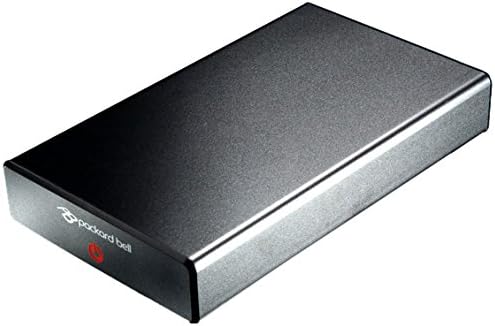
Image 1: The Packard Bell Carbon 1TB 3.5" External Hard Drive, showcasing its sleek gray casing and compact design.
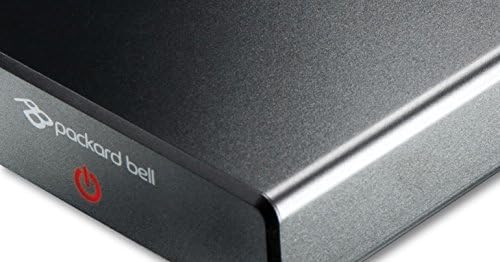
Image 2: A close-up view of the front panel of the external hard drive, featuring the Packard Bell logo and the power indicator light/button.
3. Setup
3.1 Connecting the Drive
- Connect the power adapter (if included and required) to the external hard drive and then to a power outlet.
- Connect one end of the supplied USB cable to the USB port on the external hard drive.
- Connect the other end of the USB cable to an available USB 2.0 port on your computer.
3.2 Initial Setup
Upon connecting, your operating system (Windows, macOS, Linux) should automatically detect the new hardware. The drive is typically pre-formatted and ready for use. If prompted, follow any on-screen instructions for driver installation, though most modern operating systems will install necessary drivers automatically.
- For Windows: The drive will appear under 'This PC' or 'My Computer'.
- For macOS: The drive will appear on the desktop or in Finder.
4. Operating the Drive
4.1 Data Transfer
To transfer files to or from the external hard drive:
- Open 'This PC' (Windows) or Finder (macOS) and locate the external drive.
- Drag and drop files or folders between your computer's internal storage and the external drive. Alternatively, use copy and paste functions.
- Monitor the progress of the data transfer. Avoid disconnecting the drive during this process.
4.2 Safe Removal
Always safely eject the external hard drive before disconnecting it to prevent data corruption or loss.
- Windows: Click the 'Safely Remove Hardware and Eject Media' icon in the system tray, then select the external drive.
- macOS: Drag the drive icon to the Trash, or click the Eject button next to the drive name in Finder.
5. Maintenance
5.1 Cleaning
To clean the exterior of the hard drive, use a soft, dry, lint-free cloth. Avoid using liquid cleaners, aerosols, or solvents, as these can damage the device.
5.2 Storage
Store the external hard drive in a cool, dry place away from direct sunlight, extreme temperatures, and strong magnetic fields. When not in use, consider storing it in its original packaging or a protective case to prevent physical damage.

Image 3: The Packard Bell Carbon 1TB 3.5" External Hard Drive, presented with a reflective surface to highlight its design, suitable for demonstrating proper handling.
6. Troubleshooting
- Drive Not Recognized:
Ensure the USB cable is securely connected to both the drive and the computer. Try a different USB port or a different USB cable. Verify that the power adapter (if applicable) is connected and the drive is powered on. Check your computer's Disk Management (Windows) or Disk Utility (macOS) to see if the drive is detected but uninitialized or unformatted. - Slow Transfer Speeds:
Ensure you are using a USB 2.0 port on your computer for optimal USB 2.0 performance. Transfer speeds can be affected by the type and number of files being transferred, as well as other background processes on your computer. - Drive Disconnects Randomly:
Check for loose cable connections. Ensure the drive is receiving adequate power. Some USB ports may not provide sufficient power; try connecting to a different port or using a powered USB hub.
7. Specifications
| Feature | Specification |
|---|---|
| Brand | Packard Bell |
| Model Number | LC.EXH04.004 |
| Storage Capacity | 1000 GB (1TB) |
| Form Factor | 3.5 Inches |
| Interface | USB 2.0 |
| Rotational Speed | 5400 RPM |
| Hardware Interface | USB, USB 2.0 |
| Compatible Devices | Laptop, Desktop Computers |
| Special Feature | Portable |
| Color | Gray |
8. Warranty and Support
For warranty information and technical support, please refer to the documentation provided with your purchase or visit the official Packard Bell website. Keep your proof of purchase for warranty claims.


