Introduction
This manual provides comprehensive instructions for the setup, operation, maintenance, and troubleshooting of your Iomega Prestige 3 TB USB 3.0 External Hard Drive. Please read this manual carefully before using the device to ensure proper functionality and data security.

Figure 1: Iomega Prestige 3 TB USB 3.0 External Hard Drive, showcasing its sleek dark gray design with the Iomega logo.
The Iomega Prestige Desktop Hard Drive USB 3.0 is designed to provide fast and reliable storage for your digital files. Its sturdy metal construction ensures durability, and its compact design makes it suitable for any desktop environment. This drive is ideal for expanding your system's storage capacity, allowing you to save photos, music, videos, and other important data.
Setup
1. Unpacking the Device
Carefully remove all components from the packaging. Ensure the following items are present:
- Iomega Prestige 3 TB USB 3.0 External Hard Drive
- USB 3.0 Cable
- AC Power Adapter
- Vertical Stand
- Quick Start Guide (if included)

Figure 2: Retail packaging of the Iomega Prestige Desktop Hard Drive, indicating its SuperSpeed USB 3.0 capability.
2. Connecting the Hard Drive
- Place the hard drive on a stable surface, either flat or using the included vertical stand.
- Connect the AC power adapter to the power input port on the back of the hard drive.
- Plug the other end of the AC power adapter into a wall outlet.
- Connect one end of the USB 3.0 cable to the USB 3.0 port on the back of the hard drive.
- Connect the other end of the USB 3.0 cable to an available USB 3.0 port on your computer. If a USB 3.0 port is not available, the drive is backward compatible with USB 2.0 ports, though performance will be limited to USB 2.0 speeds.
- Press the power switch on the back of the hard drive to the 'On' position.

Figure 3: Rear view of the Iomega Prestige Hard Drive, showing the power switch, power input, and USB 3.0 port.
The operating system should automatically detect and install the necessary drivers for the hard drive. For Windows users, the drive will appear as a new drive letter in 'My Computer' or 'This PC'. For macOS users, it will appear on the desktop or in Finder.
Operating the Device
Data Transfer
Once connected and recognized by your computer, the Iomega Prestige hard drive functions like any other storage device. You can drag and drop files, copy and paste, or use backup software to transfer data to and from the drive.
- Copying Files: Select the files or folders you wish to transfer, then drag them to the Iomega drive icon or folder.
- USB 3.0 Performance: For optimal transfer speeds, ensure your computer has a USB 3.0 port and you are using the provided USB 3.0 cable. USB 3.0 offers significantly faster data transfer rates compared to USB 2.0.
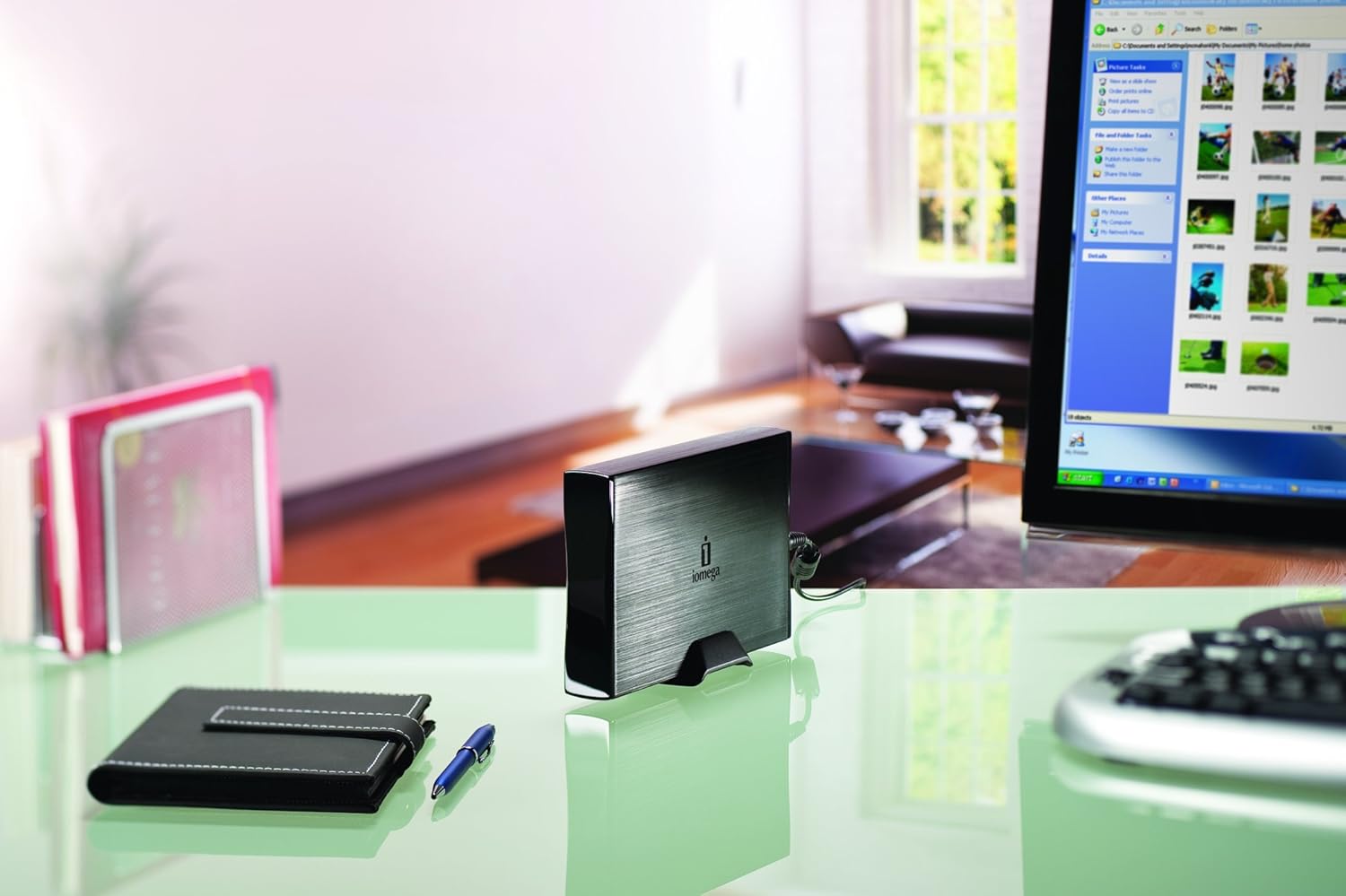
Figure 4: The Iomega Prestige Hard Drive positioned on a desk next to a computer monitor, illustrating its integration into a typical workspace.
Security Features
The Iomega Prestige drive includes built-in security features to protect your data:
- AES 256-bit Hardware Encryption: This feature provides robust data security, encrypting your data directly on the drive. Refer to the included software documentation for instructions on enabling and managing encryption.
- Iomega Protection Suite Software: This suite, available via download, offers solutions for data backup and protection. It is recommended to download and install this software to leverage its full capabilities.
Maintenance
Care and Handling
- Keep the drive in a cool, dry place away from direct sunlight and extreme temperatures.
- Avoid dropping or subjecting the drive to physical shocks, as this can damage internal components.
- Clean the exterior of the drive with a soft, dry cloth. Do not use liquid cleaners or solvents.
- Ensure proper ventilation around the drive to prevent overheating.
Safe Removal
Always safely eject the hard drive from your computer before disconnecting it to prevent data corruption. This is crucial for maintaining data integrity.
- Windows: Click the "Safely Remove Hardware and Eject Media" icon in the system tray, then select the Iomega drive.
- macOS: Drag the drive icon from the desktop to the Trash, or click the Eject button next to the drive name in Finder.
Troubleshooting
This section addresses common issues you might encounter with your Iomega Prestige External Hard Drive.
| Problem | Possible Cause | Solution |
|---|---|---|
| Drive not recognized by computer. |
|
|
| Slow data transfer speeds. |
|
|
| Drive disconnects randomly. |
|
|
If you continue to experience issues, refer to the Iomega support website or contact their customer service for further assistance.
Specifications
| Feature | Detail |
|---|---|
| Model Number | 35183 |
| Digital Storage Capacity | 3 TB (3000 GB) |
| Hard Disk Interface | USB 3.0 (backward compatible with USB 2.0) |
| Connectivity Technology | USB |
| Hard Disk Form Factor | 3.5 Inches |
| Installation Type | External Hard Drive |
| Color | Dark Gray |
| Product Dimensions | 7.41 x 1.24 x 4.88 inches |
| Item Weight | 2.23 pounds |
| Manufacturer | Iomega |
| Encryption | AES 256-bit Hardware Encryption |
Warranty and Support
Warranty Information
The Iomega Prestige 3 TB USB 3.0 External Hard Drive comes with a 3-year limited warranty. To activate and understand the full terms of your warranty, product registration is required. Please refer to the warranty card included in your product packaging or visit the official Iomega website for detailed information on warranty registration and coverage.
Customer Support
For technical assistance, troubleshooting beyond this manual, or warranty claims, please contact Iomega customer support. Support resources, including FAQs, driver downloads, and contact information, are typically available on the official Iomega support website.
Note: Always ensure you have your product model number (35183) and serial number ready when contacting support.


