
Mobility Lab PENMBL0004
Mobility Lab ML300900 Wireless AZERTY Keyboard User Manual
Model: PENMBL0004
Introduction
The Mobility Lab ML300900 is a high-quality wireless AZERTY keyboard designed for seamless compatibility with Mac computers. Its robust construction protects against drops and spills, ensuring durability. This keyboard features silent, responsive keys for comfortable typing and includes multi-connection capabilities, allowing you to switch between up to four devices effortlessly. With its slim and elegant design, it integrates perfectly into any modern workspace.

Image: Mobility Lab ML300900 Wireless AZERTY Keyboard overview.
Setup Guide
1. Package Contents
Please ensure all components are present in the package:
- Mobility Lab ML300900 Wireless AZERTY Keyboard
- User Manual (this document)
2. Powering On
The keyboard requires two (2) AAA batteries for operation. Locate the battery compartment on the underside of the keyboard, insert the batteries according to the polarity indicators, and close the compartment. Turn on the keyboard using the power switch, usually located on the side or back.
3. Bluetooth Connection (Plug and Play)
The Mobility Lab ML300900 keyboard features Plug and Play functionality for easy setup. Follow these steps to connect your keyboard via Bluetooth:
- Ensure the keyboard is powered on and within 10 meters of your Mac device.
- On your Mac, navigate to System Settings (or System Preferences) > Bluetooth.
- Ensure Bluetooth is turned On.
- The keyboard should appear in the list of discoverable devices, typically named "Mobility Lab Keyboard" or similar.
- Select the keyboard from the list to initiate pairing.
- If prompted, enter the pairing code displayed on your screen using the keyboard, then press Enter.
- Once connected, the keyboard is ready for use.
4. Multi-Device Connection
This keyboard supports multi-device connection, allowing you to pair and switch between up to four different devices. Use the dedicated function keys (F16, F17, F18, F19) to manage these connections.
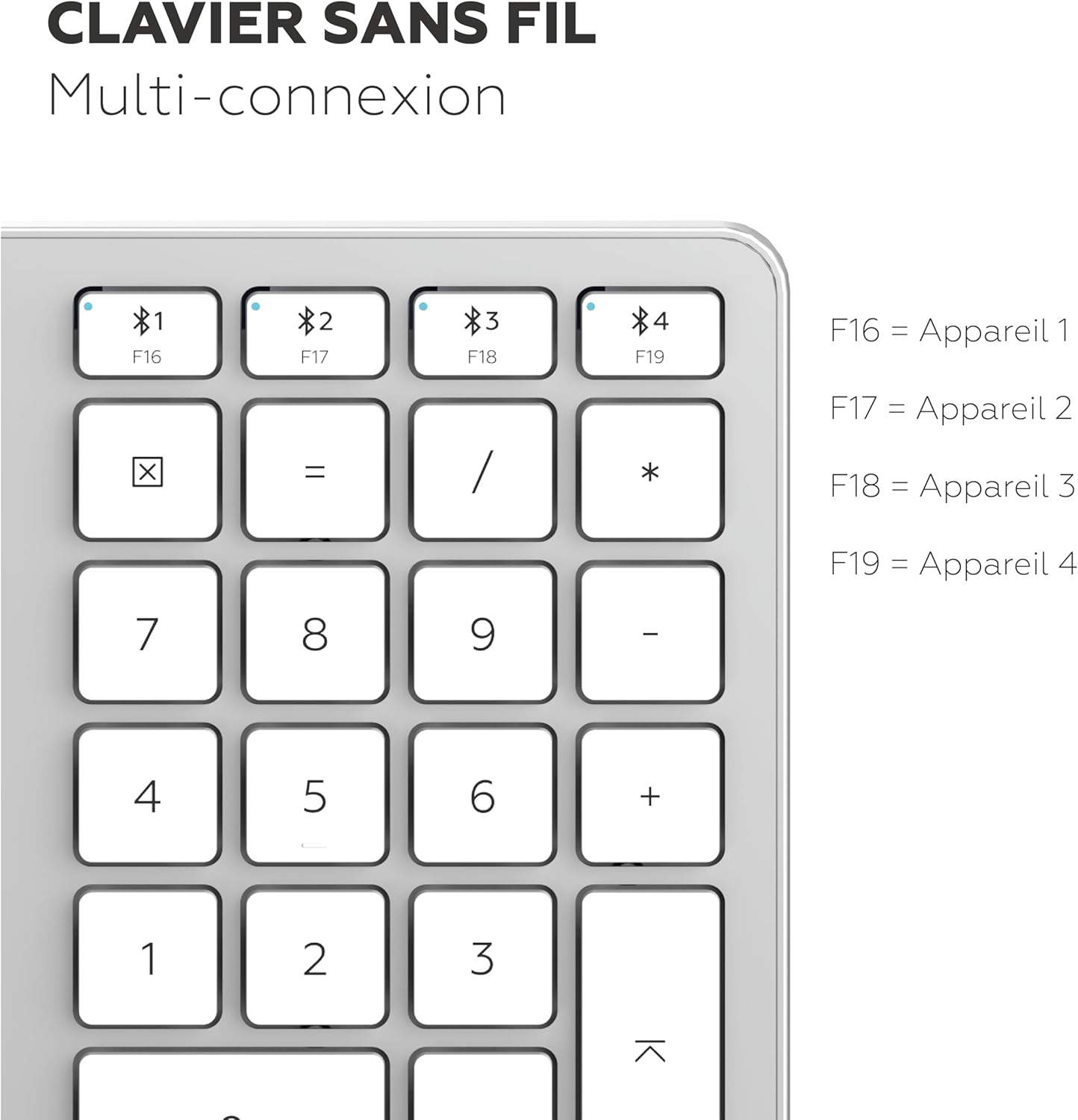
Image: Multi-connection keys (F16-F19) for switching between devices.
To switch between paired devices:
- Press the F16 key to connect to Device 1.
- Press the F17 key to connect to Device 2.
- Press the F18 key to connect to Device 3.
- Press the F19 key to connect to Device 4.
To pair a new device to one of these slots, select the desired F-key (e.g., F16) and then follow the standard Bluetooth pairing steps on your device. The keyboard will enter pairing mode for that specific slot.
Operating Instructions
1. Keyboard Layout and Features
The Mobility Lab ML300900 features a full-size AZERTY layout with a numeric keypad, designed for optimal productivity on Mac systems. The keys are responsive and designed for silent operation, providing a comfortable typing experience.

Image: AZERTY keyboard layout for French users.

Image: Full-size keyboard with numeric keypad and multimedia shortcuts, designed for macOS.
2. Adjustable Tilt Feet
For enhanced ergonomic comfort, the keyboard is equipped with adjustable tilt feet on its underside. You can deploy these feet to raise the back of the keyboard, providing a more angled typing position.

Image: Adjustable tilt feet for ergonomic typing.
3. Multimedia and Shortcut Keys
The keyboard includes 12 dedicated shortcut keys for quick access to common functions, enhancing productivity. These shortcuts are typically integrated into the function (F) keys and can control media playback, volume, screen brightness, and other system functions on your Mac.
The keys are designed with a scissor-switch mechanism, offering a light and precise keystroke for efficient typing.

Image: Flat keys with scissor-switch mechanism for light and precise typing.
Maintenance
1. Cleaning the Keyboard
To maintain the keyboard's appearance and functionality, clean it regularly:
- Disconnect the keyboard from your device and turn it off.
- Use a soft, lint-free cloth slightly dampened with water or a mild, non-abrasive cleaning solution to wipe the keycaps and surface.
- For dust and debris between keys, use compressed air.
- Avoid spraying liquids directly onto the keyboard.
2. Battery Replacement
When the keyboard's performance diminishes or it stops responding, it may be time to replace the batteries. The keyboard uses 2 AAA batteries.
- Turn off the keyboard.
- Open the battery compartment on the underside.
- Remove the old batteries and dispose of them responsibly.
- Insert two new AAA alkaline batteries, ensuring correct polarity.
- Close the battery compartment and turn the keyboard back on.
Troubleshooting
| Problem | Possible Cause | Solution |
|---|---|---|
| Keyboard does not power on. | Low or dead batteries; power switch off. | Replace batteries; ensure power switch is in the 'On' position. |
| Keyboard does not connect via Bluetooth. | Bluetooth off on device; keyboard not in pairing mode; interference; already paired to another slot. | Ensure Bluetooth is enabled on your Mac. Put keyboard into pairing mode (e.g., by selecting an F-key slot). Move closer to the device. Check if it's connected to another device via multi-connection. |
| Keys are unresponsive or typing incorrectly. | Low battery; software issue; physical damage/debris. | Replace batteries. Restart your Mac. Clean the keyboard. If specific keys are unresponsive, contact support. |
| Multi-connection not switching devices. | Device not properly paired to the selected F-key slot. | Re-pair the device to the desired F-key slot (F16-F19). Ensure the target device's Bluetooth is active. |
Specifications
- Brand: Mobility Lab
- Model Number: PENMBL0004
- Color: White and Silver
- Keyboard Layout: AZERTY (French)
- Number of Keys: 109
- Connectivity Technology: Bluetooth Wireless
- Wireless Range: Up to 10 meters (33 feet)
- Compatible Devices: Mac, PC (Note: Optimized for Mac)
- Power Source: 2 x AAA Alkaline Batteries (Not rechargeable)
- Dimensions (L x W x H): 437 mm x 120 mm x 22 mm (at thickest point)
- Special Features: Multimedia Shortcuts, Adjustable Tilt Feet, Silent Keys, Multi-Wireless Connection, Numeric Keypad, Slim Design.

Image: Keyboard dimensions.
Warranty and Support
For warranty information or technical support, please refer to the official Mobility Lab website or contact your retailer. Keep your proof of purchase for any warranty claims.
For further assistance, you may visit the Mobility Lab support page or contact their customer service directly.
Related documentsPENMBL0004


Ask a question about this manual
Ask about setup, troubleshooting, compatibility, parts, safety, or missing instructions. Manuals+ will review the question and use this page’s manual context to help answer it.