
Coby CAM3002
Coby SNAPP CAM3002 Mini Camcorder User Manual
Model: CAM3002
1. Introduction
Thank you for choosing the Coby SNAPP CAM3002 Mini Camcorder. This compact device is designed for easy video recording and photo capture, offering portability and user-friendly operation. This manual provides detailed instructions to help you set up, operate, and maintain your camcorder effectively.
2. Package Contents
Please check the package for the following items:
- Coby SNAPP CAM3002 Mini Camcorder
- 2 x AA Alkaline Batteries
- TV Connection Cable (RCA/Composite Video Cable)
- Muvee Software (on CD or via download link)
- User Manual (this document)
3. Camcorder Overview
Familiarize yourself with the main components of your Coby SNAPP CAM3002 Mini Camcorder:
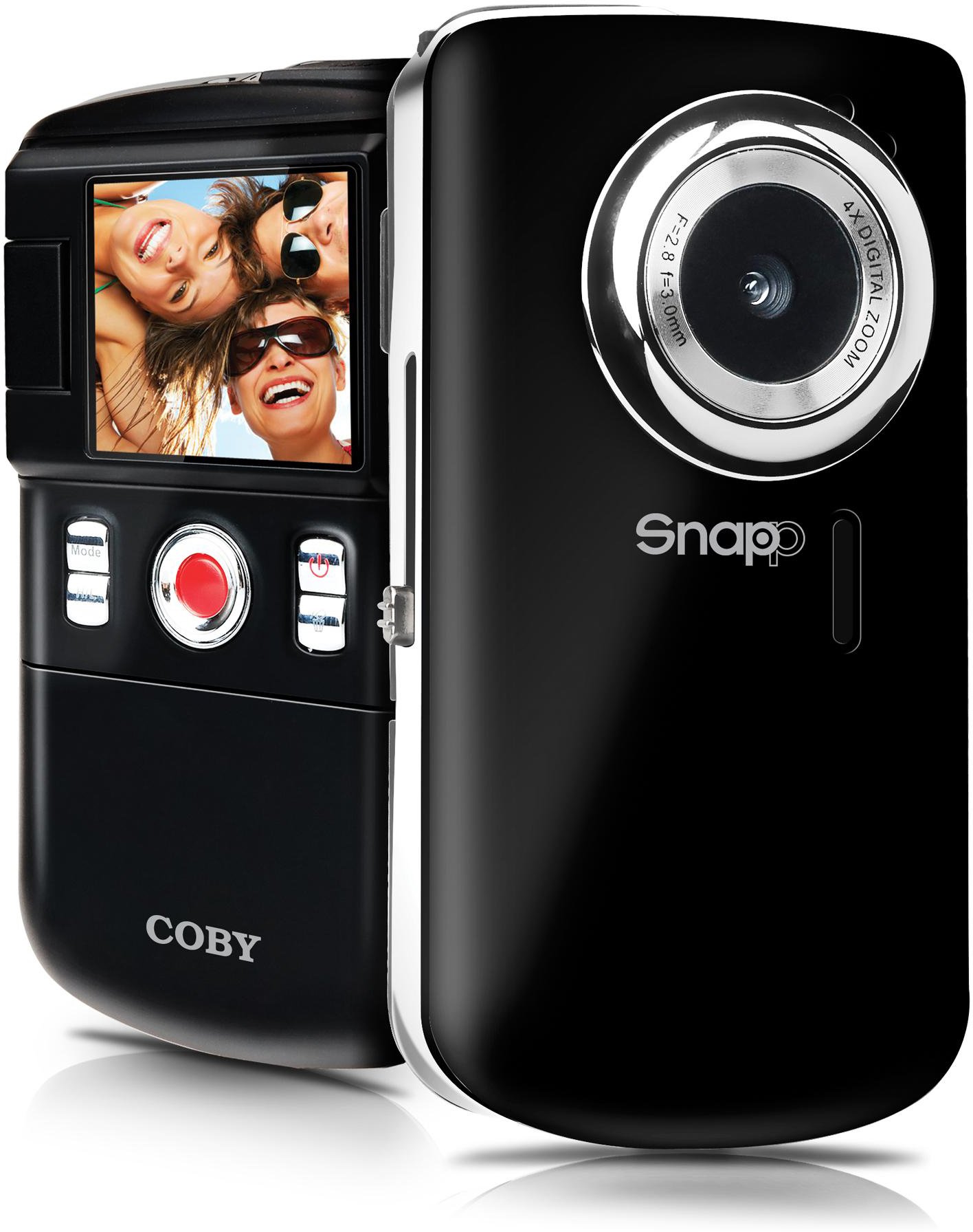
This image displays the front of the Coby SNAPP CAM3002 Mini Camcorder. Visible features include the camera lens, a small microphone opening, and several control buttons on the side, indicating its compact and portable design.
- Camera Lens: Captures video and still images.
- Microphone: Records audio during video capture.
- 1.8-inch LCD Screen: Displays menus, live view, and playback. This screen can flip out for self-portraits.
- Control Buttons: For power, mode selection, recording, photo capture, and navigation.
- Battery Compartment: Holds 2 AA alkaline batteries.
- SD/SDHC Card Slot: For inserting a memory card (up to 16GB).
- Integrated USB Plug: For direct connection to a computer for file transfer and charging (if rechargeable batteries are used).
- TV Out Port: For connecting to a television using the included cable.
4. Setup
4.1. Installing Batteries
- Locate the battery compartment cover on the camcorder.
- Slide or lift the cover to open it.
- Insert two (2) AA alkaline batteries, ensuring correct polarity (+/-) as indicated inside the compartment.
- Close the battery compartment cover securely.
4.2. Inserting a Memory Card
The camcorder requires an SD or SDHC memory card (up to 16GB) to store videos and photos.
- Locate the SD/SDHC card slot on the camcorder.
- Insert the memory card with the metal contacts facing down (or as indicated by a diagram near the slot) until it clicks into place.
- To remove the card, gently push it in until it clicks, then release, and it will eject slightly.
4.3. Powering On/Off
- To power on, press and hold the Power button until the LCD screen illuminates.
- To power off, press and hold the Power button again until the screen turns off. The camcorder may also power off automatically after a period of inactivity to conserve battery life.
5. Operating the Camcorder
5.1. Mode Selection
Use the Mode button to switch between the following functions:
- Video Recording Mode: For capturing moving images with sound.
- Still Photo Mode: For taking single photographs.
- Playback Mode: For reviewing recorded videos and photos.
5.2. Recording Video
- Switch to Video Recording Mode.
- Frame your subject using the 1.8-inch LCD screen. The screen can be flipped out for self-recording.
- Press the Record/Capture button to start recording. A red indicator or timer will appear on the screen.
- Press the Record/Capture button again to stop recording.
5.3. Taking Photos
- Switch to Still Photo Mode.
- Frame your subject using the LCD screen.
- Press the Record/Capture button to take a photo. The image will be saved to the memory card.
5.4. Playback
- Switch to Playback Mode.
- Use the navigation buttons to browse through your recorded videos and photos.
- Press the Record/Capture button to play a video or view a photo in full screen.
5.5. Connecting to a Television
You can view your recorded content on a larger screen using the included TV connection cable.
- Ensure both the camcorder and the television are powered off.
- Connect one end of the TV connection cable to the TV Out port on the camcorder.
- Connect the other end of the cable to the corresponding video (yellow) and audio (white) input jacks on your television.
- Power on the television and select the correct AV input source.
- Power on the camcorder and switch to Playback Mode to view your media.
5.6. Transferring Files to a Computer
The camcorder features an integrated USB plug for easy file transfer.
- Ensure the camcorder is powered on.
- Extend the integrated USB plug from the camcorder.
- Plug the camcorder directly into an available USB port on your computer (Mac or PC).
- Your computer should recognize the camcorder as a removable storage device. You can then access the files (videos and photos) and copy them to your computer.
5.7. Using Muvee Software
The included Muvee software is designed to help you edit your videos and photos, and facilitate uploading them to online platforms.
- Install the Muvee software on your computer using the provided CD or download link.
- Follow the software's on-screen instructions for editing and sharing your media.
6. Maintenance
6.1. Cleaning
- Use a soft, dry cloth to clean the exterior of the camcorder.
- For the lens and LCD screen, use a specialized lens cleaning cloth and solution to avoid scratches.
- Do not use harsh chemicals or abrasive cleaners.
6.2. Storage
- When not in use for extended periods, remove the batteries to prevent leakage.
- Store the camcorder in a cool, dry place, away from direct sunlight and extreme temperatures.
7. Troubleshooting
If you encounter issues with your camcorder, refer to the following common problems and solutions:
| Problem | Possible Solution |
|---|---|
| Camcorder does not power on. | Check if batteries are correctly inserted and fully charged. Replace with fresh AA alkaline batteries if necessary. |
| Poor video or photo quality. | Ensure sufficient lighting in the environment. Hold the camcorder steady during recording/capture. Clean the lens if it appears smudged. |
| Cannot transfer files to computer. | Ensure the camcorder is powered on and correctly connected via the integrated USB plug. Try a different USB port on your computer. Verify your computer's operating system recognizes the device. |
| Short battery life. | Use fresh, high-quality AA alkaline batteries. Reduce screen brightness if possible (check settings). |
| Memory card error. | Ensure the memory card is correctly inserted. Try reformatting the card (this will erase all data). Try a different compatible SD/SDHC card. |
8. Specifications
| Feature | Specification |
|---|---|
| Model Name | CAM3002 |
| Display | 1.8-inch Full-color LCD Electronic Viewfinder (flips out) |
| Video Resolution | 480p (640x480) |
| Still Photo Resolution | 0.3 MP |
| Digital Zoom | 4x |
| Storage Media | SD/SDHC Memory Card (up to 16GB) |
| Connectivity | Integrated Hi-speed USB 2.0 plug, TV Out (RCA) |
| Power Source | 2 x AA Alkaline Batteries |
| Supported File Formats | Video: MP4, Photo: JPEG |
| Special Features | Built-in speaker, Muvee software included |
9. Warranty and Support
Coby products are manufactured to high-quality standards. This product is covered by a limited warranty against defects in materials and workmanship. Please refer to the warranty card included with your purchase for specific terms and conditions.
For technical support or customer service inquiries, please visit the official Coby website or contact their customer support line. Keep your purchase receipt as proof of purchase for warranty claims.
Related documentsCAM3002

Ask a question about this manual
Ask about setup, troubleshooting, compatibility, parts, safety, or missing instructions. Manuals+ will review the question and use this page’s manual context to help answer it.