1. Introduction
Thank you for choosing the Rocketfish RF-HDWEB 720p HD USB Webcam. This manual provides essential information for the proper installation, operation, and maintenance of your webcam. Designed for clear video communication and high-resolution photo capture, this webcam features a true 2 MP sensor with a wide-angle glass lens, delivering 720p HD video at up to 30 frames per second. It also supports photo capture up to 8 MP through interpolation. The integrated autofocus technology ensures sharp images, and the built-in microphone with noise cancellation provides clear audio. This device is compatible with both PC (32-bit) and Mac systems.

Figure 1: Rocketfish RF-HDWEB 720p HD USB Webcam.
2. What's in the Box
Please check the package contents to ensure all items are present:
- USB Cable
- Camera Body (Rocketfish RF-HDWEB Webcam)
- Installation CD (for optional drivers and software)

Figure 2: Retail packaging of the Rocketfish RF-HDWEB Webcam, showing the product and its features.
3. Setup
- Connect the Webcam: Plug the USB cable from the webcam into an available USB 2.0 port on your computer.
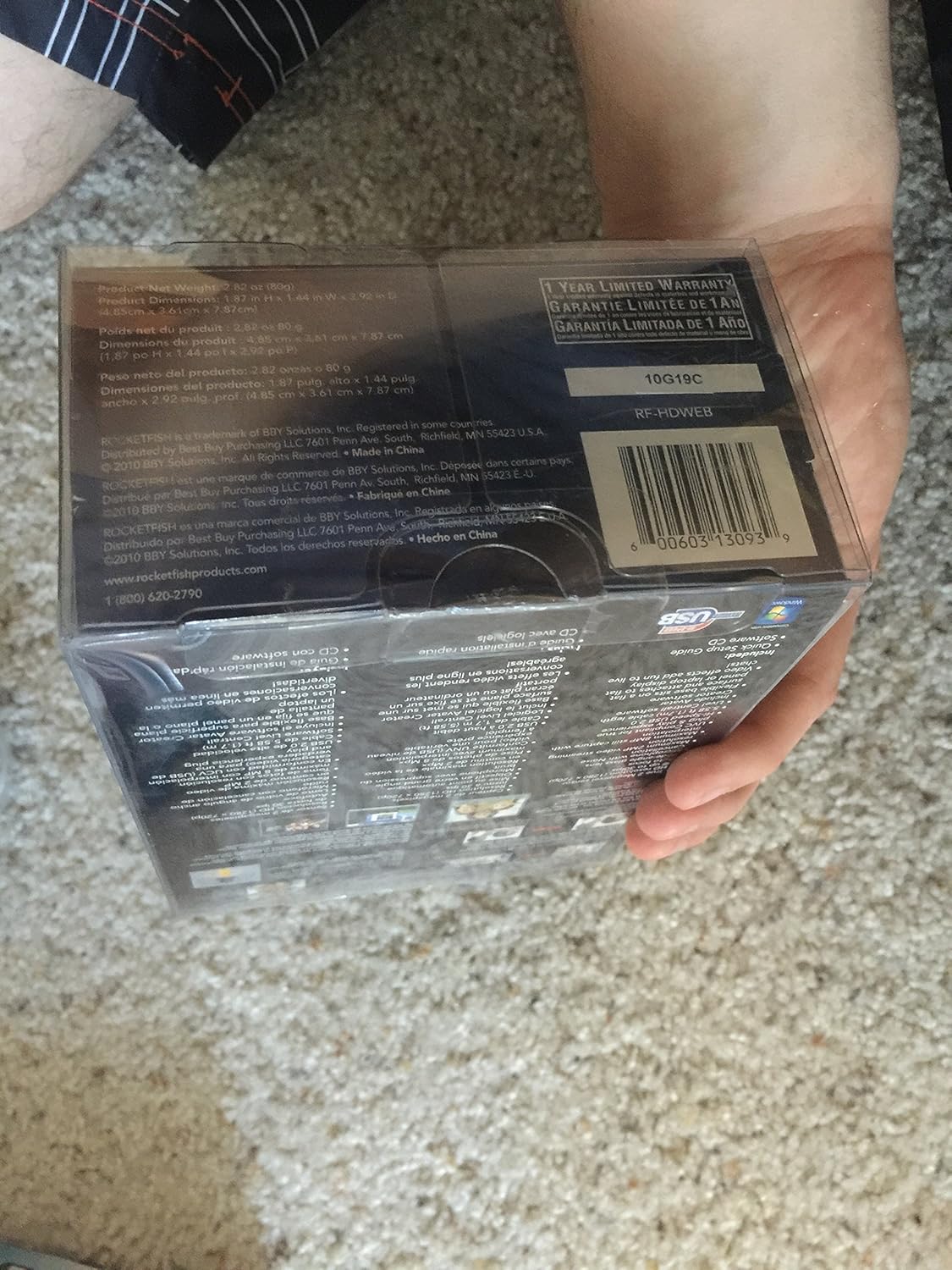
Figure 3: The Rocketfish RF-HDWEB Webcam, ready for connection.
- Driver Installation (Windows): For Windows 7 and newer operating systems, the computer should automatically detect the webcam and install default drivers within a few minutes. This allows basic functionality with most applications.
- Driver Installation (Mac): The webcam is compatible with Mac systems and typically works without additional driver installation for basic functions.
- Optional Software Installation: An installation CD is included with the webcam. This CD contains additional drivers and software (e.g., Live! Central by Creative) that may offer more options, effects, and advanced settings.
- To install the optional software, first ensure any default Windows drivers for the webcam are uninstalled (via Device Manager > Imaging Devices > Rocketfish HD Webcam).
- Insert the installation CD and follow the on-screen prompts.
- Note: Some users have reported issues with the included software on Windows 7, leading to "error 15". If you encounter this, uninstall the software and rely on the default Windows drivers for basic functionality.
- Positioning the Webcam: The webcam features a sturdy base designed to fit securely on top of most monitor frames or to be placed flat on a desktop. Adjust the angle as needed for optimal viewing.
4. Operating Instructions
Once the webcam is connected and drivers are installed, you can begin using it with various applications.
- Video Communication: The Rocketfish RF-HDWEB webcam works seamlessly with most instant messenger services, including AIM, Yahoo! Messenger, MSN Messenger, and Skype.
- Open your preferred video communication application.
- Navigate to the video/audio settings and select "Rocketfish HD Webcam" as your video input device.
- Select the integrated microphone as your audio input device if desired.
- The webcam provides HD resolution 720p (1280x720p) video streaming at up to 30 frames per second.
- Photo Capture: The webcam can capture still images up to 8 MP through interpolation.
- Use compatible software (e.g., the included Live! Central software, or third-party applications) to access photo capture features.
- Autofocus: The webcam features autofocus technology to maintain clear and detailed images.
- In some applications or with the optional software, you may have the ability to disable autofocus and set manual focus if preferred.
- Microphone: The built-in microphone includes noise cancellation for clearer audio during calls.
- Ensure the webcam's microphone is selected as the input device in your application's audio settings.
5. Maintenance
To ensure the longevity and optimal performance of your Rocketfish RF-HDWEB webcam, follow these maintenance guidelines:
- Cleaning: Gently wipe the lens with a soft, lint-free cloth. For the camera body, use a dry or slightly damp cloth. Avoid harsh chemicals or abrasive materials.
- Storage: When not in use, store the webcam in a clean, dry place away from extreme temperatures and direct sunlight.
- Cable Care: Avoid bending or kinking the USB cable excessively to prevent internal damage.
6. Troubleshooting
| Problem | Possible Cause | Solution |
|---|---|---|
| Webcam not detected or not working. |
|
|
| Image is blurry or out of focus. |
|
|
| "Error 15" when installing or using included software. |
|
|
| Poor video quality or low frame rate. |
|
|
7. Specifications
| Feature | Detail |
|---|---|
| Model Number | RF-HDWEB |
| Sensor Type | True 2 MP Sensor (MOS Photo Sensor Technology) |
| Video Resolution | 720p HD (1280x720) up to 30fps (maximum 2MP video streaming resolution) |
| Photo Resolution | Up to 8 MP (with interpolation) |
| Lens Type | Wide-angle glass lens |
| Focus | Autofocus technology |
| Microphone | Built-in with Noise Cancellation |
| Connectivity | Hi-Speed USB 2.0 |
| Compatibility | PC (32-bit) and Mac compatible |
| Product Dimensions | 7.3 x 5.2 x 3.1 inches |
| Item Weight | 8.8 ounces |
| Date First Available | December 22, 2010 |
| UPC | 0600603130939 |
8. Warranty and Support
The Rocketfish RF-HDWEB Webcam comes with a 1-Year Limited Warranty. For specific terms and conditions, please refer to the warranty information provided with your product packaging or visit the official Rocketfish website.
For technical support or customer service, you may contact Rocketfish directly:
- Phone: 1 (800) 620-2790
- Website: rocketfishproducts.com

Figure 4: Product packaging displaying warranty details and UPC (0600603130939).