
1. Introduction
This manual provides detailed instructions for the setup, operation, and maintenance of your Grandstream GXP1450 HD Enterprise IP Phone. Please read this manual thoroughly before using the device to ensure proper functionality and safety.
The Grandstream GXP1450 is an advanced IP phone designed for enterprise users, offering a rich set of features for efficient communication. Key features include:
- Support for 2 dual-color line keys with 2 SIP accounts and up to 2 call appearances.
- Three XML programmable context-sensitive soft keys for flexible functionality.
- Integrated 3-way conference calling capability.
- HD wideband audio for clear voice communication, featuring a superb full-duplex hands-free speakerphone with advanced acoustic echo cancellation.
- Large phonebook capacity of up to 500 contacts and a call history of up to 500 records.
- Automated personal information services (e.g., local weather) and customizable features like personalized music ring tones and flexible screen content via XML.
- Dual switched auto-sensing 10/100Mbps network ports with integrated Power over Ethernet (PoE).
2. Safety Information
To prevent injury or damage to your phone, always follow these basic safety precautions:
- Do not expose the phone to water or moisture.
- Do not place the phone near heat sources such as radiators, heat registers, stoves, or other apparatus (including amplifiers) that produce heat.
- Use only the power adapter supplied with the phone.
- Protect the power cord from being walked on or pinched, particularly at plugs, convenience receptacles, and the point where they exit from the phone.
- Only use attachments/accessories specified by the manufacturer.
- Refer all servicing to qualified service personnel.
3. Package Contents
Upon opening the package, verify that all standard components are included and in good condition. The package should contain the Grandstream GXP1450 IP Phone unit, handset, handset cord, Ethernet cable, power adapter, and phone stand.
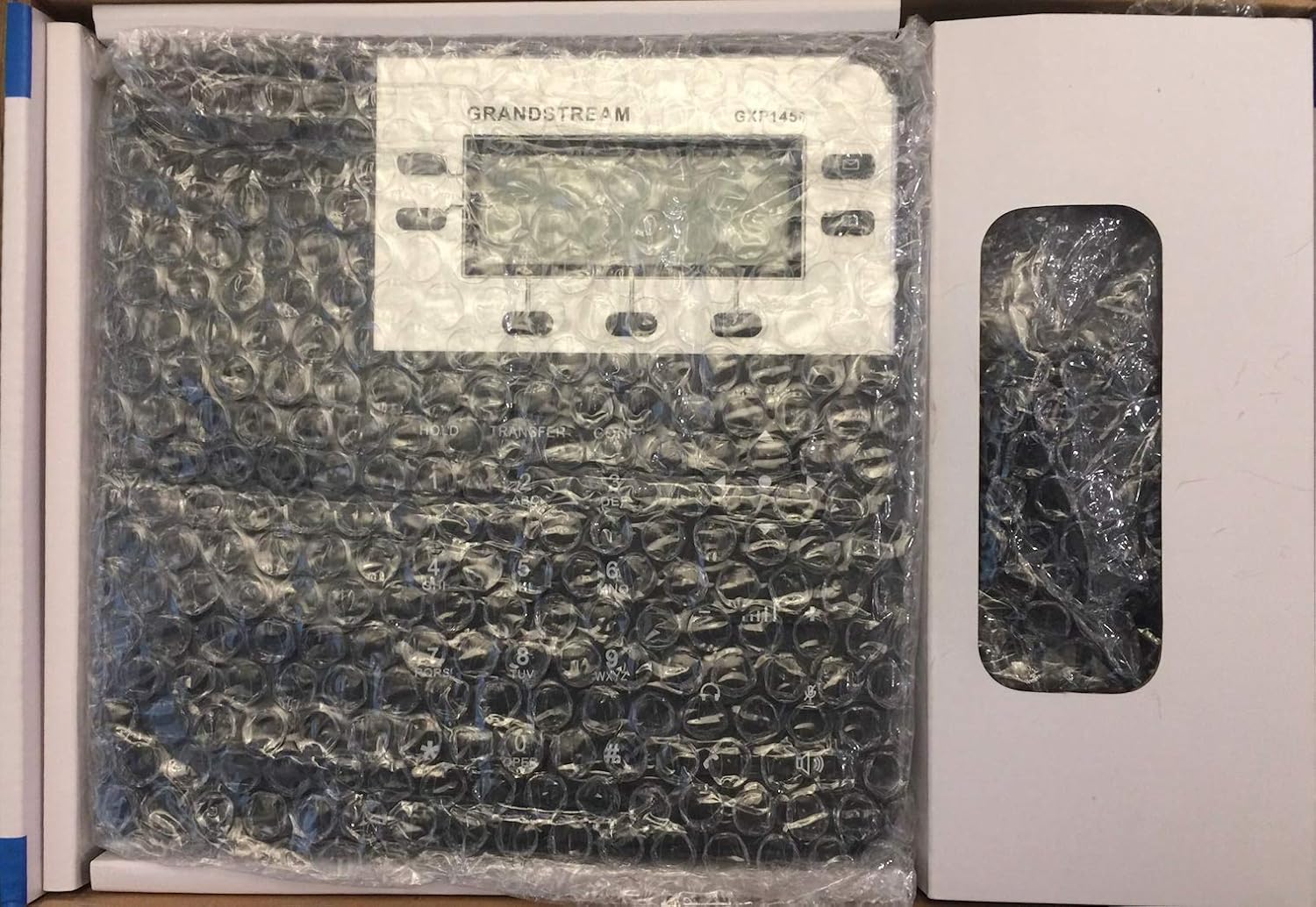
Image: The Grandstream GXP1450 IP Phone as it appears inside its packaging, secured with bubble wrap for protection during transit.
4. Product Overview
4.1 Physical Features
The Grandstream GXP1450 features a clear LCD display, a standard numeric keypad, and dedicated function keys for efficient call handling.

Image: A detailed close-up of the Grandstream GXP1450 IP Phone, highlighting its display screen, navigation buttons, and numeric keypad.
Key physical components include:
- LCD Display: Shows call information, menu options, and status.
- Line Keys: Dual-color keys indicating line status (idle, active, hold).
- Soft Keys: Context-sensitive buttons below the display for dynamic functions.
- Navigation Pad: For navigating menus and adjusting volume.
- Numeric Keypad: Standard 0-9, *, # for dialing.
- Function Keys: Dedicated buttons for HOLD, TRANSFER, CONF (Conference), Speakerphone, Headset, Mute, and Volume control.
4.2 Ports and Connections
The rear of the phone provides various ports for connectivity:
- PC Port: RJ45 Ethernet port for connecting a computer.
- LAN Port: RJ45 Ethernet port for network connection (supports PoE).
- Handset Port: RJ9 port for connecting the phone handset.
- Headset Port: RJ9 port for connecting a headset.
- Power Port: For connecting the external power adapter (if PoE is not used).
5. Setup
5.1 Connecting the Phone
Follow these steps to connect your GXP1450 IP Phone:
- Connect the Handset: Plug one end of the coiled handset cord into the handset port on the phone and the other end into the handset.
- Connect to Network: Plug one end of the Ethernet cable into the LAN port on the phone and the other end into a network switch/hub or router. If using Power over Ethernet (PoE), the phone will power on automatically.
- Connect Power (if not using PoE): If PoE is not available, connect the supplied power adapter to the power port on the phone and then plug the adapter into a power outlet.
- Connect PC (Optional): If you wish to connect a computer through the phone, plug an Ethernet cable from your computer into the PC port on the phone.
5.2 Initial Configuration
After connecting, the phone will attempt to obtain an IP address via DHCP. You can access the phone's web configuration interface for advanced settings:
- Obtain IP Address: Press the Menu button (center button of navigation pad), navigate to Status, then Network Status to view the phone's IP address.
- Access Web UI: Open a web browser on a computer connected to the same network and enter the phone's IP address in the address bar. The default username is 'admin' and the default password is 'admin'.
- SIP Account Setup: Configure your SIP account details (SIP server, User ID, Password) within the web interface under Account Settings.
6. Operating Instructions
6.1 Making Calls
- Dialing: Pick up the handset, press the Speakerphone button, or press the Headset button. Dial the desired number using the numeric keypad.
- Sending Call: Press the Dial soft key or wait a few seconds for the call to automatically connect.
6.2 Answering Calls
- When the phone rings, pick up the handset, press the Speakerphone button, or press the Headset button to answer.
- Alternatively, press the flashing line key to answer the incoming call.
6.3 Call Management
- Hold: During an active call, press the HOLD button. The line key will flash green. Press the flashing line key again to resume the call.
- Transfer: During an active call, press the TRANSFER button. Dial the number to transfer to, then press the Transfer soft key.
- Conference: During an active call, press the CONF (Conference) button. Dial the number of the third party, and once they answer, press the Conf soft key again to establish a 3-way conference.
6.4 Using Phonebook and Call History
- Phonebook: Access the phonebook via the dedicated button or menu. You can store up to 500 contacts.
- Call History: View recent incoming, outgoing, and missed calls. The phone stores up to 500 records.
6.5 Customization
- Ring Tones: Customize personalized music ring tones and ring back tones through the phone's web interface.
- Screen Content: The phone supports flexible customization of screen content and format using XML, allowing for integration with various web and enterprise applications.
7. Maintenance
Proper maintenance ensures the longevity and optimal performance of your GXP1450 IP Phone:
- Cleaning: Use a soft, dry cloth to clean the phone's surface. Avoid using abrasive cleaners or solvents.
- Environment: Keep the phone in a clean, dust-free environment with stable temperature and humidity.
- Cable Management: Ensure all cables are securely connected and not under strain.
8. Troubleshooting
This section addresses common issues you might encounter with your GXP1450 IP Phone.
| Problem | Possible Cause | Solution |
|---|---|---|
| Phone does not power on. | No power from adapter or PoE. | Check power adapter connection and outlet. Verify PoE switch/injector is active. |
| No dial tone. | Network connectivity issue or SIP registration failure. | Check Ethernet cable. Verify IP address. Ensure SIP account is correctly configured and registered in the web UI. |
| Cannot hear caller or caller cannot hear me. | Volume too low, faulty handset/headset, or network audio path issue. | Adjust volume. Test with speakerphone. Check handset/headset connection. Verify network firewall settings (NAT traversal). |
| Keys are unresponsive or repeating. | Temporary software glitch or physical issue. | Restart the phone by unplugging and replugging the power. If issue persists, contact support. |
9. Specifications
The following table outlines the technical specifications for the Grandstream GXP1450 HD Enterprise IP Phone:
| Feature | Detail |
|---|---|
| Brand | Grandstream |
| Color | Black |
| Dialer Type | Single Keypad |
| Item dimensions L x W x H | 8 x 12 x 2.8 inches |
| Answering System Type | Digital |
| Item Weight | 1.2 Pounds |
| Recording Capacity | 17 minutes |
| Conference Call Capability | 3-way |
| Multiline Operation | Multi-Line Operation |
| Caller Identification | No |
10. Warranty and Support
For warranty information and technical support, please refer to the official Grandstream website or contact your authorized reseller. Keep your purchase receipt as proof of purchase for warranty claims.
Online resources, including FAQs and firmware updates, may also be available on the manufacturer's support portal.


