
Introduction
This manual provides comprehensive instructions for the Verbatim 2.4G Wireless Mini Travel Optical Mouse, Model 97471. It covers setup, operation, maintenance, and troubleshooting to ensure optimal performance and longevity of your device. This ultra-compact wireless mouse is designed for portability and ease of use with notebooks and netbooks.

Image: The Verbatim 2.4G Wireless Mini Travel Optical Mouse in blue, shown with its compact Nano receiver.
Package Contents
Verify that all items are present in the package:
- Verbatim 2.4G Wireless Mini Travel Optical Mouse
- Nano USB Receiver
- 1x AAA Battery
- Quick Start Guide
System Requirements
The Verbatim 2.4G Wireless Mini Travel Optical Mouse is compatible with the following operating systems:
- Windows XP, Vista, Windows 7, and higher
- Mac OS X 10.1 and higher
- Linux kernel 2.6 and higher
A free USB 1.1 or 2.0 port is required for the Nano USB Receiver.
Setup Instructions
1. Install the Battery
- Locate the battery compartment cover on the underside of the mouse.
- Gently slide or lift the cover to open the compartment.
- Insert the included AAA battery, ensuring the positive (+) and negative (-) terminals align correctly with the markings inside the compartment.
- Replace the battery compartment cover until it clicks securely into place.

Image: The underside of the mouse with the battery compartment open, showing the AAA battery and the Nano receiver stored inside.
2. Connect the Nano USB Receiver
- Remove the Nano USB receiver from its storage slot within the mouse's battery compartment (if stored there).
- Plug the Nano USB receiver into an available USB port on your computer.
- Your computer should automatically detect and install the necessary drivers. This process may take a few moments.
Operating Instructions
Powering On/Off
The mouse typically powers on automatically when the receiver is connected and the mouse is moved. To conserve battery life, ensure the mouse is turned off when not in use. A power switch is usually located on the underside of the mouse.
Basic Use
- Left Button: Primary click function, used for selecting items, opening links, etc.
- Right Button: Secondary click function, typically opens context menus.
- Scroll Wheel: Roll up or down to navigate documents and web pages. The scroll wheel may also function as a middle button when pressed.
Maintenance
Battery Replacement
When the mouse performance degrades or stops responding, it is likely time to replace the AAA battery. Follow the battery installation steps outlined in the Setup section.
Cleaning
To clean your mouse, use a soft, dry, lint-free cloth. For stubborn dirt, slightly dampen the cloth with water. Avoid using harsh chemicals, solvents, or abrasive cleaners, as these can damage the mouse's surface or internal components.
Troubleshooting
| Problem | Solution |
|---|---|
| Mouse not responding |
|
| Cursor movement is erratic or jumpy |
|
| Receiver not detected by computer |
|
Specifications
| Feature | Detail |
|---|---|
| Model Number | 97471 |
| Product Dimensions | 3 x 2 x 1.25 inches (L x W x H) |
| Item Weight | 2.4 ounces |
| Connectivity Technology | 2.4GHz Wireless |
| Movement Detection Technology | Optical |
| Battery Type | 1x AAA (included) |
| Interface | USB 2.0 (compatible with USB 1.1) |

Image: Top-down view of the Verbatim Mini Travel Mouse showing its approximate dimensions of 3 inches length and 2 inches width.
Warranty Information
This Verbatim product is covered by a 1-Year Limited Warranty from the date of purchase. This warranty covers defects in materials and workmanship under normal use. For full terms and conditions, please refer to the official Verbatim warranty documentation or contact customer support.
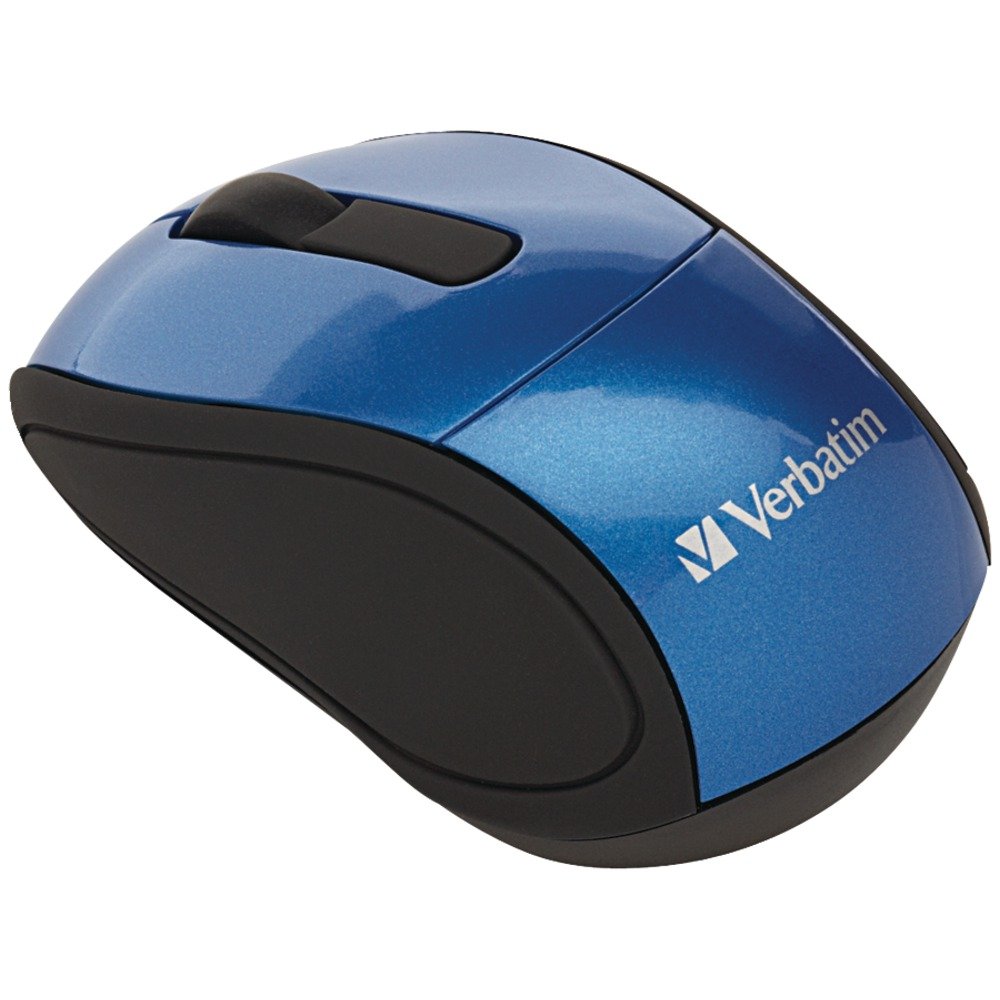
Image: A blue circular badge indicating a "1-Year Limited Warranty".
Support
For further assistance, technical support, or warranty claims, please visit the official Verbatim website or contact their customer service department. Contact information can typically be found on the Verbatim website or in the Quick Start Guide included with your product.


