
1. Introduction
This manual provides essential information for the proper setup, operation, and maintenance of your X Rocker Extreme III 2.0 Gaming Rocker Chair. This chair features a 2.0 stereo audio system, an ergonomic design with full back support, and side-facing speakers integrated into the headrest. It is designed for use with video games, music, movies, and general relaxation.
Please read this manual thoroughly before using the product to ensure safe and optimal performance.

Image 1.1: The X Rocker Extreme III 2.0 Gaming Rocker Chair in a gaming environment.
2. Safety Information
WARNING: To reduce the risk of electric shock, fire, or injury, please observe the following safety precautions:
- Maximum Weight Capacity: This chair has a maximum weight recommendation of 300 pounds (136 kg). Exceeding this limit may cause damage to the chair or personal injury.
- Adult Supervision: Children should be supervised when using the chair.
- Stable Surface: Always place the chair on a flat, stable surface to prevent tipping.
- Power Source: Use only the power adapter supplied with the chair. Ensure the power outlet matches the voltage requirements.
- Avoid Liquids: Keep liquids away from the chair and its electronic components to prevent damage or electric shock.
- Ventilation: Do not block any ventilation openings.
- Disassembly: Do not attempt to disassemble or modify the chair's electronic components. Refer all servicing to qualified personnel.
- Cables: Ensure all cables are routed safely to prevent tripping hazards or damage.
3. Package Contents
Please check the package contents to ensure all items are present and undamaged:
- X Rocker Extreme III 2.0 Gaming Rocker Chair
- Accessory Box (containing power adapter and audio cables)
If any items are missing or damaged, please contact customer support immediately.
4. Setup
The X Rocker Extreme III 2.0 Gaming Rocker Chair requires no assembly. Simply unfold the chair and place it in your desired location.
4.1 Unfolding the Chair
- Carefully remove the chair from its packaging.
- Place the chair on a flat, stable surface.
- Unfold the chair until it is in the upright, rocking position. Ensure it is fully extended and stable before use.
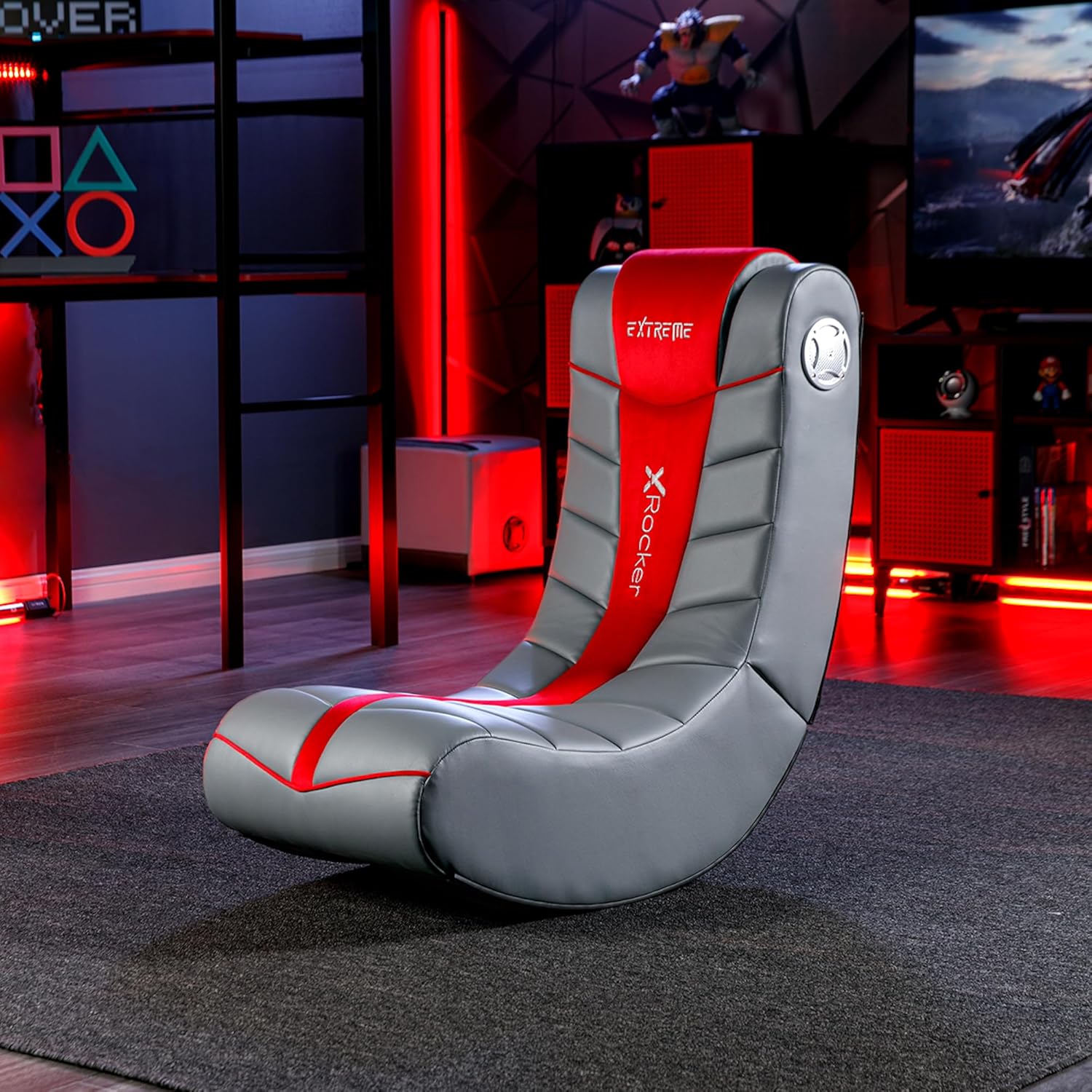
Image 4.1: Chair dimensions and features, including the audio control panel.
4.2 Power Connection
- Locate the power input jack on the side control panel of the chair.
- Connect the supplied power adapter to the power input jack.
- Plug the power adapter into a suitable wall outlet.
5. Operating Instructions
The X Rocker Extreme III 2.0 Gaming Rocker Chair features an integrated audio system for an immersive experience.
5.1 Audio Control Panel Overview
The audio control panel is located on the side of the chair and includes:
- Power/Volume Knob: Turns the chair's audio system on/off and adjusts the volume.
- Audio Input (Green Jack): Connects to your audio source (e.g., gaming console, TV, smartphone).
- Audio Output (Red Jack): Allows connection to another X Rocker chair for multi-player audio.
- Headset Output (Black Jack): For connecting headphones.
- Power Input: For connecting the power adapter.

Image 5.1: Detailed view of the audio control panel.
5.2 Connecting to an Audio Source
The chair can connect to various audio sources using the provided cables. Ensure the chair is powered on before connecting.
- For devices with RCA outputs (e.g., most TVs, older consoles):
- Connect one end of the RCA audio cable (red/white) to the audio output jacks of your device.
- Connect the other end of the RCA cable to the corresponding audio input jacks on the chair's control panel.
- For devices with a 3.5mm headset output (e.g., smartphones, some controllers):
- Use a 3.5mm audio cable (not always included, may need to be purchased separately).
- Connect one end to your device's headset output.
- Connect the other end to the green Audio Input jack on the chair's control panel.
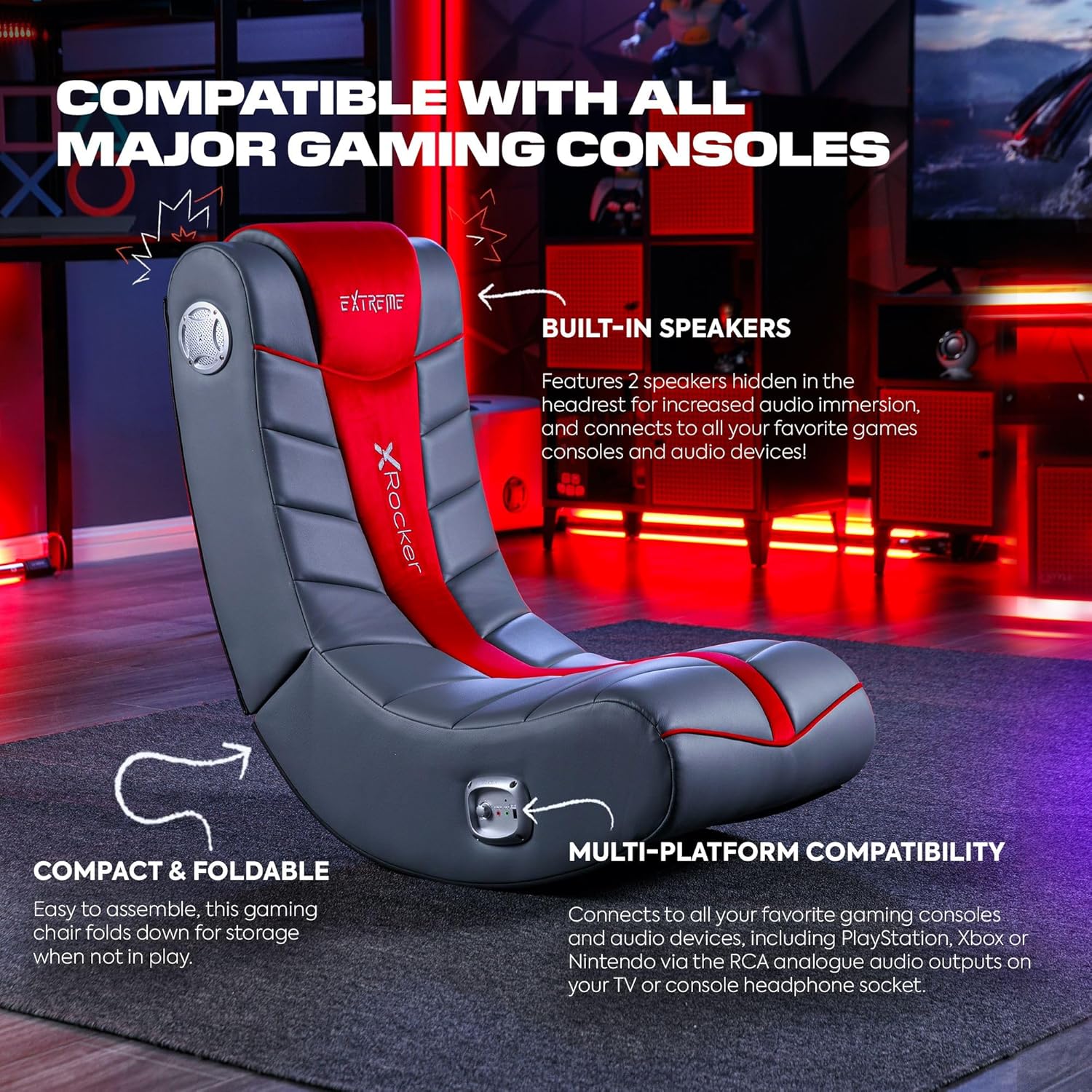
Image 5.2: The X Rocker chair highlighting its compatibility with various gaming consoles and audio devices.
5.3 Adjusting Volume
Once connected, turn the Power/Volume knob clockwise to power on the audio system and increase the volume. Turn counter-clockwise to decrease volume and power off.
5.4 Multi-Player Connectivity
To connect multiple X Rocker chairs for a shared audio experience:
- Connect the first chair to your audio source as described in Section 5.2.
- Using an audio cable, connect the Audio Output (red jack) of the first chair to the Audio Input (green jack) of the second X Rocker chair.
- Repeat for additional chairs as needed.
6. Maintenance
6.1 Cleaning Instructions
To clean your X Rocker Extreme III 2.0 Gaming Rocker Chair:
- Spot Clean Only: Use a soft, damp cloth with mild soap and water to spot clean any soiled areas.
- Do not use harsh chemicals, abrasive cleaners, or solvents, as these may damage the faux leather material.
- Ensure the chair is completely dry before use.
6.2 Storage
The chair is foldable for convenient storage when not in use.
- Ensure the chair is powered off and disconnected from all audio and power sources.
- Gently fold the chair inward until it is compact.
- Store in a cool, dry place away from direct sunlight and extreme temperatures.

Image 6.1: The X Rocker chair in its compact, folded state for easy storage.
7. Troubleshooting
If you encounter issues with your X Rocker Extreme III 2.0 Gaming Rocker Chair, please refer to the following common problems and solutions:
| Problem | Possible Cause | Solution |
|---|---|---|
| No power to the chair. | Power adapter not connected or faulty; outlet not working. | Ensure the power adapter is securely connected to the chair and a working wall outlet. Test the outlet with another device. |
| No sound from speakers. | Volume too low; audio cables not connected correctly; incorrect audio source selected on device. | Increase the volume using the Power/Volume knob. Check all audio cable connections. Ensure your audio source (TV, console) is outputting audio correctly. |
| Sound is distorted or crackling. | Volume too high; loose audio connection; interference. | Lower the volume. Check all audio cable connections for looseness. Move the chair or audio source away from other electronic devices that may cause interference. |
| Chair is unstable or tips easily. | Not placed on a flat surface; exceeding weight limit. | Ensure the chair is on a completely flat and stable surface. Verify that the user's weight does not exceed the maximum capacity of 300 lbs. |
8. Specifications
- Model Name: Floor Rocker
- Model Number: 5149101
- Product Dimensions (D x W x H): 81.3 x 41.9 x 74.9 Centimetres (32 x 16.5 x 29.5 inches)
- Item Weight: 9.92 kg (21.87 lbs)
- Maximum Weight Recommendation: 300 Pounds (136 kg)
- Material: Faux Leather, Foam Fill
- Frame Material: Alloy Steel
- Audio System: 2.0 Stereo Speakers
- Connectivity: RCA Audio Input/Output, 3.5mm Headset Output
- Features: Ergonomic, Foldable, Head Support, Side-facing speakers with headrest
- Assembly Required: No
- Product Care: Spot Clean
9. Warranty and Support
For warranty information, please refer to the documentation included with your purchase or visit the official X Rocker website. Warranty terms and conditions may vary by region and retailer.
If you require technical assistance, replacement parts, or have questions not covered in this manual, please contact X Rocker customer support. Contact details can typically be found on the manufacturer's website or on your product packaging.
