
Introduction
Welcome to Total War: Shogun 2, a real-time tactics and turn-based strategy video game developed by Creative Assembly and published by SEGA. This manual provides essential information for installing, playing, and maintaining your game, ensuring an optimal experience as you lead your clan to unify feudal Japan.
Total War: Shogun 2 is set in 16th-century feudal Japan during the Sengoku Jidai (Warring States period). Players assume the role of one of several clan leaders, aiming to conquer Japan through military, economic, and diplomatic means. The game combines a turn-based campaign map with real-time battles.
Setup and Installation
System Requirements
Before installation, ensure your computer meets the minimum system requirements for Total War: Shogun 2. These can typically be found on the game packaging or the official SEGA website. Key requirements include:
- Operating System: Windows XP/Vista/7/8/10
- Processor: 2 GHz Intel Dual Core processor / 2.6 GHz Intel Single Core processor
- Memory: 1GB RAM (XP), 2GB RAM (Vista/Windows 7/8/10)
- Graphics: 256 MB DirectX 9.0c compatible card (shader model 3)
- DirectX: Version 9.0c
- Hard Drive: 20 GB free space
- Sound: DirectX 9.0c compatible sound card
Installation Steps (DVD-ROM)
- Insert the Total War: Shogun 2 DVD into your computer's DVD-ROM drive.
- If the auto-run feature does not start the installation automatically, navigate to "My Computer" or "This PC," right-click on the DVD-ROM drive icon, and select "Open" or "Explore." Locate and double-click the "Setup.exe" or "Install.exe" file.
- Follow the on-screen prompts to proceed with the installation. You will be asked to accept the End User License Agreement (EULA) and choose an installation directory.
- During installation, you may be prompted to enter a product key. This key is typically found on a sticker inside the game case or on the manual.
- The game will require activation via Steam. If you do not have Steam installed, the installer will guide you through the process of installing it. Create a Steam account if you do not already have one.
- Once Steam is installed and you are logged in, the game will be registered to your account. The installation will then complete.
- After installation, it is recommended to restart your computer.
Note: An active internet connection is required for Steam activation and any necessary game updates.
Operating Instructions and Gameplay
Launching the Game
To launch Total War: Shogun 2, open the Steam client, navigate to your Library, and select "Total War: Shogun 2" from your list of games. Click the "Play" button.
Main Menu
From the main menu, you can:
- Campaign: Start a new single-player campaign or load a saved game.
- Custom Battle: Set up and play individual battles with custom armies and maps.
- Multiplayer: Engage in online battles or campaign with other players.
- Options: Adjust graphics, audio, and gameplay settings.
- Encyclopedia: Access in-game information about units, buildings, and historical context.
- Exit: Close the game.
Campaign Map Overview
The campaign map is where you manage your clan's empire. It is turn-based, allowing you to move armies, construct buildings, research technologies, and engage in diplomacy.

Image: The campaign map showing various provinces, armies, and clan banners. Players manage their empire from this strategic view.
- Provinces: Each province has a capital and can contain various resources and building slots.
- Armies and Agents: Move your armies to conquer new territories or defend existing ones. Utilize agents (ninjas, metsuke, monks) for espionage, assassination, and other strategic actions.
- Diplomacy: Interact with other clans to form alliances, declare war, or negotiate trade agreements.
- Technology Tree: Research new military and civil technologies to unlock advanced units and buildings.
Real-Time Battles
When two armies meet on the campaign map, a real-time battle ensues. You command your units on a 3D battlefield.

Image: Cavalry units charging across a battlefield, demonstrating a key combat element in Total War: Shogun 2.
- Unit Types: Utilize a variety of units including samurai, archers, cavalry, and spearmen, each with unique strengths and weaknesses.
- Terrain: The battlefield terrain can significantly impact battle outcomes. Use hills, forests, and rivers to your advantage.
- Naval Battles: Engage in naval combat to control sea lanes and coastal regions.
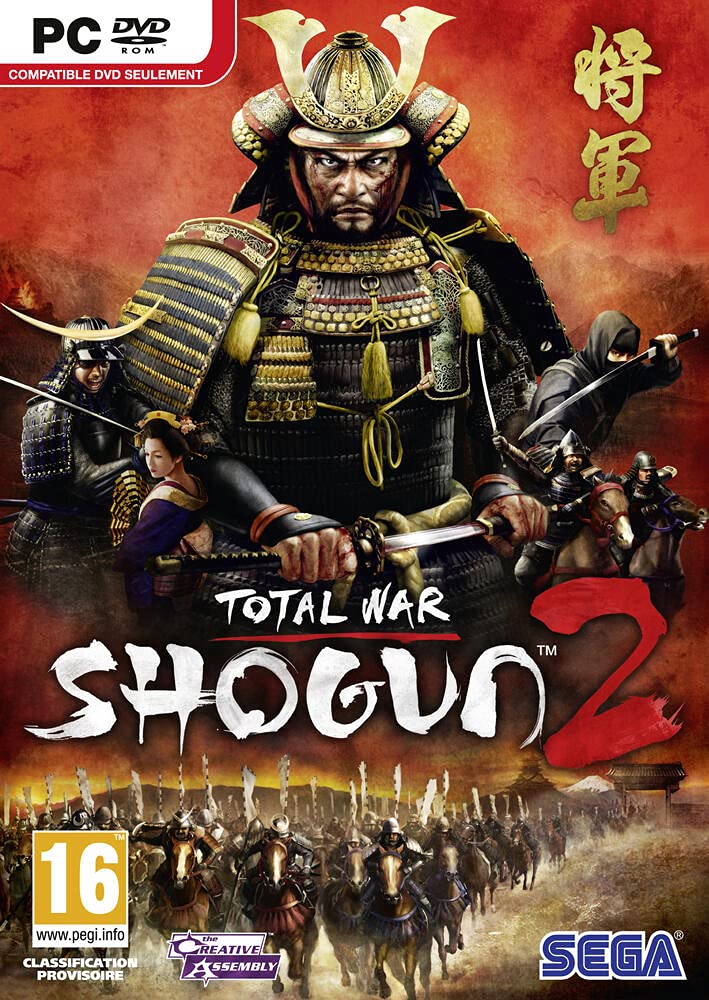
Image: Japanese naval vessels on the water, illustrating the naval combat aspect of the game.
- General's Abilities: Your general's presence and abilities can boost unit morale and performance.
Maintenance and Best Practices
To ensure smooth gameplay and prevent issues, consider the following maintenance tips:
- Keep Drivers Updated: Regularly update your graphics card drivers (NVIDIA, AMD, Intel) to the latest versions. Outdated drivers are a common cause of performance issues and crashes.
- Verify Game Files: If you experience crashes or corrupted game data, use Steam's "Verify integrity of game files" feature. Right-click on Total War: Shogun 2 in your Steam Library, go to "Properties," then "Local Files," and click "Verify integrity of game files."
- Monitor System Temperature: Ensure your computer's cooling system is functioning correctly to prevent overheating, which can lead to performance throttling or system shutdowns during extended gameplay.
- Free Up Disk Space: Ensure you have sufficient free disk space. While the game requires 20 GB, having extra space can improve system performance.
- Regularly Save Your Game: Save your progress frequently, especially before major battles or strategic decisions, to avoid losing progress due to unforeseen issues.
Troubleshooting Common Issues
Here are solutions to some common problems you might encounter:
Game Not Launching or Crashing
- Check System Requirements: Confirm your PC meets or exceeds the minimum system requirements.
- Update Drivers: Ensure graphics and sound drivers are up to date.
- Verify Game Files: Use the Steam feature to check for corrupted game files (see Maintenance section).
- Run as Administrator: Try running Steam and the game executable as an administrator.
- Disable Overlays: Disable Steam Overlay or any other third-party overlays that might interfere with the game.
- Reinstall DirectX/Visual C++ Redistributables: These are often found in the game's installation folder (e.g., SteamLibrary\steamapps\common\Total War Shogun 2\_CommonRedist).
Poor Performance or Low Frame Rate
- Adjust Graphics Settings: Lower in-game graphics settings (resolution, texture quality, shadow quality, unit detail) to improve performance.
- Close Background Applications: Close any unnecessary programs running in the background to free up system resources.
- Update Graphics Drivers: Ensure your graphics drivers are current.
- Check for Overheating: Monitor your CPU and GPU temperatures. Overheating can cause performance drops.
Installation Errors
- Clean DVD-ROM: If installing from DVD, ensure the disc is clean and free of scratches.
- Sufficient Disk Space: Verify you have enough free space on your hard drive.
- Antivirus Interference: Temporarily disable your antivirus software during installation, then re-enable it afterward.
- Internet Connection: Ensure a stable internet connection for Steam activation and updates.
Product Specifications
| Feature | Detail |
|---|---|
| ASIN | B004BJ2A3Q |
| Type of Item | DVD-ROM |
| Language | English |
| Rated | Teen |
| Package Dimensions | 7.48 x 5.35 x 0.63 inches |
| Item Weight | 1.1 Pounds |
| Date First Available | August 6, 2012 |
Warranty Information
For specific warranty details regarding Total War: Shogun 2, please refer to the End User License Agreement (EULA) presented during installation or visit the official SEGA website. Digital products typically do not come with a physical warranty in the traditional sense, but are subject to the terms of service of the digital distribution platform (Steam) and the publisher (SEGA).
Customer Support
If you encounter issues not covered in this manual or require further assistance, please contact SEGA customer support or Steam support:
- SEGA Support: Visit the official SEGA support website for FAQs, forums, and contact options. www.sega.com/support
- Steam Support: For issues related to installation, activation, or the Steam client, visit Steam Support. help.steampowered.com
When contacting support, please have your product key and a detailed description of your issue ready.


