
Introduction
The Roland SC-88 Sound Canvas is a versatile multi-timbral sound module designed for music production and performance. It is fully compatible with the General MIDI system and adheres to Roland's GS format, offering a wide array of sounds and features.
This module provides 354 distinct sounds and 10 drum sets, including a specialized SFX (Sound Effects) set. It supports 16-part multi-timbral operation, allowing for complex arrangements, and can play up to 28 notes simultaneously. This capability makes it an ideal sound source for sequencers and computer-based music setups.
Integrated reverb and chorus effects enable users to enhance their sound with acoustic ambience, simulating concert hall environments. For computer connectivity, the SC-88 simplifies setup by utilizing a single cable connected to the SC-55 mkII's computer connector, eliminating the need for an external MIDI interface. The unit can also function as a standalone MIDI interface.
Additional functionalities include a User function for comparing original and modified instrument settings, and a 'minus one' play function that allows temporary muting of a selected part in song data for practice or performance. A large display screen provides comprehensive system information, including individual part volume levels. Audio input jacks are also provided, allowing external sound modules to be mixed with the SC-88's output, with the combined signal routed through its audio output jacks.
Setup
Follow these steps to properly set up your Roland SC-88 Sound Canvas module.
1. Power Connection
- Ensure the power switch is in the OFF position.
- Connect the provided AC adapter to the DC IN jack on the rear panel of the SC-88.
- Plug the AC adapter into a suitable power outlet.
2. Audio Output Connection
- Connect the AUDIO OUT (L/MONO, R) jacks on the rear panel to your mixer, amplifier, or audio interface using appropriate audio cables.
- For mono output, connect only the L/MONO jack.
3. MIDI Connection
- To receive MIDI data from a MIDI keyboard, sequencer, or computer, connect a MIDI cable from the MIDI OUT of your external device to the MIDI IN A or MIDI IN B jack on the SC-88 rear panel.
- The SC-88 supports two independent MIDI inputs (A and B) for 32-part multitimbrality.
4. Computer Connection
- For direct computer connection without an external MIDI interface, use a compatible cable to connect your computer to the COMPUTER connector on the rear panel. This connector is designed for compatibility with the SC-55 mkII's computer interface.
- The SC-88 can also function as a MIDI interface for your computer.
5. Audio Input Connection
- To mix audio from other sound modules or devices, connect their audio outputs to the AUDIO IN (L, R) jacks on the rear panel.
- The input volume can be adjusted using the AUDIO IN VOLUME knob.

Figure 1: Rear panel connections of the Roland SC-88 Sound Canvas. This image illustrates the power input, audio output jacks, MIDI IN A/B ports, computer connector, and audio input jacks.
Operating Instructions
This section details the basic operation of your SC-88 Sound Canvas module.
1. Powering On/Off
- To power on, press the POWER switch located on the front panel. The display will illuminate.
- To power off, press the POWER switch again.
2. Sound Selection and Patches
- The SC-88 features 654 patches, including 354 from the SC-55 MkII and 300 from the JV80. It also has 24 drum sound sets.
- Use the PART and INSTRUMENT buttons on the front panel to navigate and select sounds for each of the 16 parts.
- The SC-55 MAP button allows switching between different sound maps for compatibility.
3. Multi-timbral Operation
- The SC-88 supports 16-part multi-timbral operation, allowing different instruments to be assigned to different MIDI channels.
- With 64-voice polyphony, the module can play a large number of notes simultaneously across multiple parts.
- Adjust parameters like LEVEL, PAN, REVERB, CHORUS, KEY SHIFT, and MIDI CH for each part using the dedicated buttons and value controls.
4. Effects (Reverb and Chorus)
- The internal reverb and chorus effects can be applied to individual parts.
- Use the REVERB and CHORUS controls to adjust the send levels for each part.
5. User Function and Minus One Play
- The USER INST EDIT section allows for detailed editing of instrument parameters.
- The 'minus one' play function enables you to temporarily mute a selected part of song data, allowing you to play that part yourself.
6. Display and Navigation
- The large display screen shows various system information, including volume levels, instrument names, and effect settings for each part.
- Use the ALL, MUTE, SC-55 MAP, and EQ buttons, along with the value up/down buttons, to navigate through menus and adjust settings.
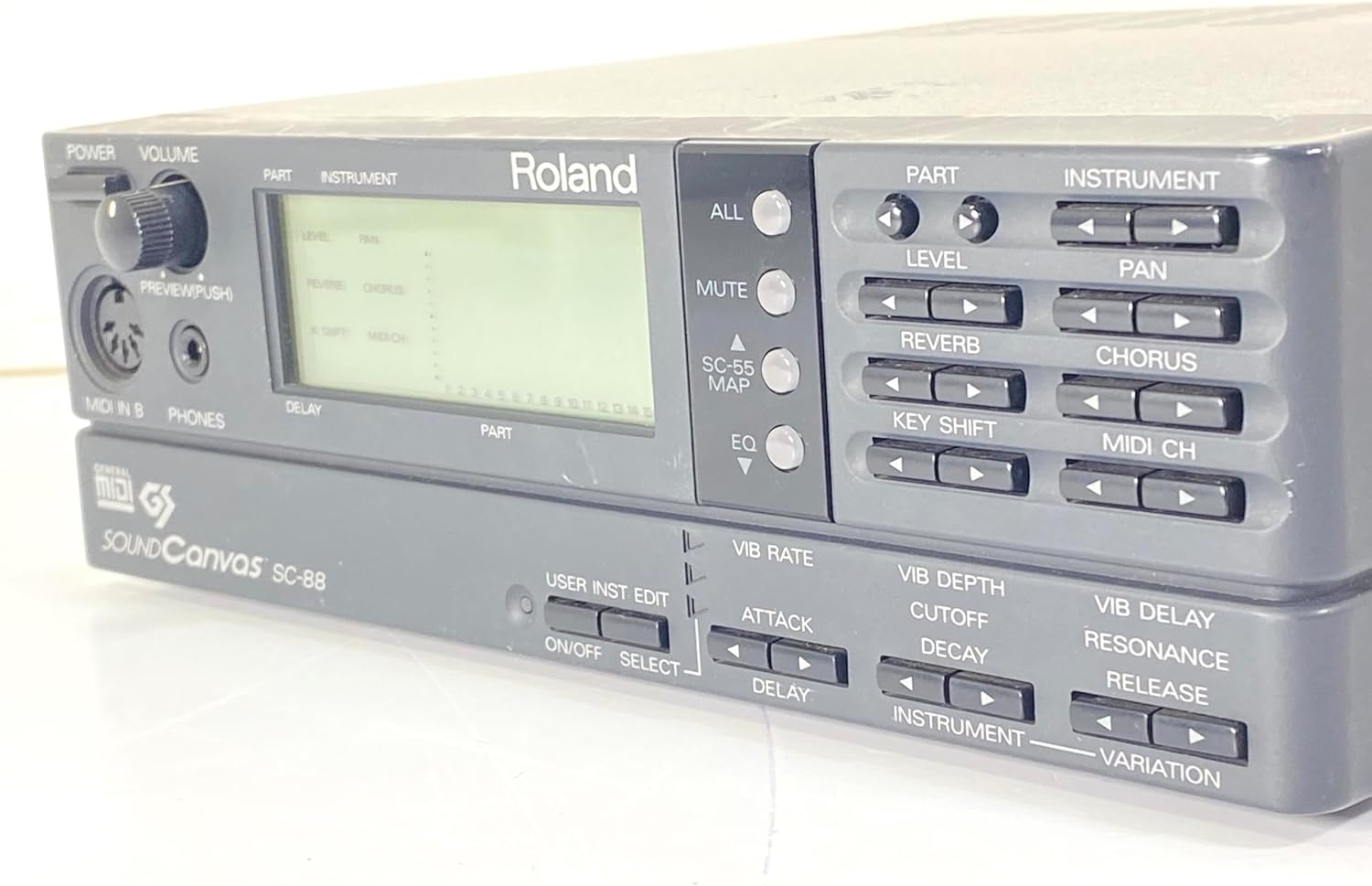
Figure 2: Front panel controls and display of the Roland SC-88 Sound Canvas. This image highlights the main display, part selection buttons, instrument controls, and effect parameters.
Maintenance
Proper care and maintenance will ensure the longevity and optimal performance of your SC-88 Sound Canvas.
- Cleaning: Use a soft, dry cloth to wipe the exterior of the unit. For stubborn dirt, slightly dampen the cloth with water and a mild, non-abrasive cleaner, then wipe dry immediately. Avoid using harsh chemicals, solvents, or abrasive materials, as these can damage the finish and controls.
- Environment: Operate and store the unit in a clean, dry environment away from direct sunlight, extreme temperatures, high humidity, and excessive dust. Ensure adequate ventilation to prevent overheating.
- Handling: Avoid dropping or subjecting the unit to strong impacts. When transporting, use appropriate protective casing.
- Power: Always use the specified AC adapter. Disconnect the power adapter from the wall outlet if the unit will not be used for an extended period.
Troubleshooting
If you encounter issues with your SC-88, refer to the following common troubleshooting steps.
No Sound Output
- Check Power: Ensure the unit is powered on and the power indicator is lit.
- Volume Levels: Verify that the master volume knob (POWER VOLUME) on the front panel is turned up. Also, check the individual part levels on the display.
- Audio Connections: Confirm that audio cables are securely connected from the AUDIO OUT jacks to your amplifier/mixer and that the external device's volume is up.
- Headphones: If using headphones, ensure they are properly connected to the PHONES jack and the volume is adjusted.
MIDI Input Not Responding / No Sound from External MIDI Device
- MIDI Cable: Ensure the MIDI cable is correctly connected from the MIDI OUT of your controller/sequencer to the MIDI IN A or MIDI IN B of the SC-88.
- MIDI Channel: Verify that the MIDI channel of your external device matches the MIDI channel assigned to the part on the SC-88 you intend to control.
- MIDI Data Transmission: Confirm that your external MIDI device is sending MIDI data. Check its settings and functionality.
- SC-55 MAP: If using older MIDI files or devices, try adjusting the SC-55 MAP setting on the SC-88 to ensure compatibility.
Unit Not Powering On / Unexpected Shutdown
- Power Adapter: Ensure the correct AC adapter is used and it is securely connected to both the unit and a working power outlet.
- Voltage: Verify that the power outlet voltage matches the requirements of the AC adapter. Incorrect voltage can cause damage.
- Overheating: Ensure the unit has adequate ventilation and is not placed in an enclosed space that could lead to overheating.
Specifications
| Feature | Detail |
|---|---|
| Model Number | SC-88 (Internal model number: SC-55 mkII) |
| Polyphony | 64 voices |
| Multitimbrality | 32 parts (via two independent MIDI Ins) |
| Waveform ROM | 8 MB |
| Preset Sounds | 654 patches (354 from SC-55 MkII, 300 from JV80) |
| Drum Sound Sets | 24 (including 2 SFX sets) |
| User Sounds | 256 |
| User Drum Sound Set | 2 |
| Computer Interface | Built-in serial port for Mac or PC compatible computers |
| Item Weight | 3.08 pounds (1.4 kg) |
| Product Dimensions | 8.58 x 9.17 x 1.73 inches (21.8 x 23.3 x 4.4 cm) |
| Date First Available | February 28, 2011 |
Warranty and Support
For warranty information, technical support, or service inquiries, please refer to the official Roland website or contact your local Roland distributor. Keep your purchase receipt as proof of purchase for warranty claims.
Official Roland Website: www.roland.com


