
Gateway MO42KC
Gateway Primax PS2 Silver Scroll Mouse MO42KC User Manual
Model: MO42KC | Brand: Gateway
1. Introduction
This manual provides detailed instructions for the installation, operation, and maintenance of your Gateway Primax PS2 Silver Scroll Mouse MO42KC. Please read this manual thoroughly before using the device to ensure proper functionality and longevity.
2. Product Overview
The Gateway Primax PS2 Silver Scroll Mouse MO42KC is a reliable wired optical mouse designed for general computer use. It features a classic silver finish, a scroll wheel for easy navigation, and a PS/2 connector for compatibility with older systems.
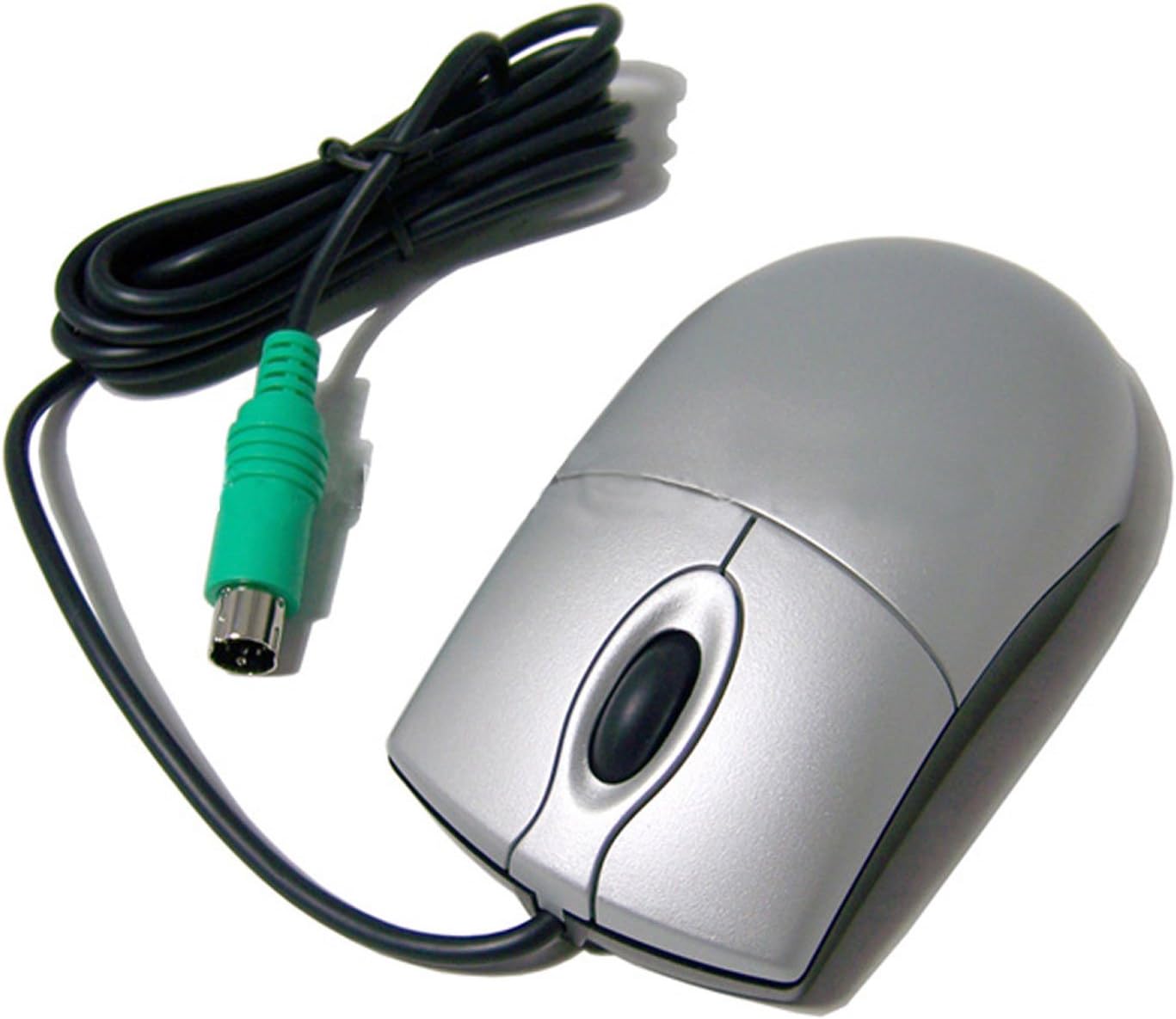
Figure 2.1: Gateway Primax PS2 Silver Scroll Mouse MO42KC. This image shows the silver mouse with its black cable and green PS/2 connector.
Key Features:
- Connectivity: PS/2 wired connection for stable performance.
- Buttons: Three buttons (left, right, and scroll wheel click).
- Scroll Wheel: Integrated scroll wheel for smooth vertical navigation.
- Design: Ambidextrous design suitable for both left and right-handed users.
- Color: Silver finish.
3. Setup
Follow these steps to connect your Gateway Primax PS2 Silver Scroll Mouse to your computer.
- Power Off Computer: Before connecting the mouse, ensure your computer is completely powered off to prevent any potential damage to the PS/2 port or the mouse.
- Locate PS/2 Port: Identify the PS/2 mouse port on the back of your computer. It is typically green and circular with small pins inside.
- Connect Mouse: Align the PS/2 connector of the mouse with the PS/2 mouse port on your computer. Gently push the connector in until it is firmly seated. Do not force the connection.
- Power On Computer: Once the mouse is securely connected, power on your computer. The operating system should automatically detect and install the necessary drivers for the mouse.
- Test Functionality: After your computer has booted, move the mouse and click its buttons to verify proper operation.
4. Operating Instructions
The Gateway Primax PS2 Silver Scroll Mouse operates like a standard three-button mouse.
- Left Click: Use the left button for selecting items, opening files, and executing commands.
- Right Click: Use the right button to open context menus, providing quick access to various options depending on the application or item selected.
- Scroll Wheel: Roll the scroll wheel up or down to navigate through documents, web pages, or other content vertically. Pressing the scroll wheel typically acts as a middle click, which can have various functions depending on the software (e.g., opening a link in a new tab).
- Movement: Move the mouse across a flat surface to control the cursor on your screen. For optimal performance, use a mouse pad.
5. Maintenance
Proper care and maintenance will extend the life of your mouse.
- Cleaning: Regularly clean the mouse surface with a soft, dry, lint-free cloth. For stubborn dirt, slightly dampen the cloth with water or a mild, non-abrasive cleaner. Avoid spraying liquids directly onto the mouse.
- Optical Sensor: Ensure the optical sensor on the underside of the mouse remains clean and free of dust or debris for accurate tracking. Use a cotton swab to gently clean the sensor area if necessary.
- Cable Care: Avoid bending or twisting the mouse cable excessively, as this can damage the internal wires. Store the cable neatly when not in use.
- Operating Environment: Use the mouse on a clean, flat surface. Avoid extreme temperatures, high humidity, or direct sunlight.
6. Troubleshooting
If you encounter issues with your mouse, refer to the following common problems and solutions.
| Problem | Possible Cause | Solution |
|---|---|---|
| Mouse cursor does not move. | Loose PS/2 connection; dirty optical sensor; driver issue. | Ensure the PS/2 connector is firmly plugged into the correct port. Clean the optical sensor. Restart your computer to allow the operating system to re-detect the mouse and reinstall drivers. |
| Buttons or scroll wheel are unresponsive. | Software conflict; physical damage; debris under buttons. | Restart your computer. Check for any software conflicts. Gently clean around the buttons and scroll wheel. If the issue persists, the mouse may be faulty. |
| Cursor moves erratically. | Dirty optical sensor; uneven or reflective surface. | Clean the optical sensor. Use the mouse on a clean, non-reflective mouse pad or surface. |
7. Specifications
- Model: MO42KC
- Brand: Gateway
- Connectivity: PS/2 Wired
- Number of Buttons: 3 (Left, Right, Scroll Wheel Click)
- Color: Silver
- Hand Orientation: Ambidextrous
- Item Weight: 1 pound
- Package Dimensions: 8.3 x 3 x 1.5 inches
- Date First Available: October 1, 2010
8. Warranty and Support
This product includes a warranty. For specific warranty terms and conditions, please refer to the documentation provided at the time of purchase or contact Gateway customer support.
For technical support or further assistance, please visit the official Gateway support website or contact their customer service line. Keep your product model number (MO42KC) and purchase information ready when seeking support.
Ask a question about this manual
Ask about setup, troubleshooting, compatibility, parts, safety, or missing instructions. Manuals+ will review the question and use this page’s manual context to help answer it.