1. Introduction
This manual provides essential information for the installation, operation, maintenance, and troubleshooting of your Compaq 24x CD-ROM Drive, designed for compatibility with the HP Presario nx9100 series notebooks. This internal optical drive allows your notebook to read data from standard CD-ROM discs.
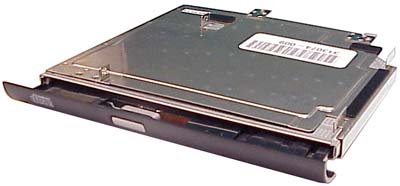
An image showing the Compaq 24x CD-ROM drive, a rectangular internal optical drive unit, typically installed in a laptop's modular bay. The drive features a black front bezel with a disc eject button and an indicator light. The top surface of the drive is metallic, showing part of a label with numbers.
Compatibility: This drive is specifically designed for use with Compaq Presario nx9100 series notebooks. Ensure your notebook model is compatible before installation.
2. Setup and Installation
Installation of this internal CD-ROM drive requires careful handling of your notebook. If you are not comfortable performing hardware installations, please consult a qualified technician.
- Prepare the Notebook: Power off your Compaq Presario nx9100 notebook completely. Disconnect the AC adapter and remove the main battery.
- Locate Drive Bay: Identify the modular bay on your notebook, typically on the side, where the optical drive is installed. Refer to your notebook's service manual for exact location and removal instructions for any existing drive or blank filler.
- Insert the Drive: Gently slide the new Compaq 24x CD-ROM drive into the modular bay until it is fully seated. Ensure it clicks into place or is secured by any retaining screws or latches specific to your notebook model.
- Reassemble and Power On: Reinstall the battery and reconnect the AC adapter. Power on your notebook. The operating system should automatically detect and install the necessary drivers for the CD-ROM drive.
- Verify Installation: Once the notebook has booted, open 'My Computer' or 'This PC' to confirm that the new CD-ROM drive icon appears. Insert a known good CD-ROM to test its functionality.
3. Operation
Using your Compaq 24x CD-ROM drive is straightforward:
- Inserting a Disc: Press the eject button on the front bezel of the drive. The disc tray will slide out. Place the CD-ROM disc label-side up onto the tray, ensuring it is centered on the spindle. Gently push the tray back into the drive until it closes completely.
- Ejecting a Disc: To eject a disc, you can either press the eject button on the drive's front bezel or right-click on the CD-ROM drive icon in 'My Computer'/'This PC' and select 'Eject'.
- Reading Data: Once a disc is inserted, your operating system may automatically prompt you to open the disc's contents or run an application. If not, navigate to the CD-ROM drive icon in 'My Computer'/'This PC' and double-click it to browse the disc's files.
4. Maintenance and Care
Proper care will extend the life of your CD-ROM drive:
- Keep it Clean: Periodically clean the exterior of the drive and the disc tray with a soft, dry, lint-free cloth. Avoid using liquid cleaners directly on the drive.
- Handle Discs Carefully: Always handle discs by their edges. Avoid touching the data surface. Store discs in their cases when not in use to prevent scratches and dust accumulation.
- Avoid Dust and Liquids: Keep the notebook and drive away from dusty environments and spills. Dust can accumulate inside the drive and affect its performance.
- Gentle Operation: Do not force the disc tray open or closed. Always use the eject button or software command.
5. Troubleshooting
If you encounter issues with your CD-ROM drive, refer to the table below for common problems and solutions:
| Problem | Possible Cause | Solution |
|---|---|---|
| Drive not detected by the operating system. | Drive not properly seated; driver issue. | Ensure the drive is fully inserted into the modular bay. Restart the notebook. Check Device Manager for the drive and update/reinstall drivers if necessary. |
| Disc does not read or plays intermittently. | Dirty or scratched disc; incompatible disc format; dirty lens. | Clean the disc with a soft cloth. Try a different, known-good disc. Ensure the disc is a standard CD-ROM. If issues persist, the drive lens may need professional cleaning. |
| Disc tray does not open or close. | Mechanical obstruction; power issue. | Do not force the tray. Check for any physical obstructions. Restart the notebook. If the issue persists, the drive may require service. |
| Slow performance when reading discs. | System resources low; disc condition. | Close unnecessary applications. Ensure the disc is clean and unscratched. |
6. Technical Specifications
| Feature | Specification |
|---|---|
| Model | 24x CD-ROM Drive |
| Part Numbers | 354859-001, 313074-009 |
| Brand | Compaq |
| Compatibility | HP Presario nx9100 series notebooks |
| Read Speed | 24x (CD-ROM) |
| Cache Size | 2 MB |
| Item Weight | 2 pounds (approx.) |
| UPC | 788490574439 |
| Hardware Platform | CONSUMER_ELECTRONICS |
7. Warranty and Support
This product includes a warranty. For specific details regarding the warranty period, coverage, and terms, please refer to the documentation provided at the time of purchase or contact your vendor.
For technical assistance, troubleshooting beyond this manual, or warranty claims, please contact Compaq or HP customer support. Have your product model and part numbers ready when contacting support.


