
Introduction
This manual provides detailed instructions for the proper use and maintenance of your Casio FX-570MS Scientific Calculator. The FX-570MS is a versatile calculator designed for a wide range of scientific and engineering computations, featuring a 2-line display for enhanced readability and functionality.
Key capabilities include:
- 2-line display for input and results.
- Fraction calculations and conversions.
- Integration and differentiation calculations.
- Combination and Permutation functions.
- Statistical calculations.
- Base-n calculations and conversions.
- Logical operations.
- Complex number calculations.
- CALC memory and Engineering symbol calculations.
- 40 scientific constants and 40 metric conversions.

Figure 1: Front view of the Casio FX-570MS Scientific Calculator, showing the 2-line display and full keypad layout.
Setup
Battery Installation
The Casio FX-570MS calculator requires two LR44 batteries for operation. These are typically included with the product. To install or replace batteries:
- Ensure the calculator is turned OFF.
- Locate the battery compartment cover on the back of the calculator.
- Use a small screwdriver to remove the screw securing the cover, then slide the cover off.
- Remove old batteries (if any) and insert two new LR44 batteries, ensuring correct polarity (+/-).
- Replace the battery compartment cover and secure it with the screw.
Initial Power On
After battery installation, press the [ON] button to power on the calculator. The display should show '0' or a previous calculation result. If the display is blank or shows unusual characters, ensure batteries are correctly installed or try resetting the calculator.
Operating Instructions
Basic Operations
Input numbers and operations using the numeric keypad and function buttons. The 2-line display shows the input expression on the upper line and the result on the lower line.
Key Functions Overview
- [SHIFT]: Accesses the secondary functions printed in yellow above the keys. Press [SHIFT] then the desired key.
- [ALPHA]: Accesses the alpha functions printed in red above the keys. Press [ALPHA] then the desired key.
- [MODE CLR]: Used to change calculation modes or clear memory. Press [MODE] to select a mode, or [SHIFT] [CLR] to clear memory or reset settings.
- [ON]: Powers on the calculator.
- [AC]: Clears all entries and returns to the initial display.
- [DEL]: Deletes the last entered character.

Figure 2: Close-up view of the navigation and primary function keys, including SHIFT, ALPHA, MODE CLR, and ON buttons.
Advanced Functions
The FX-570MS offers a range of advanced functions accessible via the [SHIFT] and [ALPHA] keys. Refer to the markings above each key for specific functions.
- Equation Solver (CALC, SOLVE): Use [SHIFT] [CALC] for SOLVE function to solve equations.
- Matrix and Vector Calculations: Access dedicated modes for matrix and vector operations.
- Multi-Replay Function: Allows scrolling through and editing previous calculations.
- Scientific Constants and Metric Conversions: Utilize the built-in library for common constants and unit conversions.
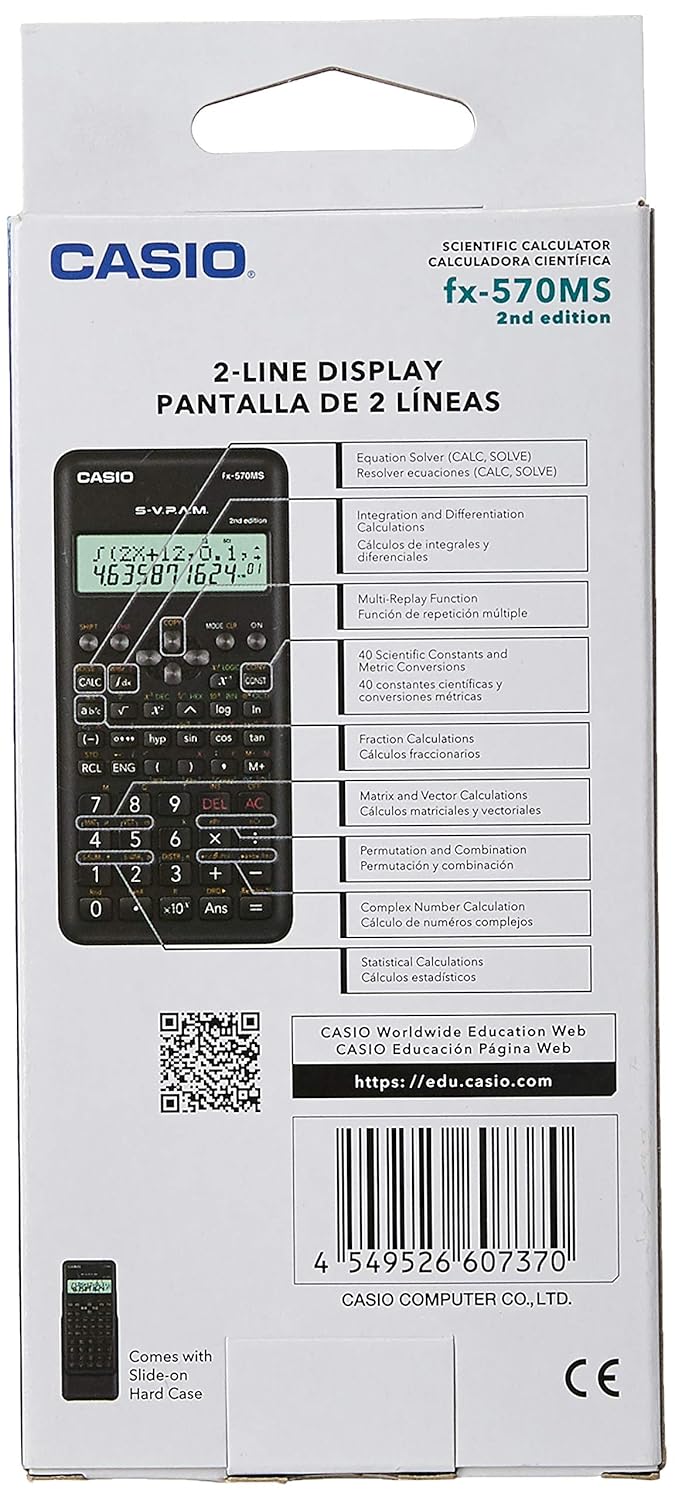
Figure 3: Product packaging highlighting key features such as Equation Solver, Matrix and Vector Calculations, and Multi-Replay function.
Maintenance
Cleaning
To clean the calculator, wipe it with a soft, dry cloth. Do not use abrasive cleaners, solvents, or harsh chemicals, as these can damage the casing or display.
Battery Replacement
When the display becomes dim or calculations are erratic, it is time to replace the batteries. Follow the battery installation steps outlined in the Setup section.
Storage
Store the calculator in a cool, dry place away from direct sunlight and extreme temperatures. Use the provided slide-on hard case to protect the calculator from dust and physical damage when not in use.
Troubleshooting
- Display is blank or dim: Check battery installation. Replace batteries if necessary.
- Incorrect results: Ensure you are in the correct calculation mode (e.g., DEG, RAD, GRAD). Clear all memory and settings by pressing [SHIFT] [CLR] [ALL] [=].
- Calculator does not turn on: Verify battery installation and charge. If issues persist, contact customer support.
Specifications
| Feature | Description |
|---|---|
| Model Number | FX-570MS |
| Display | 2-line display |
| Number of Functions | 401 (as indicated on packaging) |
| Power Source | Battery Powered (2 x LR44 batteries) |
| Dimensions (LxWxH) | 16.1 x 13.7 x 0.8 Centimeters |
| Item Weight | 150 g |
| Screen Size | 3.35 Inches |
Warranty and Support
For warranty information and customer support, please refer to the documentation included with your product or visit the official Casio website. You can also verify the authenticity of your product using the QR code provided on the packaging.
For educational resources and further information, visit the Casio Worldwide Education Web:
To check product authenticity:
https://check.casio-intl.com/vZRAZvOksFB4V5

Figure 4: Product packaging front, showing the authenticity QR code for verification.


