Introduction
This manual provides comprehensive instructions for the iHome Optical Mouse with Retractable Cable, model IH-M804OU. Please read this guide thoroughly to ensure proper setup, operation, and maintenance of your device.
Product Features
- Optical tracking for precise cursor control.
- Retractable and stowable USB cable for portability.
- 1000 DPI optical sensor for responsive movement.
- Adjustable height switch located on the bottom of the mouse.
- Rubberized finish for a comfortable grip.
Setup
The iHome Optical Mouse is designed for plug-and-play functionality, requiring no additional software installation for basic operation.
- Unpack the Mouse: Carefully remove the mouse from its packaging.
- Extend the USB Cable: Gently pull both ends of the retractable USB cable simultaneously until it reaches the desired length. Avoid pulling only one end, as this can damage the retraction mechanism.
- Connect to Computer: Insert the USB connector into an available USB port on your computer.
- Driver Installation: Your operating system will automatically detect and install the necessary drivers. This process may take a few moments.
- Verify Functionality: Once drivers are installed, the mouse cursor should respond to your movements.
Operating the Mouse
Basic Functions
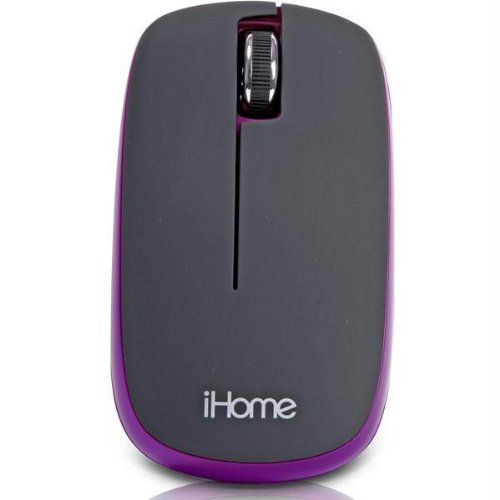
- Left Click: Press the left button to select items, open links, or activate functions.
- Right Click: Press the right button to open context menus or access additional options.
- Scroll Wheel: Rotate the scroll wheel forward or backward to navigate through documents and web pages. The scroll wheel can also be pressed for middle-click functionality, depending on software configuration.
Retracting the Cable
To retract the USB cable, gently pull both ends of the cable outwards by approximately one inch. The cable will then automatically retract into the mouse housing. Ensure the cable is fully extended before attempting to retract it to prevent tangling.
Adjusting Mouse Height
A switch located on the bottom of the mouse allows for a slight adjustment in its height. This feature can enhance ergonomic comfort for some users. Flip the switch to raise or lower the mouse body as desired.
Maintenance
Regular maintenance helps ensure the longevity and optimal performance of your iHome Optical Mouse.
- Cleaning the Mouse: Use a soft, dry, lint-free cloth to wipe the exterior of the mouse. For stubborn dirt, slightly dampen the cloth with water or a mild cleaning solution. Avoid harsh chemicals or abrasive materials.
- Cleaning the Optical Sensor: Periodically inspect the optical sensor opening on the bottom of the mouse for dust or debris. Use a cotton swab or compressed air to gently clean the sensor area.
- Cable Care: When retracting the cable, ensure it is not twisted or kinked. Always pull both ends simultaneously to prevent damage to the internal mechanism. Avoid excessive force when extending or retracting the cable.
- Storage: When not in use, retract the cable fully and store the mouse in a clean, dry environment away from extreme temperatures.
Troubleshooting
If you encounter issues with your iHome Optical Mouse, refer to the following common problems and solutions:
| Problem | Possible Cause | Solution |
|---|---|---|
| Mouse cursor does not move or moves erratically. |
|
|
| Retractable cable does not retract or extend smoothly. |
|
|
| Buttons or scroll wheel are unresponsive. |
|
|
Specifications
| Feature | Detail |
|---|---|
| Model Number | IH-M804OU |
| Brand | iHome |
| Connectivity Technology | USB (Retractable Cable) |
| Movement Detection Technology | Optical |
| DPI Sensor | 1000 DPI |
| Number of Buttons | 3 (Left, Right, Scroll Wheel/Middle Click) |
| Item Weight | 4.5 ounces (approx. 127.5 grams) |
| Product Dimensions (LxWxH) | 5.04 x 2.17 x 7.4 inches (approx. 12.8 x 5.5 x 18.8 cm) |
| Color | Purple (as per product variant) |
Warranty and Support
Specific warranty information and customer support details are not provided in the product data. For warranty claims or technical assistance, please refer to the product packaging or contact iHome customer service directly through their official website or the retailer where the product was purchased.
You may visit the iHome Store on Amazon for more information.


