
Introduction
The GIGABYTE GM-M7600 is a wireless precision optical mouse designed for comfortable and reliable use. This manual provides instructions for setting up, operating, maintaining, and troubleshooting your device.
Package Contents
Please check the package contents to ensure all items are present:
- GIGABYTE GM-M7600 Wireless Optical Mouse
- Portable Nano USB Receiver
- 2 x AAA Batteries
Setup
1. Installing Batteries
The GM-M7600 mouse requires two AAA batteries for operation. The batteries are included in the package.
- Locate the battery compartment cover on the underside of the mouse.
- Gently slide or lift the cover to open the compartment.
- Insert the two AAA batteries, ensuring the positive (+) and negative (-) terminals align correctly with the markings inside the compartment.
- Close the battery compartment cover securely.
2. Connecting the USB Receiver
The mouse connects to your computer via a portable Nano USB receiver.
- Locate the Nano USB receiver. It may be stored inside the mouse's battery compartment or packaged separately.
- Plug the Nano USB receiver into an available USB port on your computer (Laptop or Personal Computer).
- Your operating system (e.g., Windows XP, Linux) should automatically detect and install the necessary drivers. This process may take a few moments.
- Once the drivers are installed, the mouse is ready for use.
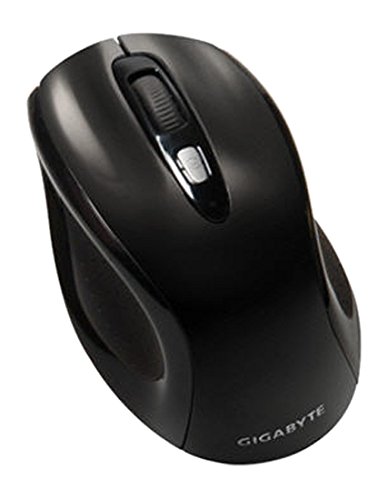
Figure 1: GIGABYTE GM-M7600 Wireless Optical Mouse. This image displays the ergonomic design of the mouse, highlighting its form factor and the location of its buttons. The Nano USB receiver is typically stored within the mouse or connected to a computer's USB port.
Operating Instructions
1. Powering On/Off
The mouse typically has a power switch on its underside. Slide the switch to the 'ON' position to activate the mouse. Slide it to 'OFF' when not in use to conserve battery life.
2. Adjusting DPI (Sensitivity)
The GM-M7600 features an adjustable DPI switch, allowing you to change the mouse sensitivity between 800 DPI and 1600 DPI. This switch is usually located near the scroll wheel. Press the DPI button to toggle between the two sensitivity settings.
3. Basic Mouse Functions
- Left Click: Primary button for selecting items, opening files, and interacting with software.
- Right Click: Secondary button for accessing context menus and additional options.
- Scroll Wheel: Used for scrolling through documents and web pages. It can also function as a middle click button.
Maintenance
1. Cleaning
To maintain optimal performance and appearance:
- Disconnect the mouse from your computer and turn off the power switch.
- Use a soft, lint-free cloth slightly dampened with water or a mild cleaning solution to wipe the surface of the mouse.
- Avoid using harsh chemicals, abrasive cleaners, or spraying liquids directly onto the mouse.
- Clean the optical sensor area on the underside of the mouse with a dry cotton swab to remove any dust or debris.
2. Battery Replacement
When the mouse performance degrades or it stops responding, it may be time to replace the batteries.
- Turn off the mouse using the power switch.
- Open the battery compartment as described in the 'Installing Batteries' section.
- Remove the old AAA batteries.
- Insert two new AAA batteries, observing the correct polarity (+/-).
- Close the battery compartment and turn the mouse back on.
Troubleshooting
If you encounter issues with your GIGABYTE GM-M7600 mouse, try the following solutions:
- Mouse not responding:
- Ensure the mouse is powered on.
- Check if the batteries are correctly installed and have sufficient charge. Replace if necessary.
- Ensure the Nano USB receiver is securely plugged into a working USB port on your computer. Try a different USB port.
- Restart your computer.
- Erratic cursor movement:
- Clean the optical sensor on the underside of the mouse.
- Ensure you are using the mouse on a suitable surface. Avoid highly reflective or transparent surfaces.
- Check for any wireless interference. Move the mouse closer to the receiver or away from other wireless devices.
- DPI switch not working:
- Ensure the mouse is powered on and connected.
- Press the DPI button firmly.
Specifications
| Model Name | GM-M7600 |
| Brand | GIGABYTE |
| Connectivity Technology | 2.4GHz Radio Frequency Wireless |
| Movement Detection | Optical |
| Adjustable DPI | 800 / 1600 DPI |
| Number of Buttons | 3 (Left, Right, Scroll Wheel/Middle Click) |
| Power Source | 2 x AAA Batteries (included) |
| Receiver Type | Portable Nano USB Receiver |
| Compatible Devices | Laptop, Personal Computer |
| Operating System Support | Linux, Windows XP |
| Enclosure Material | Plastic with Rubberized Finish |
| Color | Black |
Warranty and Support
For warranty information and technical support, please refer to the warranty card included with your product or visit the official GIGABYTE website. Keep your purchase receipt for warranty claims.


