
1. Introduction
This manual provides essential instructions for the safe and effective use of your Olympus E-5 Digital SLR Camera. Please read this manual thoroughly before using the camera and keep it in a safe place for future reference. The Olympus E-5 is a robust DSLR camera designed for professional use, featuring a 12.3-megapixel Live MOS sensor, a TruePic V+ image processing engine, and a durable, weather-sealed body.
2. Safety Information
- Do not expose the camera to extreme temperatures, humidity, or direct sunlight for extended periods.
- Avoid dropping the camera or subjecting it to strong impacts.
- Keep the camera away from water and other liquids, unless specifically designed for underwater use. While the E-5 is dustproof and splashproof, it is not submersible.
- Use only genuine Olympus accessories or approved compatible products.
- Do not attempt to disassemble or modify the camera. Refer all servicing to qualified personnel.
- Keep batteries out of reach of children.
3. Setup
3.1. Installing the Battery
The Olympus E-5 uses a Lithium-Ion battery (BLM-5). Ensure the battery is fully charged before first use.
- Open the battery compartment cover located at the bottom of the camera.
- Insert the battery with the contacts facing the correct direction, as indicated inside the compartment.
- Close the battery compartment cover securely until it clicks into place.
3.2. Inserting a Memory Card
The E-5 supports both CompactFlash (CF) and SD memory cards.
- Open the memory card slot cover on the side of the camera.
- Insert the CF card into the CF slot or the SD card into the SD slot until it clicks. Ensure the card is oriented correctly.
- Close the memory card slot cover securely.

Figure 3.2.1: Right side of the Olympus E-5, illustrating the memory card compartment and various port covers.
3.3. Attaching a Lens
The E-5 uses a Four Thirds lens mount.
- Remove the body cap from the camera and the rear cap from the lens.
- Align the mounting index (red dot) on the lens with the mounting index on the camera body.
- Insert the lens into the camera mount and rotate it clockwise until it locks into place with a click.

Figure 3.3.1: Front view of the Olympus E-5 camera body, showing the Four Thirds lens mount.
3.4. Initial Power-On and Basic Settings
- Turn the power switch to the "ON" position.
- The first time you power on the camera, you may be prompted to set the date, time, and language. Follow the on-screen instructions using the control dial and buttons.
4. Operating the Camera
4.1. Basic Shooting Modes
The E-5 offers various exposure control modes:
- Program Auto (P): The camera automatically sets both aperture and shutter speed.
- Aperture Priority (A/Av): You set the aperture, and the camera selects the appropriate shutter speed.
- Shutter Priority (S/Tv): You set the shutter speed, and the camera selects the appropriate aperture.
- Manual (M): You control both aperture and shutter speed.
- Auto: Fully automatic mode for simple point-and-shoot operation.
Select your desired mode using the mode dial on the top of the camera.
4.2. Focusing
The E-5 features an 11-point autofocus system. You can switch between autofocus (AF) and manual focus (MF) using the switch on the lens or camera body.
- Autofocus: Press the shutter button halfway to activate autofocus. The camera will focus on the subject within the selected AF points.
- Manual Focus: Rotate the focus ring on the lens to adjust focus manually.
4.3. Image Stabilization
The E-5 incorporates digital image stabilization to reduce blur caused by camera shake. This feature is automatically active and can be configured in the camera's menu system if needed.
4.4. Using the Swiveling LCD Monitor
The 3.0-inch HyperCrystal LCD monitor can swivel 270 degrees, allowing for flexible shooting angles and easy composition for both still images and HD videos.
- Gently pull the LCD monitor away from the camera body.
- Rotate it to your desired angle for comfortable viewing.
- To close, fold the LCD back into its original position until it clicks.
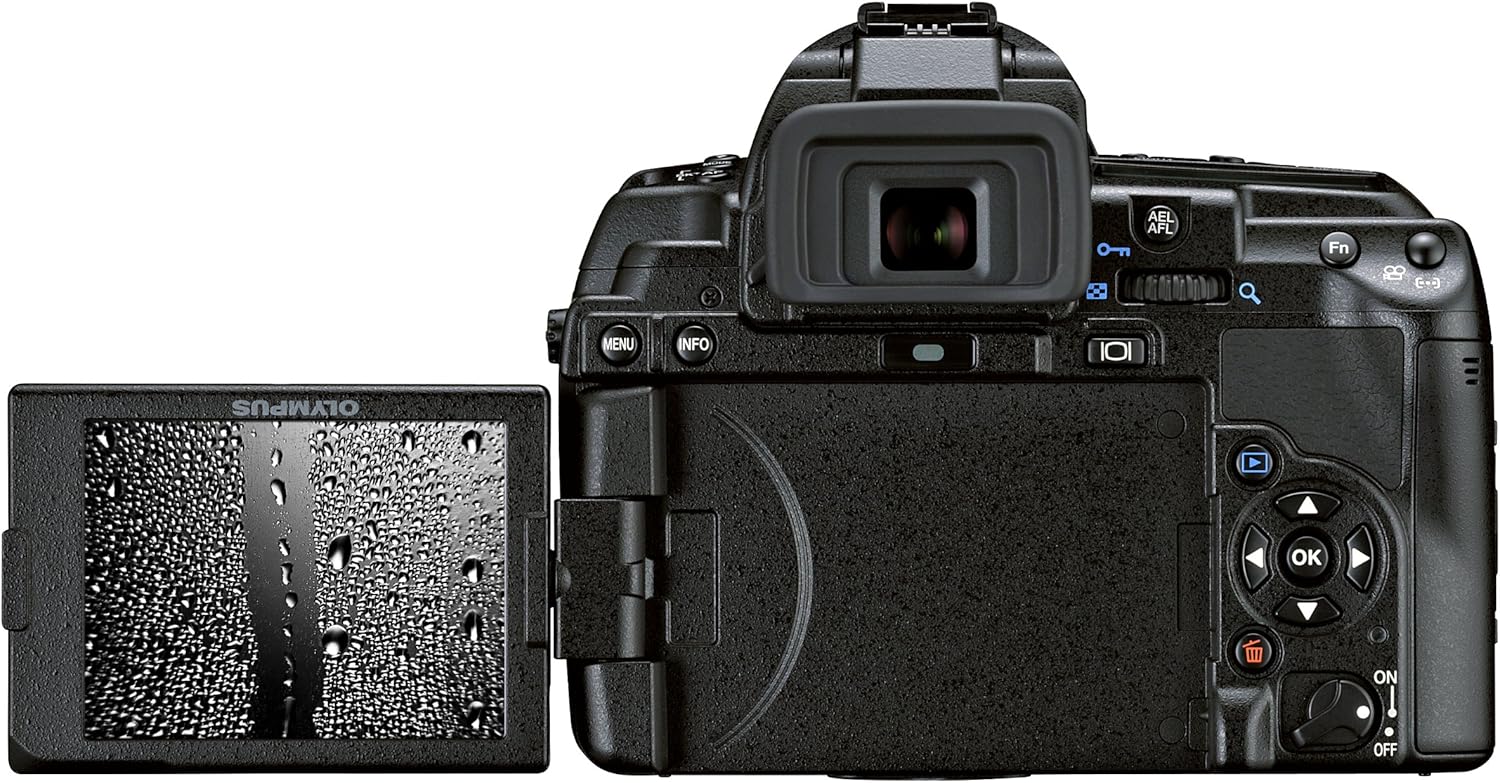
Figure 4.4.1: Rear view of the Olympus E-5, showing the LCD monitor swiveled out for flexible viewing.
4.5. Video Recording
The E-5 can record video at 1080p resolution.
- Switch the camera to movie mode (refer to your camera's specific button layout or menu).
- Press the movie record button to start and stop recording.
4.6. Image Playback
To view captured images and videos, press the playback button (usually marked with a triangle icon).
- Use the directional pad to navigate through images.
- Use the zoom buttons to enlarge or view multiple images.
4.7. Connectivity
The E-5 features USB connectivity for transferring files to a computer. It also supports Wi-Fi for wireless transfer or remote control with compatible accessories.

Figure 4.7.1: Left side of the Olympus E-5, showing the covers for USB, HDMI, and other ports.
5. Maintenance
5.1. Cleaning the Camera
- Camera Body: Wipe the camera body with a soft, dry cloth. For stubborn dirt, use a slightly damp cloth and then dry thoroughly.
- Lens and Viewfinder: Use a lens brush or blower to remove dust. For smudges, use a lens cleaning solution and a microfiber cloth.
- Image Sensor: The E-5 features a Supersonic Wave Filter for automatic dust reduction. If dust spots persist, consult a professional service center for sensor cleaning.
5.2. Battery Care
- Store batteries in a cool, dry place when not in use.
- Avoid fully discharging the battery frequently to prolong its lifespan.
- If the camera will not be used for an extended period, remove the battery.
5.3. Storage
Store the camera in a dry, well-ventilated area, preferably in a camera bag, to protect it from dust and physical damage.
6. Troubleshooting
| Problem | Possible Cause | Solution |
|---|---|---|
| Camera does not power on. | Battery is depleted or incorrectly inserted. | Charge the battery or re-insert it correctly. |
| Cannot take pictures. | Memory card is full, locked, or not inserted. | Insert a new card, unlock the card, or ensure it is properly inserted. |
| Images are blurry. | Incorrect focus, camera shake, or dirty lens. | Check focus settings, use image stabilization, or clean the lens. |
| Autofocus is slow or inaccurate. | Low light conditions, low contrast subject, or lens not properly attached. | Use an external light source, focus manually, or re-attach the lens. |
7. Specifications
| Feature | Detail |
|---|---|
| Brand | Olympus |
| Model Name | E-5 |
| Sensor Type | 12.3 MP High-Speed Live MOS |
| Image Processor | TruePic V+ |
| Lens Mount | Four Thirds |
| Image Stabilization | Digital |
| Display | 3.0-inch 920,000-dot HyperCrystal Swiveling LCD |
| Autofocus Points | 11 |
| Video Resolution | 1080p |
| Storage Media | SD Card, CompactFlash (CF) |
| Connectivity | USB, Wi-Fi (with compatible accessories) |
| Weight | 0.8 Kilograms (body only) |
| Environmental Sealing | Dustproof, Splashproof |
8. Warranty Information
This product is typically covered by a manufacturer's warranty. For specific details regarding your Olympus E-5 camera, please refer to the warranty card included with your purchase or visit the official Olympus support website. A 90-day parts and labor warranty may apply to certain purchases, as indicated by the seller.
9. Customer Support
For further assistance, technical support, or service inquiries, please contact Olympus customer support through their official website or the contact information provided in your product documentation. You can visit the Olympus Store on Amazon for additional product information and resources.


