
Bernstein Bernstein RAC 20 Piano Black
Bernstein RAC20 Designradio Piano Black User Manual
Model: Bernstein RAC 20 Piano Black
1. Important Safety Instructions
Please read these instructions carefully before operating the device and retain them for future reference. Failure to follow these instructions may result in electric shock, fire, or other hazards.
- Do not expose this appliance to rain or moisture.
- Do not block any ventilation openings.
- Do not install near any heat sources.
- Only use attachments/accessories specified by the manufacturer.
- Unplug this appliance during lightning storms or when unused for long periods of time.
2. Product Overview
The Bernstein RAC20 Designradio is a high-quality audio system featuring a 3D sound system, FM/AM radio, clock, and alarm functions, all housed in an elegant wooden casing with a high-gloss finish.

Figure 2.1: Front view of the Bernstein RAC20 Designradio, showing the clock, tuning dial, volume knob, and control buttons.
Key Features:
- 3D Sound System for immersive audio experience.
- High-quality FM/AM radio tuner with excellent reception.
- Integrated clock and alarm functions.
- Headphone output for private listening.
- Elegant wooden casing with a piano black high-gloss finish.
- Internet radio reception capability.
3. Package Contents
Ensure all items are present and in good condition upon unboxing:
- Bernstein RAC20 Designradio Unit
- User Manual (this document)
- 3.5mm Audio Cable
4. Setup
4.1. Unpacking and Placement
- Carefully remove the radio from its packaging.
- Place the radio on a stable, flat surface away from direct sunlight, heat sources, and moisture.
- Ensure adequate ventilation around the unit.
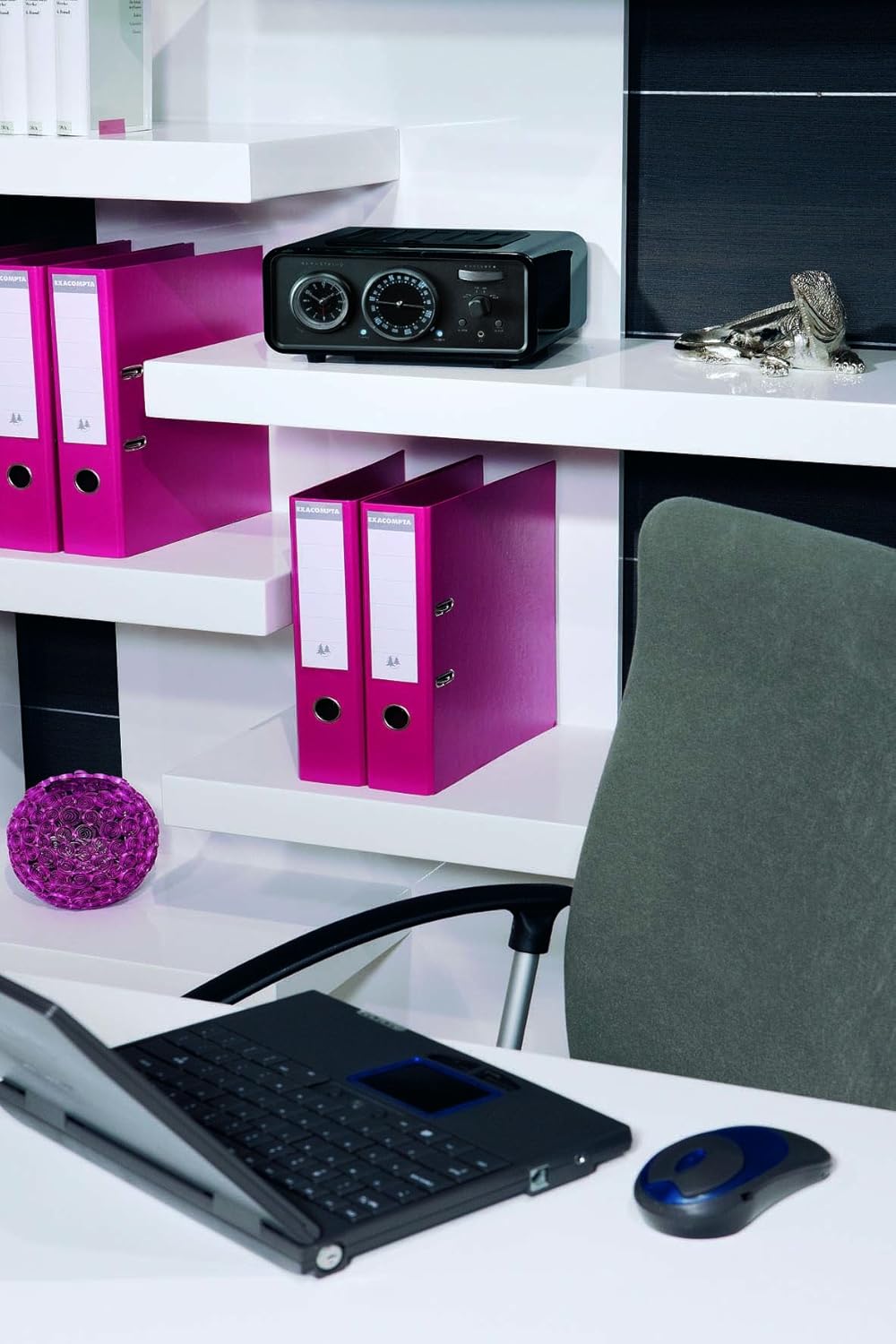
Figure 4.1: The Bernstein RAC20 Designradio positioned on a shelf in an office setting.
4.2. Power Connection
The Bernstein RAC20 is battery-powered. Ensure fresh batteries are inserted into the designated compartment. (Note: Batteries are not included.)
4.3. Antenna Connection
For optimal FM/AM reception, extend the telescopic antenna fully. Adjust its position for the best signal quality.
5. Operating Instructions
5.1. Powering On/Off
Press the POWER button located on the front panel to turn the radio on or off. A blue indicator light will illuminate when the unit is on.
5.2. Volume Control
Rotate the large VOLUME knob clockwise to increase volume and counter-clockwise to decrease it.
5.3. Radio Tuning (FM/AM)
- Select the desired band (FM or AM) using the FM/AM switch.
- Rotate the TUNING dial to search for radio stations. The frequency will be displayed on the dial.
- Adjust the antenna for clearer reception if needed.

Figure 5.1: Close-up of the Bernstein RAC20's front panel, highlighting the tuning and volume controls.
5.4. Setting the Clock
The clock is located on the left side of the front panel. Refer to the specific instructions in the included quick start guide for detailed clock setting procedures, as this model features an analog clock display.
5.5. Setting the Alarm
To set the alarm, press the ALARM button. Use the tuning dial or dedicated buttons (if present) to set the desired alarm time. Press ALARM again to confirm. The alarm can be set to wake you with radio or a buzzer sound.
5.6. Sleep Function
Press the SLEEP button to activate the sleep timer. Each press cycles through preset sleep times (e.g., 15, 30, 60, 90 minutes). The radio will automatically turn off after the selected duration.
5.7. Using the AUX Input
Connect external audio devices (e.g., smartphone, MP3 player, laptop) to the AUX IN port using the supplied 3.5mm audio cable. Switch the input selector to AUX to play audio from the connected device.
5.8. Headphone Output
Plug standard 3.5mm headphones into the headphone jack for private listening. The main speaker will be muted automatically when headphones are connected.
6. Maintenance
6.1. Cleaning
Wipe the unit with a soft, dry cloth. Do not use abrasive cleaners, waxes, or solvents as they may damage the high-gloss finish.
6.2. Battery Replacement
When the sound quality deteriorates or the unit fails to power on, replace the batteries with new ones of the same type. Dispose of old batteries responsibly.
7. Troubleshooting
| Problem | Possible Cause | Solution |
|---|---|---|
| No power | Batteries are dead or incorrectly inserted. | Replace batteries; ensure correct polarity. |
| Poor radio reception | Antenna not extended or poorly positioned; weak signal. | Extend and adjust antenna; try moving the unit to a different location. |
| No sound from AUX | AUX cable not fully connected; incorrect input selected; external device volume too low. | Check cable connections; ensure AUX input is selected; increase volume on external device. |
| Alarm not sounding | Alarm not set correctly; volume too low. | Verify alarm settings; increase volume. |
8. Specifications
| Feature | Detail |
|---|---|
| Model | Bernstein RAC 20 Piano Black |
| Brand | Bernstein (Manufacturer: Bernstein, Brand listed in specs: Audiovox) |
| Tuner Technology | FM, AM |
| Radio Bands Supported | AM, FM |
| Hardware Interface | 3.5 mm Audio |
| Compatible Devices | Smartphone, MP3 player, Laptop, Speaker |
| Special Features | Internet radio reception |
| Power Source | Battery-Powered |
| Batteries Included | No |
| Dimensions (Package) | 41.4 x 31.4 x 17.4 cm |
| Weight (Package) | 3.9 kg |
| ASIN | B0041GT30M |
| GTIN | 04039684496508 |
9. Warranty and Support
For warranty information and technical support, please refer to the contact details provided on the product packaging or the official Bernstein website. Keep your proof of purchase for warranty claims.
For further assistance, you may contact the manufacturer:
Manufacturer: Bernstein
Model: Bernstein RAC 20 Piano Black
ASIN: B0041GT30M
Ask a question about this manual
Ask about setup, troubleshooting, compatibility, parts, safety, or missing instructions. Manuals+ will review the question and use this page’s manual context to help answer it.