1. Introduction
This manual provides essential information for the safe and effective operation of your Canon PowerShot SX130IS digital camera. Please read it thoroughly before using the camera and keep it for future reference.

Figure 1: Front view of the Canon PowerShot SX130IS Digital Camera.
2. Setup
2.1. Installing Batteries
The PowerShot SX130IS operates on AA-size batteries. For optimal performance and longevity, it is recommended to use rechargeable AA batteries.
- Open the battery compartment cover, typically located on the bottom of the camera.
- Insert two AA-size batteries, ensuring correct polarity (+/-) as indicated inside the compartment.
- Close the battery compartment cover securely.
2.2. Inserting a Memory Card
The camera supports SD, SDHC, and SDXC memory cards (not included). A memory card is required to store photos and videos.
- Open the memory card slot cover, usually adjacent to the battery compartment.
- Insert the memory card with the label facing the front of the camera until it clicks into place.
- Close the memory card slot cover securely.
2.3. Setting Date and Time
Upon first use or after replacing batteries, you may need to set the date and time.
- Turn on the camera.
- If prompted, follow the on-screen instructions to set the date, time, and time zone.
- Use the directional buttons to navigate and the FUNC.SET/OK button to confirm selections.
3. Operating the Camera
3.1. Power On/Off
Press the ON/OFF button located on the top of the camera to power it on or off. The lens will extend when powered on.
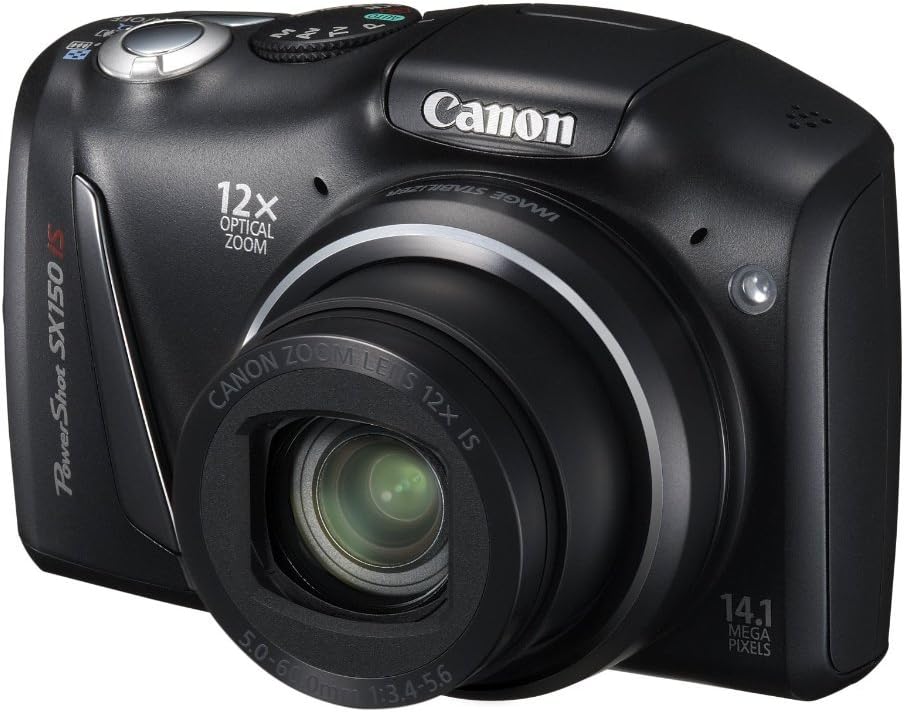
Figure 2: Angled view of the camera, highlighting the top controls including the ON/OFF button and mode dial.
3.2. Taking Photos
To capture a still image:
- Select a shooting mode using the mode dial (e.g., AUTO for automatic settings).
- Frame your shot using the 3.0-inch LCD screen.
- Press the shutter button halfway down to focus. The focus frame will turn green when focus is achieved.
- Press the shutter button fully down to take the picture.
3.3. Recording Videos
The camera can record 720p HD video with stereo sound.
- Turn the mode dial to the movie mode icon (usually a small movie camera symbol).
- Press the movie button (often a red dot or movie camera icon) to start recording.
- Press the movie button again to stop recording.
3.4. Using the Optical Zoom
The camera features a 12x wide-angle optical zoom with Optical Image Stabilizer.
- Use the zoom lever, typically located around the shutter button, to zoom in (telephoto) or zoom out (wide-angle).
- The Optical Image Stabilizer helps reduce blur caused by camera shake, especially at higher zoom levels.
3.5. Using the Flash
The camera has a built-in pop-up flash for low-light conditions.
- In certain shooting modes, the flash may pop up automatically.
- You can manually activate or deactivate the flash by pressing the flash button (lightning bolt icon) and selecting the desired mode (Auto, On, Off, Slow Synchro).
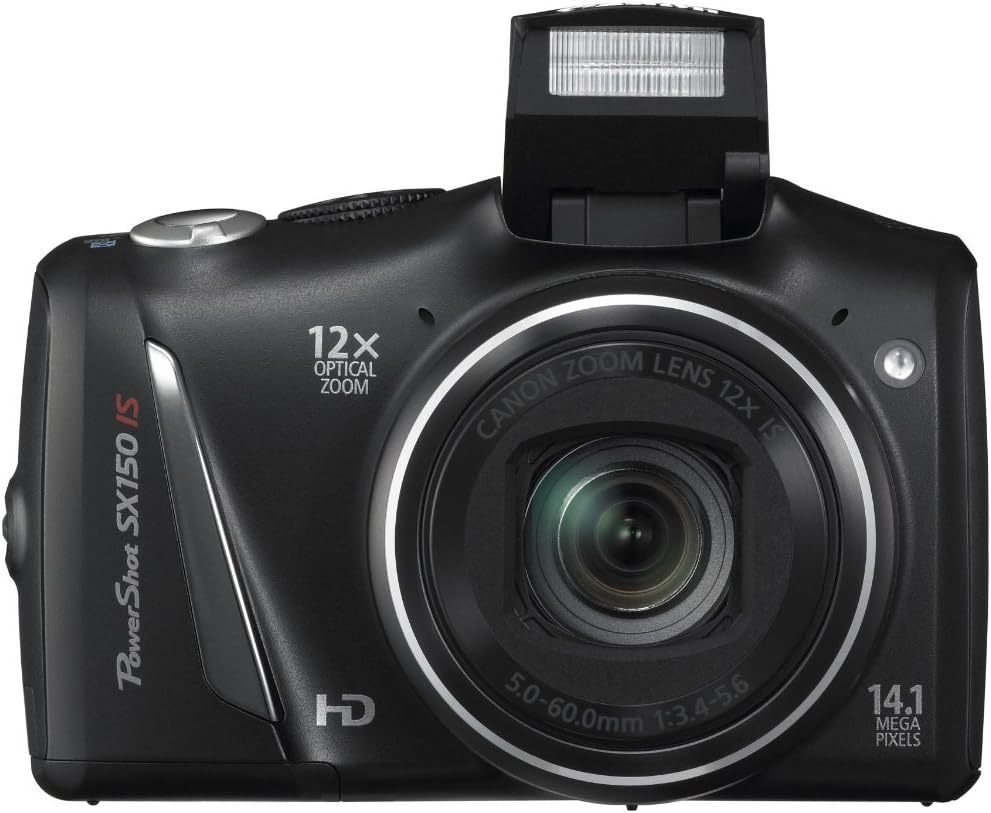
Figure 3: Front view of the camera with the pop-up flash extended.
3.6. Scene Modes and Smart AUTO
The PowerShot SX130IS offers various scene modes and an advanced Smart AUTO system to optimize settings for different shooting situations.
- Smart AUTO: Automatically selects from 28 predefined shooting situations to ensure optimal image quality.
- Scene Modes: Includes creative options like Miniature Effect for Movies and Fisheye Effect for artistically distorted stills. Select these via the mode dial or menu.
- Smart Flash Exposure: Analyzes lighting conditions to apply the correct flash, preventing over or underexposed images.
3.7. Reviewing Photos and Videos
To view your captured images and videos:
- Press the Playback button (usually an arrow icon).
- Use the directional buttons to scroll through your media.
- Press the FUNC.SET/OK button to view a video or zoom into a photo.
4. Maintenance
4.1. General Care
- Keep the camera clean by wiping it with a soft, dry cloth.
- Avoid exposing the camera to extreme temperatures, humidity, or dust.
- Protect the lens and LCD screen from scratches.
4.2. Battery Care
- Always use high-quality batteries. Rechargeable batteries are recommended for cost-effectiveness and environmental reasons.
- Remove batteries if the camera will not be used for an extended period.
5. Troubleshooting
5.1. "No Memory Card" Error
If this message appears, ensure the memory card is inserted correctly and fully seated in its slot. If the issue persists, try a different compatible memory card.
5.2. Short Battery Life
Battery life can vary significantly based on usage (e.g., frequent flash use, video recording, reviewing images). If you experience consistently short battery life:
- Ensure you are using fresh, high-quality alkaline batteries or fully charged rechargeable batteries.
- Consider using higher capacity rechargeable batteries.
- Reduce flash usage and LCD screen brightness if possible.
5.3. Dust in Lens
If dust appears on images, it may be on the lens. Avoid attempting to clean the internal lens elements yourself. Consult a professional camera service center for cleaning.
5.4. Video Playback Issues
The camera records videos in .mov format. If you encounter issues playing videos on a computer, ensure you have the necessary codecs or a compatible media player installed.
6. Specifications
| Feature | Specification |
|---|---|
| Product Dimensions | 4.45 x 1.81 x 2.87 inches |
| Item Weight | 10.9 ounces |
| Item Model Number | SX130 |
| Batteries | Lithium Metal batteries required (included) |
| Manufacturer | Canon Cameras US |
| Language | English |
| Compatible Mountings | Canon |
| Aspect Ratio | 16:9 |
| Photo Sensor Technology | CCD |
| Supported File Format | JPEG, RAW |
| Image Stabilization | Optical |
| Maximum Focal Length | 336 Millimeters |
| Optical Zoom | 12 x |
| Maximum Aperture | 3.5 Millimeters |
| Expanded ISO Minimum | 80 |
| Metering Description | Multi, Center-weighted, Spot |
7. Warranty and Support
For warranty information, technical support, or service inquiries, please refer to the official Canon website or contact Canon customer service directly. Keep your purchase receipt as proof of purchase.
8. Product Videos
No official seller videos are available for this product at this time.


