
1. Introduction
Welcome to the user manual for your Logitech M705 Marathon Wireless Mouse. This document provides essential information for setting up, operating, and maintaining your device, ensuring optimal performance and longevity. The M705 mouse is designed for comfort and efficiency, featuring a long battery life and customizable controls for enhanced productivity.
2. Product Overview
Key Features
- Extended Battery Life: Enjoy up to 3 years of battery life, reducing the need for frequent replacements.
- Ergonomic Design: Sculpted to fit the natural curve of your right hand, providing comfort during prolonged use.
- Hyper-Fast Scrolling: Navigate through long documents and web pages with a single spin of the scroll wheel, or switch to click-to-click scrolling for precision.
- Programmable Buttons: Five customizable buttons, including forward/back thumb buttons, allow for personalized shortcuts and enhanced control.
- Unifying Receiver: A small USB Unifying receiver connects up to six compatible Logitech devices, freeing up USB ports.
- Wide Compatibility: Compatible with Windows, macOS, Chrome OS, and Linux operating systems.
Package Contents
The Logitech M705 Marathon Wireless Mouse package typically includes:
- Logitech M705 Wireless Mouse
- Logitech Unifying USB Receiver
- 2 AA Alkaline Batteries (may vary by region/packaging)

3. Setup Instructions
3.1. Installing Batteries
- Turn the mouse over and locate the battery compartment cover on the underside.
- Press the release button or slide the cover to open the compartment.
- Insert the two AA batteries, ensuring correct polarity (+/-).
- Replace the battery compartment cover.

3.2. Connecting the USB Unifying Receiver
- Locate the small USB Unifying receiver. It may be stored inside the battery compartment of the mouse.
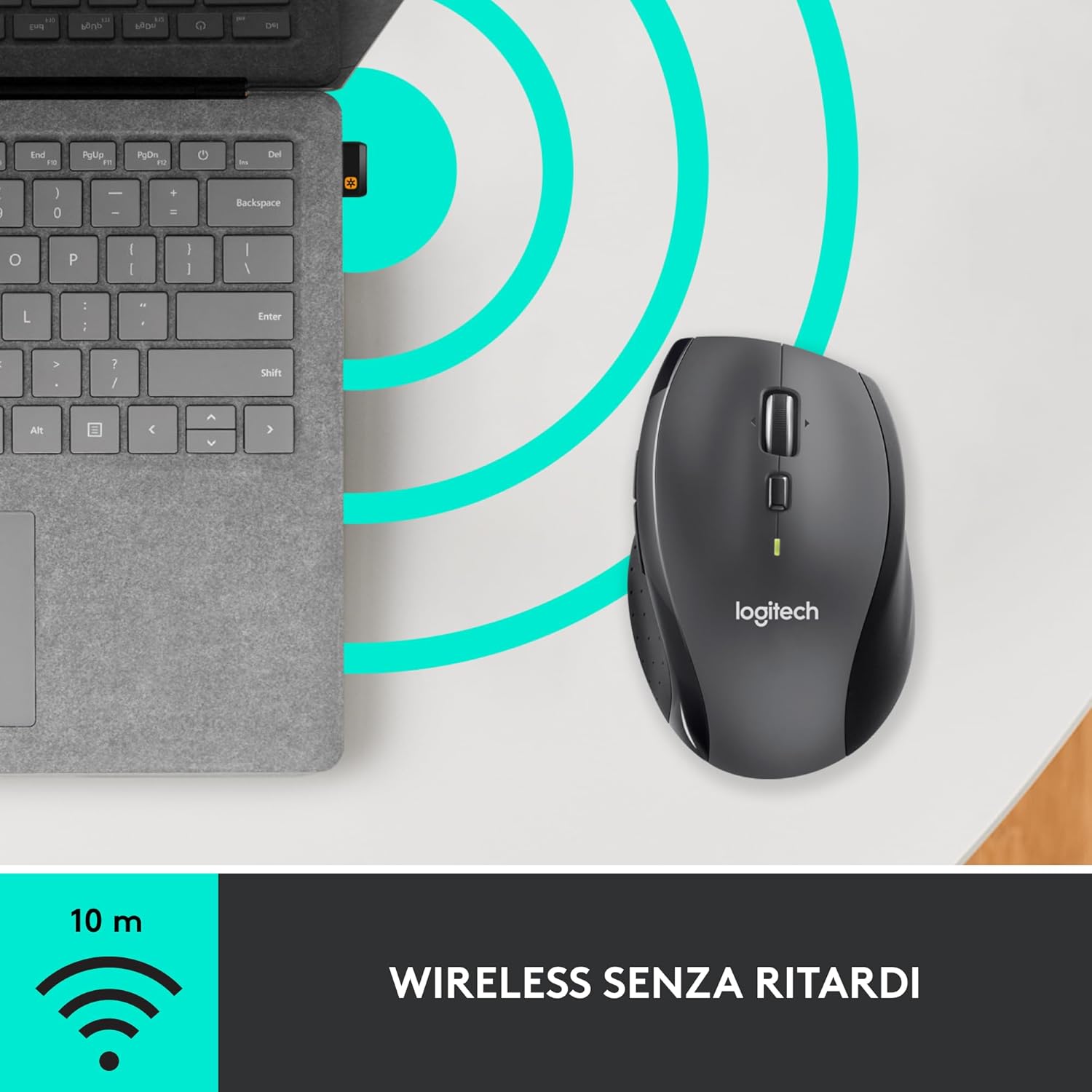
- Plug the USB receiver into an available USB port on your computer.
- Turn on the mouse using the On/Off switch located on the underside.
- Your computer should automatically detect the mouse. If not, visit the Logitech support website for driver installation.
4. Operating Instructions
4.1. Basic Mouse Functions
The M705 mouse features standard left and right-click buttons, a scroll wheel, and additional programmable buttons.

4.2. Hyper-Fast Scrolling
The scroll wheel offers two modes:
- Hyper-Fast Mode: Press the button directly below the scroll wheel to unlock it for smooth, rapid scrolling through long documents or web pages.
- Click-to-Click Mode: Press the button again to engage precise, stepped scrolling, ideal for navigating lists or image galleries.

4.3. Programmable Buttons
The M705 features five programmable buttons, including two thumb buttons and tilt-scroll functionality. These can be customized using the Logitech Options software.

5. Customization
To unlock the full potential of your M705 mouse, download and install the Logitech Options software from the official Logitech website. This software allows you to:
- Assign custom functions to the five programmable buttons.
- Adjust tracking speed (DPI).
- Configure application-specific settings.
- Check battery status.

6. Maintenance
6.1. Cleaning
To clean your mouse, use a soft, lint-free cloth. For stubborn dirt, slightly dampen the cloth with water. Avoid using harsh chemicals or abrasive materials, as these can damage the mouse surface or internal components.
6.2. Battery Replacement
When the battery indicator light on your mouse begins to flash or if performance degrades, it's time to replace the batteries. Follow the steps in Section 3.1 to replace the two AA batteries. Dispose of old batteries responsibly according to local regulations.
7. Troubleshooting
7.1. Mouse Not Responding
- Ensure the mouse is turned on.
- Check the battery level and replace batteries if necessary.
- Verify the USB Unifying receiver is securely plugged into a working USB port.
- Try plugging the receiver into a different USB port or a different computer to isolate the issue.
- If using a USB hub, try connecting directly to the computer.
7.2. Erratic Cursor Movement
- Clean the optical sensor on the underside of the mouse.
- Ensure you are using the mouse on a suitable surface. Highly reflective or transparent surfaces may cause tracking issues. A mouse pad is recommended.
- Check for interference from other wireless devices. Move the mouse closer to the USB receiver.
7.3. Unifying Receiver Issues
If the mouse loses connection or you need to pair it with a new receiver, download the Logitech Unifying Software from the Logitech support website. This software guides you through the pairing process.
8. Specifications
| Feature | Detail |
|---|---|
| Brand | Logitech |
| Model Name | M705 |
| Model Number | 910-001949 |
| Connectivity Technology | Wireless (2.4 GHz USB Unifying Receiver) |
| Movement Detection Technology | Laser |
| Movement Resolution | 1000 DPI (up to 3200 DPI maximum resolution) |
| Number of Buttons | 5 Programmable Buttons |
| Power Source | Battery (2 x AA Alkaline) |
| Average Battery Life | Up to 3 Years |
| Wireless Range | Up to 10 meters |
| Form Factor | Right-hand ergonomic |
| Dimensions (L x W x H) | 20 x 13 x 12 cm (Product packaging dimensions) |
| Weight | 136 grams |
| Compatible Operating Systems | Windows 7, 8, 10; macOS 10.11 or later; Chrome OS; Linux |
9. Warranty and Support
For detailed warranty information and technical support, please refer to the official Logitech website or contact Logitech customer service. Keep your proof of purchase for warranty claims.


