
Introduction
Thank you for choosing the Mobility Lab Stereo 250 Headset with Microphone. This high-quality headset is designed for clear audio communication and comfortable listening. Please read this manual carefully to ensure proper use and maintenance of your device.
The Mobility Lab Stereo 250 features an adjustable flexible microphone for hands-free communication, an ergonomic design, and comfortable earcups for extended use. It is ideal for PC audio, online communication, gaming, and listening to music.
Package Contents
- Mobility Lab Stereo 250 Headset with Microphone
- User Manual (this document)
Product Overview
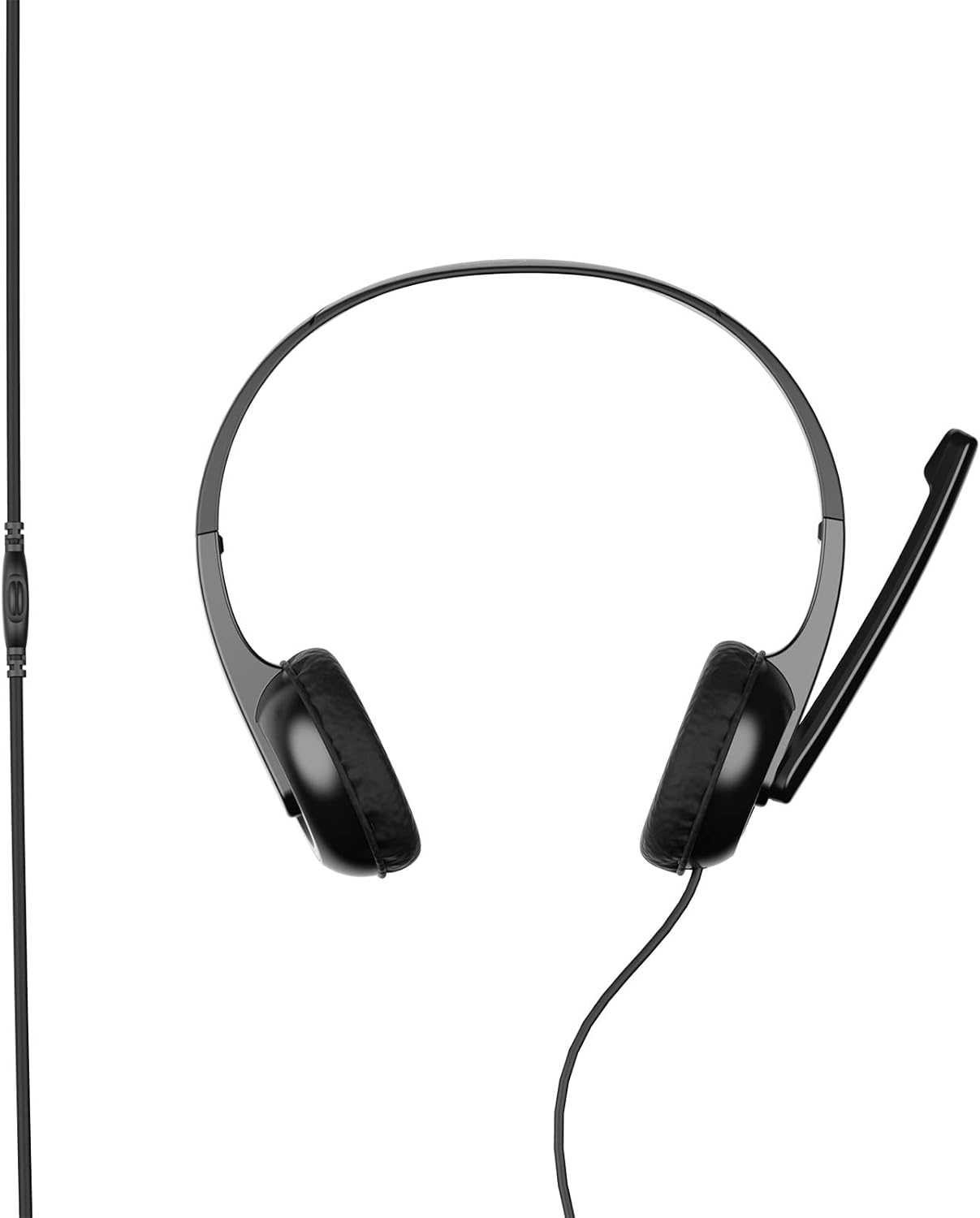
Figure 1: Front view of the Mobility Lab Stereo 250 Headset.

Figure 2: Headset showing the cable and inline volume control.
The headset features an integrated microphone and an inline control for volume adjustment. The design is lightweight and adjustable for a comfortable fit.
Setup and Connection
- Connect the Headset: Locate the 3.5mm audio jack port on your computer, laptop, or compatible MP3 player. Insert the headset's 3.5mm jack into the corresponding port.
- Adjust the Fit: Gently extend or retract the headband to fit comfortably over your head. The earcups are designed for on-ear placement.
- Position the Microphone: Adjust the flexible microphone boom to a suitable position near your mouth for optimal voice pickup.
- Volume Control: Use the inline volume control wheel on the cable to adjust the audio output level.

Figure 3: Icons indicating headset features such as microphone, PC/laptop compatibility, plug & play functionality, adaptability, 1.8m cable length, and compatibility with Windows & macOS.
The headset is designed for plug-and-play functionality with Windows and macOS operating systems, requiring no additional drivers for basic operation.
Operating Instructions
Audio Playback
Once connected, your computer or device should automatically recognize the headset as an audio output device. Play audio from your preferred application (music player, video player, etc.). Adjust the volume using the inline control or your device's system volume settings.
Microphone Usage
For voice communication (e.g., video calls, online gaming), ensure the headset microphone is selected as the input device in your application's audio settings. Position the microphone appropriately for clear voice transmission.
Maintenance and Care
- Keep the headset clean by wiping it with a soft, dry cloth.
- Avoid exposing the headset to extreme temperatures, humidity, or direct sunlight.
- Do not immerse the headset in water or any other liquids, as it is not water-resistant.
- Store the headset in a safe place to prevent damage to the cable or microphone.
- Avoid excessive bending or twisting of the cable to prolong its lifespan.
Troubleshooting
No Sound from Headset
- Ensure the 3.5mm jack is fully inserted into the audio port.
- Check the inline volume control on the headset cable; ensure it is not set to minimum.
- Verify your computer's or device's volume settings are not muted or set too low.
- Confirm the headset is selected as the default audio output device in your operating system's sound settings.
Microphone Not Working
- Ensure the microphone boom is positioned correctly.
- Check your computer's or device's microphone settings; ensure the headset microphone is selected as the input device and is not muted.
- Test the microphone with a different application or device to rule out software issues.
Poor Sound Quality
- Ensure the 3.5mm jack is clean and free of debris.
- Test the headset with another audio source to determine if the issue is with the headset or the source device.
- Adjust your device's equalizer settings if available.
Specifications
| Feature | Detail |
|---|---|
| Model Name | Stereo 250 |
| Connectivity Technology | Wired (3.5mm Jack) |
| Compatible Devices | PCs, Laptops, MP3 Players, Gaming Systems |
| Operating System Compatibility | Windows, macOS |
| Ear Placement | On-Ear (Supra-aural) |
| Form Factor | On-Ear |
| Impedance | 32 Ohms |
| Sensitivity | 96 dB |
| Frequency Response | Up to 20,000 Hz |
| Soundproofing | None |
| Microphone | Flexible, Adjustable |
| Control Method | Inline Remote Control (Volume) |
| Cable Length | 1.8 meters (approx. 5.9 ft) |
| Material | Plastic |
| Color | Grey (Note: Product images typically show black) |
| Special Features | Lightweight design |
| Water Resistance | Not Water Resistant |
| Number of Items | 1 |

Figure 4: Approximate dimensions of the Mobility Lab Stereo 250 Headset.
Note: Specifications are subject to change without notice. Some specifications in the source data were inconsistent with visual evidence or common product types and have been adjusted for clarity.
Warranty and Support
Mobility Lab products are designed for reliability and performance. For warranty information and technical support, please refer to the official Mobility Lab website or contact their customer service. Keep your purchase receipt for warranty claims.
For further assistance, visit: www.mobilitylab.com
