
Microsoft RKH-00001
Contents
Microsoft Xbox 360 250GB Console User Manual
Model: RKH-00001
1. Introduction
This manual provides essential information for setting up, operating, and maintaining your Microsoft Xbox 360 250GB Console. Please read this manual thoroughly before using your console to ensure proper functionality and safety.
2. Package Contents
Verify that all items listed below are included in your package:
- Xbox 360 250GB Console
- Xbox 360 Wireless Controller
- Xbox 360 Headset
- Power Supply Unit and Power Cord
- Standard AV Cable (Composite)
- User Manual (this document)
3. Console Overview
Familiarize yourself with the various components and ports of your Xbox 360 console.

Figure 3.1: Front view of the Xbox 360 250GB Console. Shows the disc tray, power button, and USB port.

Figure 3.2: Rear view of the Xbox 360 250GB Console. Displays the power port, AV port, HDMI port, Ethernet port, and additional USB ports.

Figure 3.3: The removable 250GB Hard Drive module for the Xbox 360 console.

Figure 3.4: Front view of the Xbox 360 Wireless Controller, showing joysticks, D-pad, and action buttons.
4. Setup
4.1. Connecting the Power Supply
- Connect the power supply unit to the console's power port (Figure 3.2).
- Plug the power cord into the power supply unit.
- Insert the other end of the power cord into a wall outlet.
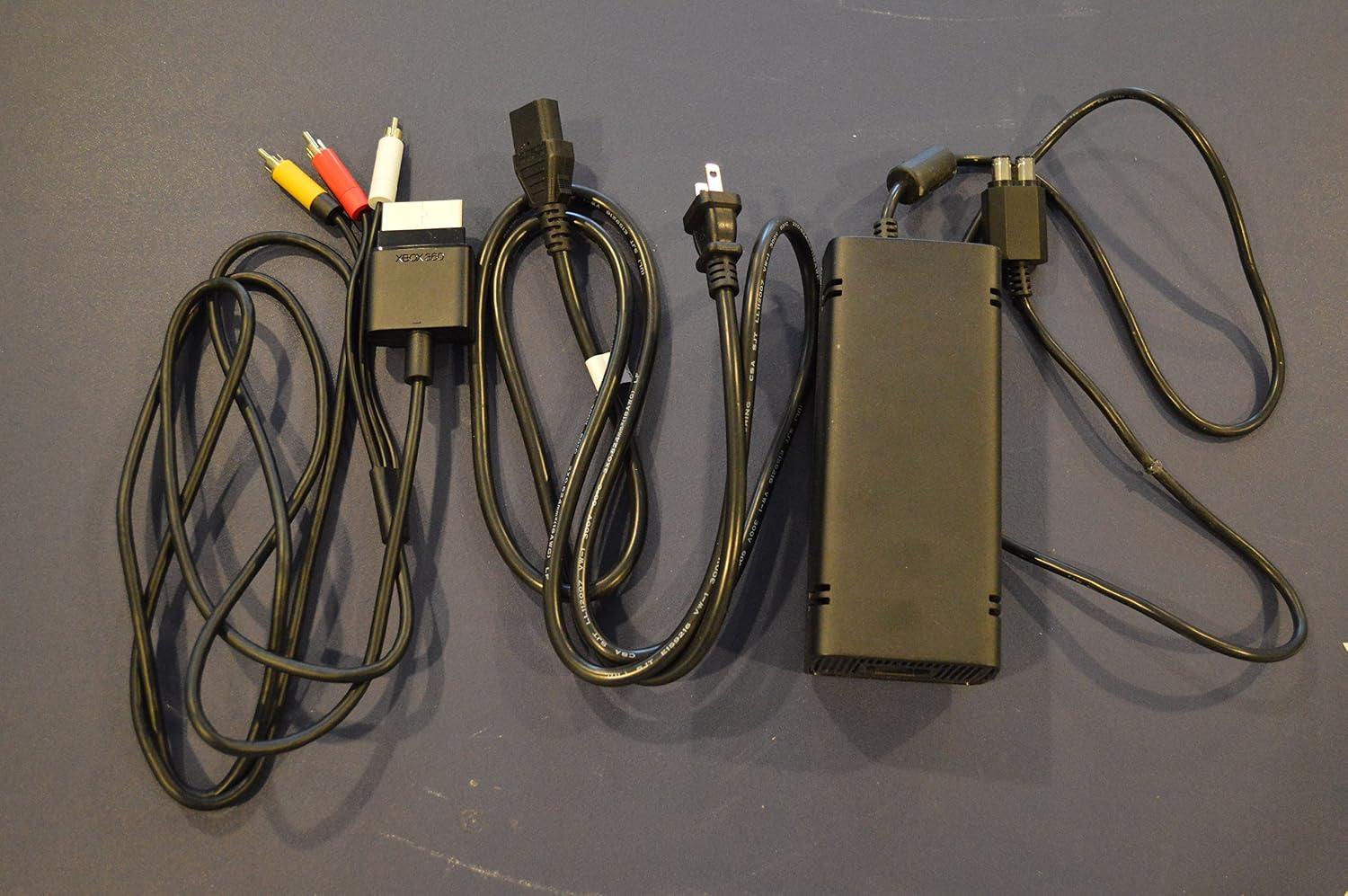
Figure 4.1: The Xbox 360 power supply unit and standard AV cables.
4.2. Connecting to a Television
Your Xbox 360 supports HDMI for high-definition video and audio, or the included standard AV cable for standard definition.
- HDMI Connection: Connect an HDMI cable (not included) from the HDMI port on the console (Figure 3.2) to an HDMI input on your TV.
- Standard AV Connection: Connect the included standard AV cable to the AV port on the console (Figure 3.2). Match the colored connectors (yellow for video, red and white for audio) to the corresponding input ports on your TV.
4.3. Connecting the Wireless Controller
- Insert two AA batteries into the controller's battery compartment.
- Press and hold the Xbox Guide button (center button with Xbox logo) on the controller until it turns on.
- Press the connect button on the console (small button near the USB ports on the front).
- Press the connect button on the controller (small button on the top edge, between the shoulder buttons).
- The lights around the console's power button and the controller's Guide button will flash and then become solid, indicating a successful connection.
4.4. Initial Setup
Upon first power-on, the console will guide you through initial setup steps, including language selection, time zone, and network configuration. The console features built-in 802.11n Wi-Fi for a faster and easier connection to your home network.
5. Operation
5.1. Powering On and Off
- To Power On: Press the power button on the front of the console or the Xbox Guide button on a connected controller.
- To Power Off: Press and hold the power button on the console for 5 seconds, or press and hold the Xbox Guide button on the controller and select 'Turn Off Console'.
5.2. Navigating the Dashboard
The Xbox 360 Dashboard is the main interface for accessing games, media, and system settings. Use your controller's D-pad or left analog stick to navigate through menus and the A button to select items.
5.3. Playing Games
- Insert a game disc into the disc tray on the front of the console.
- The game will typically start automatically or appear as an option on the Dashboard.
- To play digital games, navigate to your game library on the Dashboard and select the desired title.
5.4. Xbox Live Connection
Connect your console to Xbox Live for online multiplayer, digital game purchases, and media streaming. Ensure your console is connected to the internet via Wi-Fi or an Ethernet cable. Follow the on-screen prompts to create or sign in to your Xbox Live account.
Video 5.1: An official manufacturer video showcasing the features of the Xbox 360 250GB Elite Console, including its quiet operation, 250GB hard drive, built-in Wi-Fi, and Kinect readiness.
6. Maintenance
6.1. Cleaning the Console
Regularly clean your console to prevent dust buildup, which can affect performance and lifespan.
- Ensure the console is powered off and unplugged before cleaning.
- Use a soft, dry cloth to wipe down the exterior surfaces.
- Use a can of compressed air to gently clear dust from vents and ports. Do not insert any objects into the vents.
6.2. Hard Drive Management
The 250GB internal hard drive stores games, saves, and other content. You can manage your storage through the System Settings on the Dashboard. To remove the hard drive, ensure the console is off, then locate the hard drive bay and follow the instructions for removal (refer to Figure 3.3 for the hard drive module).
7. Troubleshooting
If you encounter issues with your Xbox 360 console, refer to the common problems and solutions below:
- No Power: Ensure the power cord is securely connected to the console, power supply, and wall outlet. Try a different outlet.
- No Video/Audio: Verify that the AV or HDMI cables are correctly connected to both the console and the TV. Ensure your TV is set to the correct input source.
- Controller Not Connecting: Ensure batteries are charged. Re-sync the controller by pressing the connect buttons on both the console and controller.
- Disc Read Errors: Check the game disc for scratches or smudges and clean it with a soft cloth. Ensure the console is on a stable, flat surface.
- Network Connection Issues: Check your router and modem. Restart your network equipment. Verify Wi-Fi settings or Ethernet cable connection in the console's network settings.
For further assistance, visit the official Microsoft Xbox support website.
8. Specifications
| Feature | Detail |
|---|---|
| Platform | Xbox 360 |
| Model Name | Xbox 360 250GB |
| Model Number | RKH-00001 |
| Memory Storage Capacity | 250 GB (Internal, Removable Hard Drive) |
| Wireless Communication Technology | 802.11n Wi-Fi |
| Resolution | 1080p |
| Input Device | Gamepad (Wireless Controller included) |
| Color | Black |
| Item Weight | 1.5 pounds (console only) |
| Kinect Ready | Yes |
9. Warranty and Support
The original manufacturer's warranty for this product has expired. For current support options, including troubleshooting guides and community forums, please visit the official Microsoft Xbox support website:
Ask a question about this manual
Ask about setup, troubleshooting, compatibility, parts, safety, or missing instructions. Manuals+ will review the question and use this page’s manual context to help answer it.