
Logitech M510 (910-001822)
Logitech M510 Wireless Mouse User Manual
Model: M510 (910-001822)
Introduction
This manual provides comprehensive instructions for the setup, operation, maintenance, and troubleshooting of your Logitech M510 Wireless Mouse. Designed for comfort and efficiency, the M510 offers precise control and convenient features for your computing needs.
The Logitech M510 is a comfortable wireless computer mouse featuring a USB Unifying Receiver, back/forward buttons, and side-to-side scrolling. It operates on 2 AA batteries and is compatible with Personal Computers and Macbooks running operating systems like Windows 10.
Package Contents
- Logitech M510 Wireless Mouse
- Logitech Unifying Receiver
- 2 AA Batteries (pre-installed or included)
Setup
1. Battery Installation
The Logitech M510 mouse requires two AA batteries for operation. These are typically included with your purchase. If not already installed, follow these steps:
- Locate the battery compartment cover on the underside of the mouse.
- Slide or lift the cover to open the compartment.
- Insert two AA batteries, ensuring the positive (+) and negative (-) terminals align correctly with the indicators inside the compartment.
- Close the battery compartment cover securely.
2. Connecting the Unifying Receiver
The Logitech M510 uses a Logitech Unifying Receiver for wireless connectivity. This small USB receiver allows you to connect multiple compatible Logitech devices to your computer using a single USB port.
- Locate the Logitech Unifying Receiver. It is often stored inside the battery compartment of the mouse for safekeeping during transport.
- Plug the Unifying Receiver into an available USB port on your computer (desktop, laptop, or Macbook).
- Your computer should automatically detect the receiver and install the necessary drivers. This may take a few moments.
- Once the drivers are installed, the mouse should be ready for use. If not, ensure the mouse's power switch (if present) is in the 'ON' position.

Image: Top-down view of the Logitech M510 Wireless Mouse alongside its compact USB Unifying Receiver.
Operating the Mouse
The Logitech M510 Wireless Mouse is designed for intuitive use with several programmable buttons and comfortable ergonomics.
Basic Functions
- Left-Click Button: Primary button for selecting items, opening files, and interacting with software.
- Right-Click Button: Secondary button for accessing context menus and additional options.
- Scroll Wheel: Scroll up or down through documents and web pages. The scroll wheel also functions as a middle-click button.
- Side-to-Side Scrolling: Tilt the scroll wheel left or right to scroll horizontally in applications that support this feature.
Advanced Features (Programmable Buttons)
The M510 features two thumb buttons (back/forward) on the left side, which can be customized using Logitech Options software (available for download from the Logitech website). By default, these buttons perform browser navigation functions.
- Back Button: Navigates back in web browsers or file explorers.
- Forward Button: Navigates forward in web browsers or file explorers.
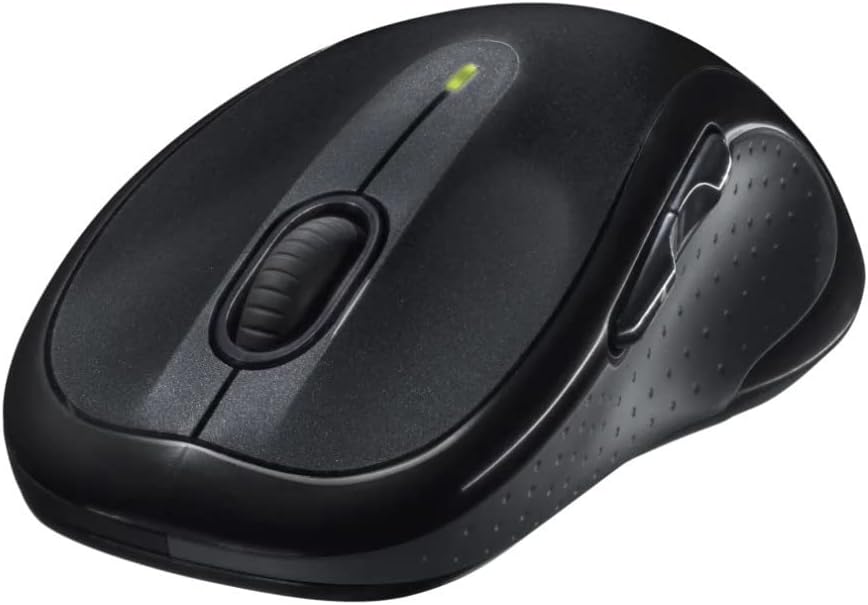
Image: Angled view of the Logitech M510 Wireless Mouse, highlighting its ergonomic shape and side buttons.
Maintenance
Cleaning Your Mouse
To ensure optimal performance and hygiene, regularly clean your Logitech M510 mouse:
- Disconnect the mouse from your computer by removing the Unifying Receiver.
- Use a soft, lint-free cloth lightly dampened with water or a mild cleaning solution (e.g., isopropyl alcohol) to wipe down the surface of the mouse.
- For crevices and around buttons, use a cotton swab or a soft brush.
- Avoid getting liquid into the internal components or the optical sensor.
- Allow the mouse to dry completely before re-connecting.
Battery Replacement
The Logitech M510 has an average battery life of 18 months. When the battery indicator light (if present) flashes or mouse performance degrades, it's time to replace the batteries.
- Turn off the mouse using the power switch on the underside.
- Open the battery compartment cover.
- Remove the old AA batteries.
- Insert two new AA batteries, observing the correct polarity (+/-).
- Close the battery compartment cover.
- Turn the mouse back on.
Troubleshooting
| Problem | Possible Cause | Solution |
|---|---|---|
| Mouse not responding | Low or dead batteries; Unifying Receiver not connected; Mouse power off; Driver issue. | Replace batteries; Ensure Unifying Receiver is securely plugged into a USB port; Turn mouse power switch to 'ON'; Reinstall Logitech Options software or check device manager for driver issues. |
| Lagging or erratic cursor movement | Interference; Dirty optical sensor; Mouse used on unsuitable surface; Low battery. | Move mouse closer to receiver; Clear obstructions; Clean optical sensor; Use a mouse pad or suitable surface; Replace batteries. |
| Side buttons not working | Software not installed or configured; Application does not support custom buttons. | Download and install Logitech Options software from the official Logitech website to customize button functions. Ensure the application you are using supports these functions. |
| Unifying Receiver not recognized | Faulty USB port; Driver issue. | Try a different USB port; Restart your computer; Download and install the Logitech Unifying Software to re-pair the mouse with the receiver. |
Specifications
| Feature | Detail |
|---|---|
| Brand | Logitech |
| Model Number | 910-001822 |
| Series | M510 |
| Connectivity Technology | Radio Frequency, USB (via Unifying Receiver) |
| Movement Detection Technology | Laser |
| Color | Dark Gray |
| Item Weight | 4.6 ounces (approx. 130 grams) |
| Product Dimensions (LxWxH) | 4.38 x 2.5 x 1.75 inches (approx. 11.13 x 6.35 x 4.45 cm) |
| Power Source | Battery Powered |
| Batteries Required | 2 AA batteries (included) |
| Average Battery Life | 18 months |
| Hardware Platform | Personal Computer, Macbook |
| Operating System Compatibility | Windows 10 (and likely earlier versions, macOS) |
| Special Features | Battery Life Indicator, Power Saving Mode, Programmable Buttons, Wireless |
| Date First Available | June 7, 2010 |

Image: Top-down view of the Logitech M510 Wireless Mouse showing its approximate dimensions (4.4" length, 2.5" width).
Warranty and Support
Warranty Information
Logitech products typically come with a limited hardware warranty. For specific warranty terms and conditions applicable to your Logitech M510 Wireless Mouse, please refer to the warranty card included with your product or visit the official Logitech website.
Customer Support
For further assistance, technical support, or to download the latest software (such as Logitech Options or Unifying Software), please visit the official Logitech support website:
You may also find helpful resources, FAQs, and community forums on their website.
Related documentsM510 (910-001822)


Ask a question about this manual
Ask about setup, troubleshooting, compatibility, parts, safety, or missing instructions. Manuals+ will review the question and use this page’s manual context to help answer it.