
1. Product Overview
The Logitech Wired Mouse M90 is a simple, reliable, and comfortable USB mouse designed for everyday use. It offers precise optical tracking and an ambidextrous design, making it suitable for both left and right-handed users. This manual provides essential information for setting up, operating, and maintaining your M90 mouse.
Key Features:
- Easy Setup: Plug-and-play functionality with no software installation required.
- Precise Optical Tracking: Enjoy smooth and accurate cursor control (1000 dpi).
- Full-Size Comfort: Designed for comfortable use, even after extended periods.
- Ambidextrous Design: Suitable for both left and right-handed users.
- Durable Wired Connection: Reliable USB connection for consistent performance.
2. Setup Guide
Setting up your Logitech M90 mouse is quick and straightforward. No special software or drivers are needed.
- Unpack the Mouse: Carefully remove the Logitech M90 mouse from its packaging.
- Locate a USB Port: Identify an available USB-A port on your computer (desktop, laptop, or compatible device).
- Connect the Mouse: Insert the USB connector of the M90 mouse into the USB port. Ensure it is fully seated.
- System Recognition: Your operating system (Windows, macOS, Linux, Chrome OS) should automatically detect and install the necessary drivers for the mouse. This process usually takes a few seconds.
- Start Using: Once recognized, the mouse is ready for immediate use. You can adjust cursor speed and other settings through your operating system's mouse settings if desired.

Figure 2.1: Top-down view of the Logitech M90 mouse, ready for connection.
3. Operating Instructions
The Logitech M90 mouse provides intuitive control for your computer. It features a standard three-button design with a scroll wheel.
- Left-Click Button: Located on the left side of the mouse. Used for selecting items, opening files, and activating functions.
- Right-Click Button: Located on the right side of the mouse. Used for accessing context menus and additional options.
- Scroll Wheel: Located between the left and right buttons.
- Scroll up or down to navigate through documents, web pages, and applications.
- Press the scroll wheel down (middle-click) to activate specific functions in some applications, such as opening links in a new tab.
- Movement: Move the mouse across a flat surface to control the cursor on your screen. The optical sensor provides precise tracking on most surfaces, with or without a mouse pad.
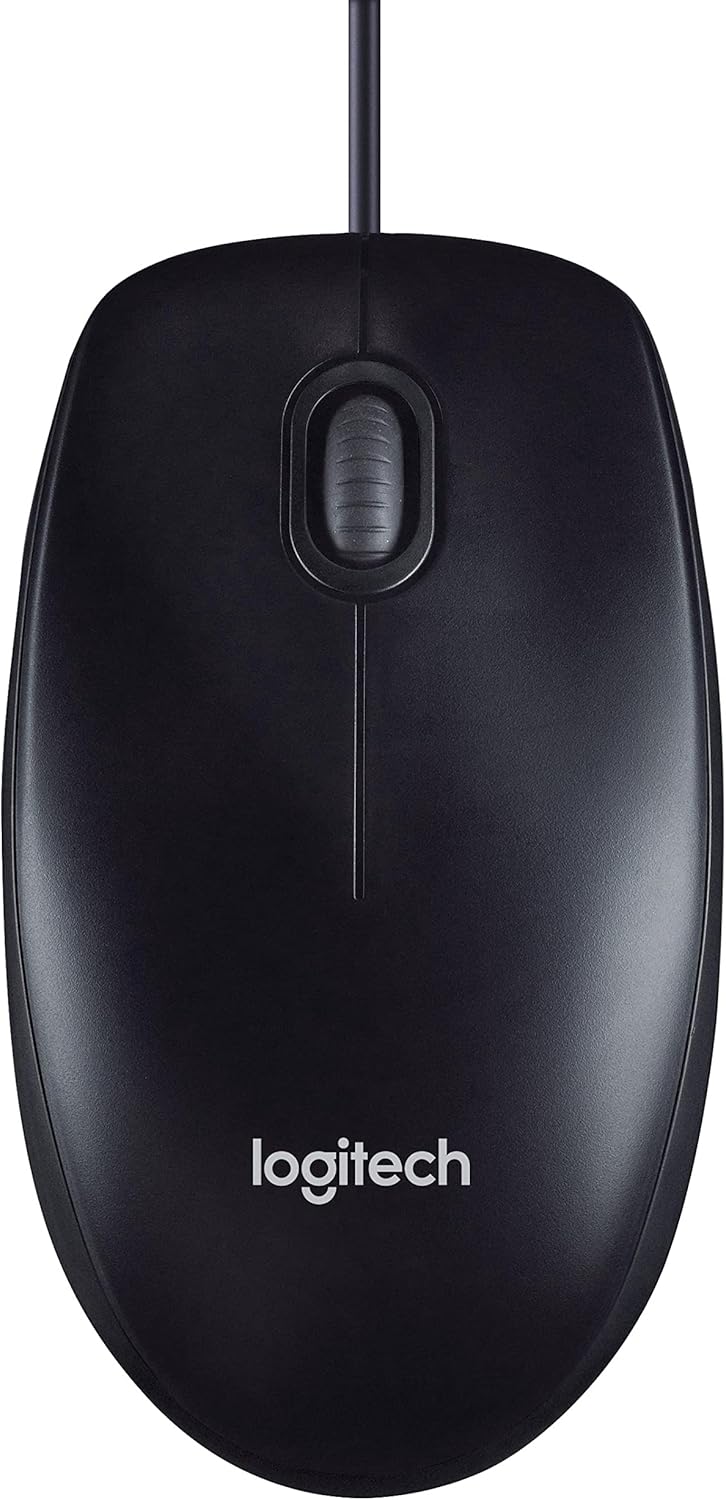
Figure 3.1: The Logitech M90 mouse in use, highlighting its simple design.
4. Maintenance
To ensure the longevity and optimal performance of your Logitech M90 mouse, follow these simple maintenance guidelines:
- Cleaning:
- Regularly wipe the surface of the mouse with a soft, lint-free cloth.
- For stubborn dirt, slightly dampen the cloth with water or a mild, non-abrasive cleaning solution. Avoid harsh chemicals.
- Clean the optical sensor area on the bottom of the mouse periodically to prevent tracking issues. Use a dry cotton swab or compressed air.
- Cable Care: Avoid sharp bends or kinks in the USB cable. Do not pull the mouse by its cable when disconnecting it from the computer; always grasp the USB connector.
- Storage: When not in use, store the mouse in a clean, dry environment away from extreme temperatures.
- Surface: Use the mouse on a clean, flat, and non-reflective surface for best tracking performance.

Figure 4.1: The underside of the Logitech M90 mouse, showing the optical sensor that requires occasional cleaning.
5. Troubleshooting
If you encounter issues with your Logitech M90 mouse, try the following troubleshooting steps:
| Problem | Possible Solution |
|---|---|
| Mouse not responding / Cursor not moving |
|
| Erratic cursor movement |
|
| Buttons or scroll wheel not working |
|
If these steps do not resolve the issue, please refer to the warranty and support information section.
6. Specifications
| Feature | Detail |
|---|---|
| Brand | Logitech |
| Model Number | 910-001793 |
| Connectivity Technology | Wired, USB |
| Movement Detection Technology | Optical |
| DPI (Dots Per Inch) | 1000 dpi |
| Color | Black |
| Item Weight | 2.89 ounces |
| Product Dimensions (LxWxH) | 5.91 x 4.72 x 0.04 inches |
| Hardware Platform | PC |
| Operating System Compatibility | Linux, Mac OS X 10.4 Tiger, Windows XP, Windows Vista, Windows 7 |
| Power Source | Corded Electric |
| Voltage | 1.5 Volts |
| First Available Date | September 19, 2011 |

Figure 6.1: Dimensions of the Logitech M90 mouse.
7. Product Images
Top-down view of the Logitech M90 mouse.
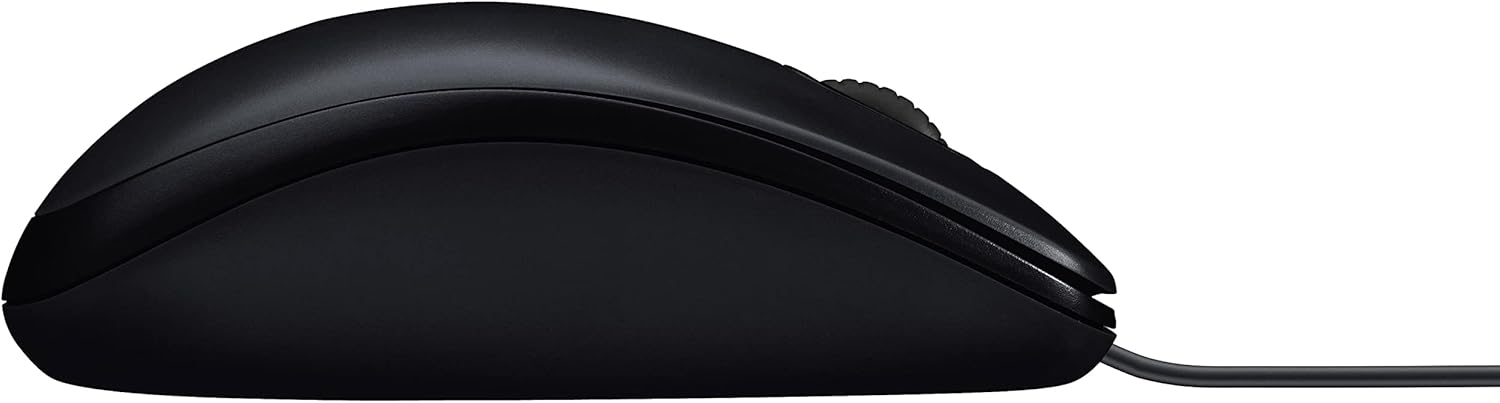
Side profile of the Logitech M90 mouse.
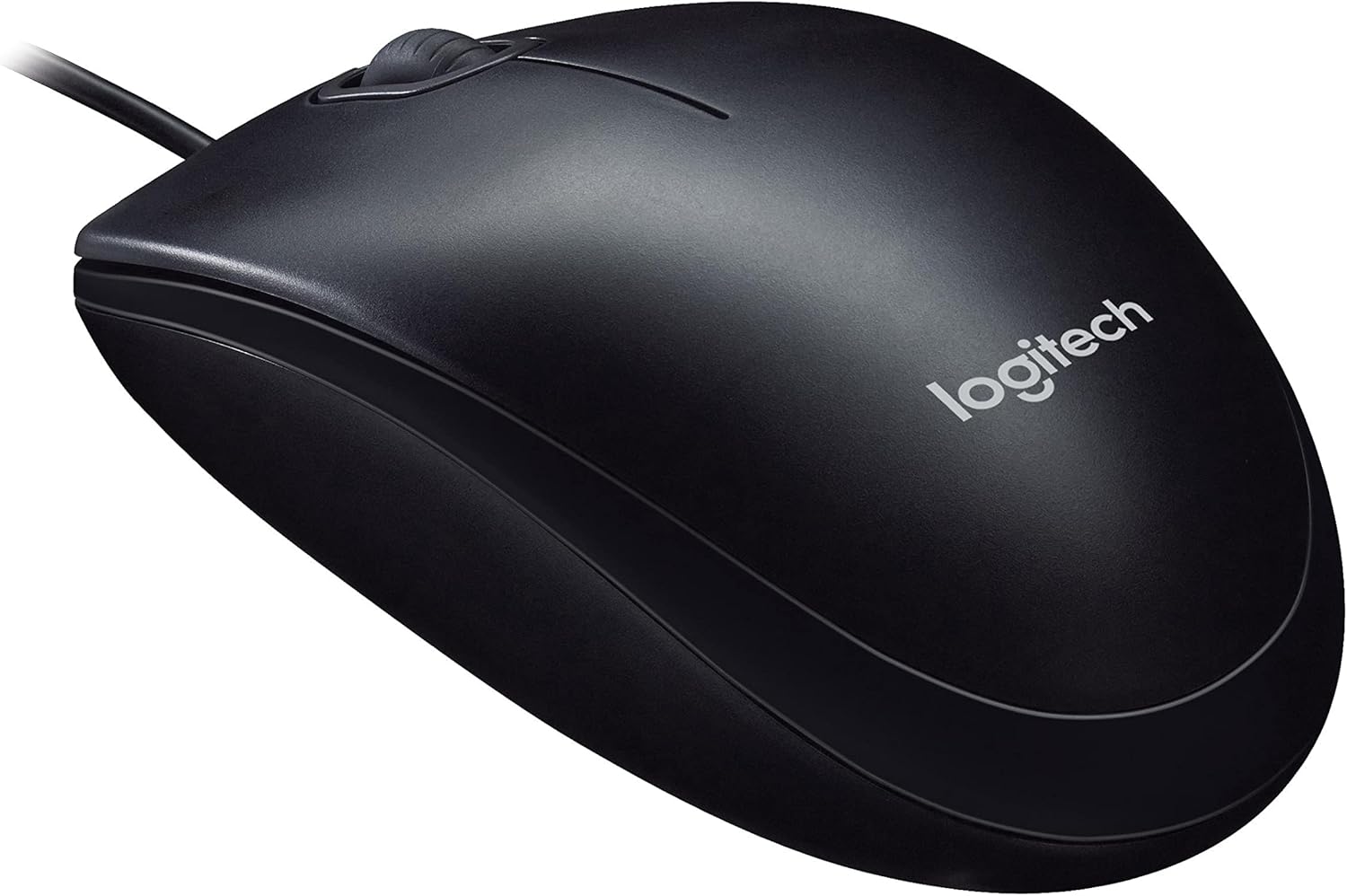
Angled view of the Logitech M90 mouse, highlighting the brand logo.
Top-down view of the Logitech M90 mouse, emphasizing the wired connection.
Logitech M90 mouse with key dimensions indicated.
8. Official Product Videos
There are no official product videos from the seller available for this product at this time.
9. Warranty and Support
For detailed warranty information and technical support, please refer to the documentation included in your product packaging or visit the official Logitech support website.
Logitech Support Website: www.logitech.com/support
Please have your product model number (M90) and serial number (if applicable) ready when contacting support.


