
1. Product Overview
The Leviton P1022-12L is a 1RU (Rack Unit) Power Distribution Unit designed to provide reliable power to equipment in 19-inch racks or cabinets. This unit features 10 NEMA 5-20R outlets and operates at 120V with a 20A capacity. It includes surge protection to safeguard connected devices.
Key Features:
- 1RU horizontal mounting for 19-inch racks or cabinets.
- 10 NEMA 5-20R outlets.
- 120V, 20A electrical rating.
- L5-20P input plug with a 12-foot cord.
- Integrated surge protection (UL 1449 approved).
- Durable plastic body material with copper-alloy contacts.
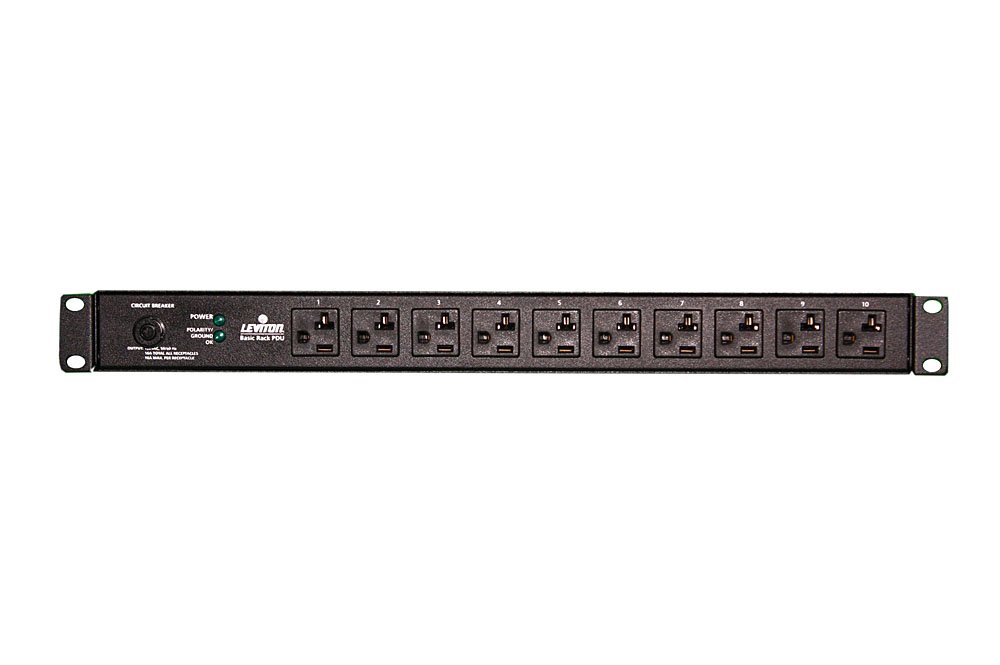
Figure 1: Front view of the Leviton P1022-12L PDU, showing the 10 NEMA 5-20R outlets and the horizontal form factor.
2. Safety Information
Read and understand all instructions before installing or operating this PDU. Retain this manual for future reference.
- Electrical Hazard: This unit operates with high voltage. Do not open the PDU enclosure. Refer all servicing to qualified personnel.
- Grounding: Ensure the PDU is properly grounded. The input plug is a locking NEMA L5-20P type, which requires a compatible grounded outlet.
- Overloading: Do not exceed the maximum current rating of 20A for the PDU. Overloading can cause damage to the unit and connected equipment, and may create a fire hazard.
- Environment: Install the PDU in a dry, indoor environment. Avoid exposure to moisture, extreme temperatures, or corrosive substances.
- Ventilation: Ensure adequate airflow around the PDU to prevent overheating.
3. Setup and Installation
The Leviton P1022-12L PDU is designed for horizontal mounting in standard 19-inch racks or cabinets.
3.1 Package Contents
Verify that the following items are included in your package:
- Leviton P1022-12L PDU
- Mounting hardware (screws, cage nuts, etc. - typically included with rack equipment)
- This instruction manual
3.2 Mounting the PDU
- Identify an available 1RU space in your 19-inch rack or cabinet.
- Align the mounting ears of the PDU with the rack posts.
- Secure the PDU to the rack posts using the appropriate mounting hardware (e.g., rack screws, cage nuts). Ensure it is firmly attached and level.
3.3 Connecting Power
- Ensure all equipment to be connected to the PDU is turned off.
- Plug the PDU's L5-20P input cord into a compatible 120V, 20A L5-20R wall outlet or UPS. Ensure the connection is secure.
- The PDU is now powered and ready to distribute power.
3.4 Connecting Devices
- Plug your equipment's power cords into the NEMA 5-20R outlets on the PDU.
- Distribute the load evenly across the outlets if possible, and ensure the total current draw does not exceed 20A.
- Once all devices are connected, you may power them on.
4. Operating Instructions
The Leviton P1022-12L PDU operates as a pass-through power strip with integrated surge protection. There are no user-operable switches or controls on the unit itself.
- Power Distribution: Once connected to a power source, the PDU continuously provides power to all connected devices through its 10 outlets.
- Surge Protection: The PDU includes internal surge protection circuitry. In the event of a power surge, this circuitry is designed to absorb excess voltage to protect connected equipment.
- Status Indicators: Refer to any indicator lights on the PDU (if present) for status. Typically, a green light indicates active surge protection, while a red light or no light may indicate a tripped or failed surge protection circuit. Consult the product label for specific indicator meanings.
5. Maintenance
The Leviton P1022-12L PDU requires minimal maintenance.
- Cleaning: Periodically clean the exterior of the PDU with a soft, dry cloth. Do not use liquid cleaners or solvents. Ensure the unit is unplugged before cleaning.
- Inspection: Regularly inspect the power cord, plug, and outlets for any signs of damage, wear, or loose connections. If any damage is found, discontinue use and replace the unit.
- Surge Protection Check: If the surge protection indicator light (if present) changes status or goes out, the surge protection may have been compromised. While the PDU may still provide power, its surge protection capability might be reduced or non-existent. Consider replacing the unit to ensure continued protection.
6. Troubleshooting
This section addresses common issues you might encounter with your PDU.
6.1 No Power to Connected Devices
- Check Input Power: Ensure the PDU's L5-20P plug is securely connected to a live 120V, 20A L5-20R outlet.
- Check Circuit Breaker: Verify that the circuit breaker for the wall outlet is not tripped. Reset it if necessary.
- Check PDU Breaker (if applicable): Some PDUs have an integrated circuit breaker. Check if it has tripped and reset it. The P1022-12L typically does not have a user-resettable breaker.
- Test PDU: If possible, test the PDU with a different power source or test the power source with another device to isolate the problem.
6.2 Surge Protection Indicator Off/Red
- This typically indicates that the surge protection circuit has absorbed a significant surge and may no longer be functional. While the PDU may still provide power, it will not protect against future surges. It is recommended to replace the PDU.
6.3 Loose Connections
- Ensure all power cords are fully inserted into the PDU outlets and that the PDU's input plug is firmly seated.
7. Specifications
| Attribute | Specification |
|---|---|
| Model Number | P1022-12L |
| Form Factor | 1RU Horizontal Rackmount |
| Input Voltage | 120 Volts |
| Amperage Capacity | 20 Amps |
| Total Power Outlets | 10 |
| Outlet Type | NEMA 5-20R |
| Input Plug Type | NEMA L5-20P |
| Cord Length | 12 Feet |
| Dimensions (H x W x D) | 1.75 inches x 17.5 inches x 4.5 inches |
| Item Weight | 7.2 ounces |
| Material | Plastic |
| Special Feature | Surge Protection (UL 1449 Certified) |
| Contact Material | Copper-Alloy |
8. Warranty and Support
8.1 Product Warranty
This Leviton P1022-12L PDU is backed by Leviton's 3-Year Limited Product Warranty. For specific terms and conditions, please refer to the warranty documentation provided with your product or visit the official Leviton website.
8.2 Customer Support
For technical assistance, troubleshooting beyond this manual, or warranty claims, please contact Leviton customer support directly. Visit the official Leviton website for contact information and support resources.
Leviton Website: www.leviton.com


