
1. Introduction
This manual provides comprehensive instructions for the setup, operation, and maintenance of your URC SR3 Big Button Universal Remote Control. The URC SR3 is designed for ease of use, featuring large buttons and simplified programming to control up to three devices.
2. Product Overview and Features
The URC SR3 remote control offers several features designed to enhance your entertainment system experience:
- Large Numeric Keypad: Features large, easy-to-read numeric buttons with tactile feedback for effortless channel selection.
- Ergonomic Design: Lightweight and sculpted for comfortable one-hand operation, with ergonomic finger relief for two-handed use.
- Multi-Device Control: Capable of controlling up to three devices, including televisions, cable/satellite boxes, and DVD players.
- "My Button" Feature: Allows users to program a single button to turn on the TV and tune to a favorite channel or activity.
- Four Favorite Channel Buttons: Dedicated buttons for quick access to your most-watched channels without needing to remember channel numbers.
- "ALL OFF" Button: A single button to power down your entire entertainment system.
- SimpleSound: Provides total volume control across all connected components, including those without built-in volume control.
- Simple Programming: Supports both preprogrammed codes and a learning function to adapt to existing remotes.
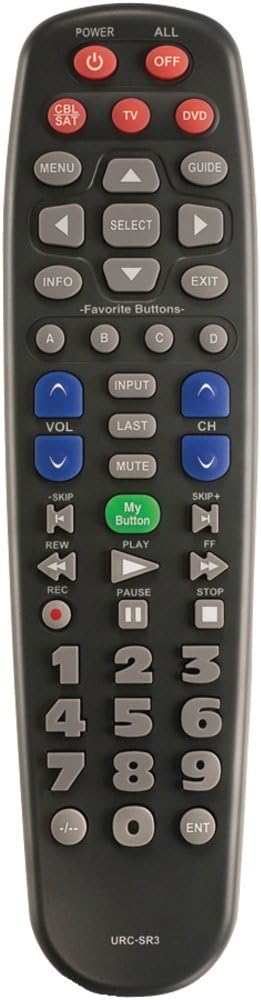
Image 1: Front view of the URC SR3 remote control, highlighting the large buttons and layout.

Image 2: Back view of the URC SR3 remote control, showing the ergonomic shape and battery compartment.
3. Setup Instructions
The URC SR3 remote can be set up using preprogrammed codes or by learning commands from your existing remotes.
3.1. Battery Installation
- Locate the battery compartment on the back of the remote control.
- Slide the battery cover downwards to open.
- Insert two AA alkaline batteries, ensuring correct polarity (+/-).
- Replace the battery cover.
3.2. Programming Devices
The remote supports controlling up to three devices: TV, Cable/Satellite (CBL/SAT), and DVD. Refer to the included quick setup guide for specific preprogrammed codes for common brands. If a code is not available or does not work, use the learning function.
3.2.1. Using Preprogrammed Codes (Quick Setup)
- Turn on the device you wish to program (e.g., TV).
- Press and hold the desired device button (TV, CBL/SAT, or DVD) until the indicator light illuminates.
- Enter the 3-digit code for your device's brand from the code list provided with your remote.
- Point the URC SR3 remote at the device and press the POWER button. If the device turns off, the code is correct.
- If the device does not turn off, repeat the process with the next code for your brand.
3.2.2. Learning Function (from Original Remote)
This feature allows the URC SR3 to learn commands directly from your original remote control.
- Ensure both remotes have fresh batteries.
- Place the URC SR3 and your original remote on a flat surface, facing each other, about 1-2 inches apart.
- Press and hold the device button (TV, CBL/SAT, or DVD) on the URC SR3 that you want to program, then press and hold the "MUTE" button simultaneously until the indicator light blinks twice and stays on.
- Press the button on the URC SR3 that you want to teach (e.g., "POWER"). The indicator light will blink slowly.
- Press and hold the corresponding button on your original remote (e.g., "POWER"). The URC SR3 indicator light will blink rapidly to confirm successful learning.
- Repeat for all desired buttons.
- To exit learning mode, press the "EXIT" button.
Important Note: The URC SR3 has a limited memory capacity for learned commands. If you attempt to program too many buttons, it may stop learning new commands. Prioritize essential functions.
3.3. Programming "My Button"
The "My Button" allows you to activate a sequence of commands with a single press.
- Ensure your TV and cable/satellite box are already programmed into the remote.
- Press and hold the "My Button" until the indicator light blinks twice and stays on.
- Press the "TV" device button, then the "POWER" button.
- Press the "CBL/SAT" device button.
- Enter the channel number for your favorite channel using the numeric keypad.
- Press the "My Button" again to save the sequence. The indicator light will blink rapidly to confirm.
3.4. Programming Favorite Channel Buttons (A, B, C, D)
These buttons provide direct access to four of your preferred channels.
- Press the "CBL/SAT" device button.
- Press and hold the desired Favorite Channel button (A, B, C, or D) until the indicator light blinks twice and stays on.
- Enter the channel number using the numeric keypad.
- Press the same Favorite Channel button again to save. The indicator light will blink rapidly.
4. Operating Instructions
Once programmed, operating the URC SR3 is straightforward.
- Device Selection: Press the TV, CBL/SAT, or DVD button to select the device you wish to control. The indicator light will illuminate for the selected device.
- Power On/Off: Use the "POWER" button for the selected device or the "ALL OFF" button to power down all programmed devices simultaneously.
- Channel Navigation: Use the numeric keypad to enter channel numbers directly, or use the CH+ / CH- buttons to scroll through channels.
- Volume Control: Use the VOL+ / VOL- buttons to adjust the volume. The SimpleSound feature ensures consistent volume control across devices.
- Mute: Press the "MUTE" button to silence the audio.
- "My Button" Use: Press the "My Button" to execute your preprogrammed activity (e.g., turn on TV and go to a specific channel).
- Favorite Channels: Press A, B, C, or D to instantly switch to your saved favorite channels.
- Menu and Guide: Use the "MENU" and "GUIDE" buttons to access on-screen menus and program guides for your cable/satellite box.
- Playback Controls: Use the PLAY, PAUSE, STOP, REW, FWD, SKIP+, and SKIP- buttons for DVD player control.
5. Maintenance
To ensure optimal performance and longevity of your URC SR3 remote control:
- Battery Replacement: Replace batteries when the remote's indicator light becomes dim or unresponsive. Always use two fresh AA alkaline batteries.
- Cleaning: Wipe the remote with a soft, dry cloth. Avoid using liquid cleaners or abrasive materials.
- Storage: Store the remote in a dry place, away from extreme temperatures and direct sunlight.
- Automatic Shut-off: The remote is designed to automatically turn itself off if buttons are continuously pressed (e.g., if it gets stuck under a cushion) to prevent battery drain.
6. Troubleshooting
If you encounter issues with your URC SR3 remote, refer to the following common problems and solutions:
| Problem | Possible Cause / Solution |
|---|---|
| Remote does not control a device. |
|
| Indicator light does not illuminate or is dim. |
|
| Remote stops learning new commands. |
|
| Difficulty seeing buttons. |
|
| Specific device brand not working. |
|
7. Specifications
- Model: URC-SR3
- Dimensions: 2.16 x 1.18 x 8.27 inches (5.49 x 3.00 x 21.01 cm)
- Weight: 6.4 ounces (181.44 grams) with batteries
- Power Source: 2 x AA alkaline batteries (included)
- Max Number of Supported Devices: 3 (TV, CBL/SAT, DVD)
- Color: Medium Gray
- Special Features: Ergonomic design, Universal compatibility, Learning function, "My Button", Favorite Channel buttons, SimpleSound.
8. Warranty Information
Specific warranty details for the URC SR3 remote control are typically provided with the product packaging or available on the manufacturer's official website. Please refer to these resources for the most accurate and up-to-date warranty terms and conditions.
9. Support
For further assistance, technical support, or to inquire about device compatibility, please contact UNIVERSAL REMOTE customer support. Contact information can usually be found on the product packaging or the official UNIVERSAL REMOTE website.
Manufacturer: URC (Universal Remote Control, Inc.)


