
Introduction
This manual provides essential information for the safe and efficient operation of your Panasonic TC-P42U2 42-Inch 1080p Plasma HDTV. Please read these instructions thoroughly before using your television and retain them for future reference. This plasma HDTV features a 42-inch screen with full 1080p HD resolution, 600Hz Sub-field Drive technology for smooth motion, and a 2,000,000:1 dynamic contrast ratio for vibrant images.
Important Safety Information
- Power Source: Connect the TV only to the power supply indicated on the label. Ensure the power cord is not damaged or pinched.
- Ventilation: Do not block ventilation openings. Allow adequate space around the TV for proper airflow to prevent overheating.
- Water and Moisture: Do not expose the TV to rain or moisture. Do not place objects filled with liquids, such as vases, on the TV.
- Cleaning: Unplug the TV from the wall outlet before cleaning. Use a soft, dry cloth. Do not use liquid cleaners or aerosol cleaners.
- Mounting: When mounting the TV on a wall or ceiling, follow the instructions provided by the manufacturer. Ensure the mounting surface can support the TV's weight.
- Lightning: For added protection during a lightning storm or when left unattended for long periods, unplug the TV from the wall outlet and disconnect the antenna or cable system.
Package Contents
Verify that all items are present in the packaging:
- Panasonic TC-P42U2 Plasma HDTV
- Removable Stand
- Remote Control (not explicitly listed but standard)
- Power Cord (not explicitly listed but standard)
Setup
1. Unpacking and Placement
Carefully remove the TV from its packaging. It is recommended to have two people for this process due to the size and weight of the unit. Place the TV on a stable, level surface or prepare for wall mounting.
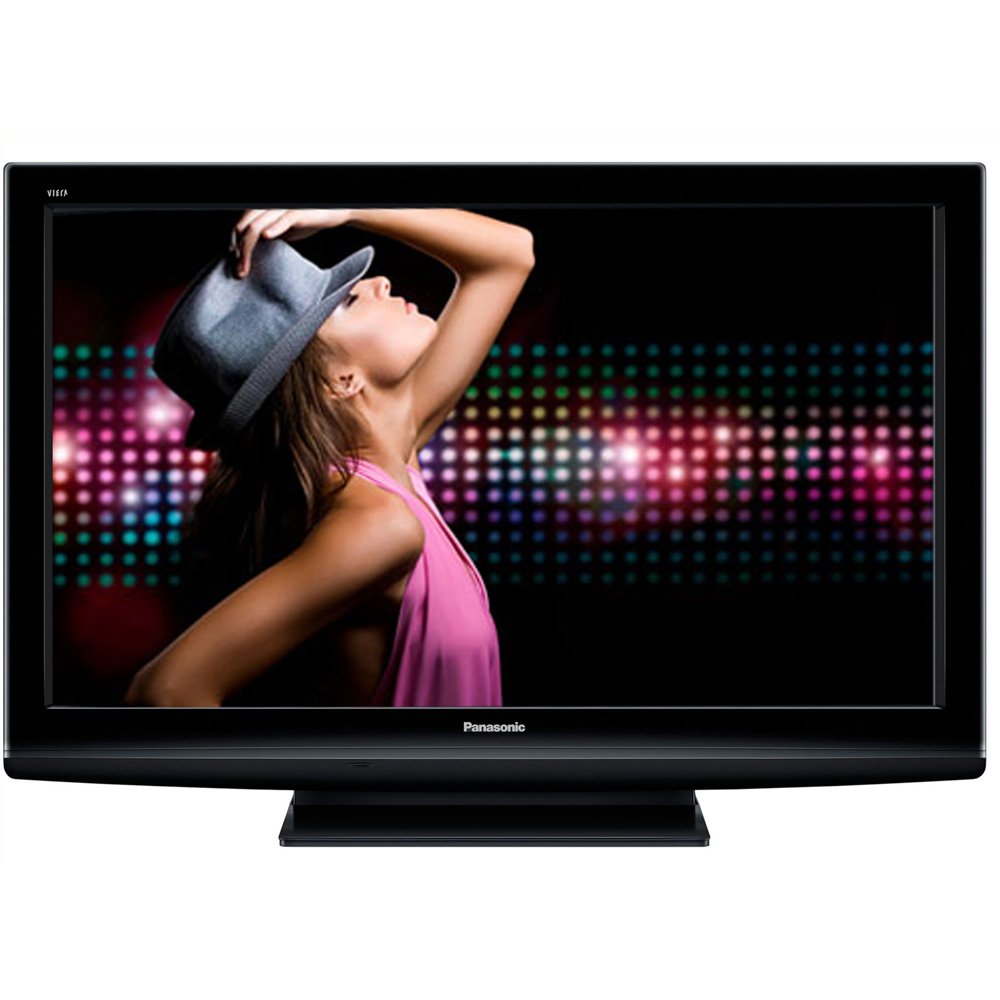
Image: The Panasonic TC-P42U2 42-Inch Plasma HDTV shown with its included stand. The television features a black bezel and a rectangular base.
2. Attaching the Stand
If using the included stand, carefully follow the assembly instructions provided in the separate stand manual or quick start guide. Ensure all screws are securely fastened to prevent instability.
3. Connecting Power
Plug the power cord firmly into the AC IN port on the back of the TV, then plug the other end into a grounded electrical outlet. Do not overload electrical outlets.
4. Connecting External Devices
Your TC-P42U2 HDTV offers various input options:
- HDMI (x3): For high-definition digital audio and video from devices like Blu-ray players, game consoles, or cable/satellite boxes.
- Component Video (x2): For high-definition analog video from devices like DVD players or older game consoles. Connect the red, green, and blue video cables, and separate red and white audio cables.
- Composite Video (x2): For standard-definition analog video from devices like VCRs or older camcorders. Connect the yellow video cable, and separate red and white audio cables.
- Digital Audio Output (Optical x1): For connecting to an external audio receiver or soundbar for digital audio.
- SD Card Slot: For viewing JPEG images directly from an SD memory card using the VIERA Image Viewer.
Connect your devices to the appropriate ports on the back or side of the TV.
5. Initial Setup and First Power On
After connecting all devices and power, press the power button on the TV or remote control. The TV will guide you through an initial setup process, which typically includes language selection, channel scanning, and basic picture/sound settings.
Operating Your TV
Basic Controls
- Power: Press the power button on the remote or TV to turn the unit on or off.
- Volume: Use the VOL +/- buttons on the remote to adjust the sound level.
- Channel: Use the CH +/- buttons to change channels (for antenna/cable input).
- Input/Source: Press the INPUT or SOURCE button on the remote to cycle through connected devices (HDMI1, HDMI2, Component, etc.).
Menu Navigation
Press the MENU button on the remote to access the TV's main menu. Use the arrow buttons to navigate through options and the OK/ENTER button to select. The EXIT or MENU button will close the menu.
Picture Settings
Adjust picture quality settings to your preference. Common settings include:
- Picture Mode: Standard, Dynamic, Cinema, Custom.
- Brightness: Adjusts the overall lightness or darkness of the image.
- Contrast: Adjusts the difference between light and dark areas.
- Color: Adjusts the intensity of colors.
- Tint: Adjusts the green-to-magenta balance (primarily for NTSC signals).
- Sharpness: Adjusts the clarity of image edges.
- Aspect Ratio: Selects the screen format (e.g., 16:9, 4:3, Zoom).
The 600Hz Sub-field Drive technology enhances motion clarity, especially for fast-moving scenes, while the 2,000,000:1 dynamic contrast ratio ensures deep blacks and bright whites.
Sound Settings
Adjust audio settings such as:
- Sound Mode: Standard, Music, Speech, User.
- Bass/Treble: Adjusts low and high frequency sounds.
- Balance: Adjusts the volume between left and right speakers.
VIERA Image Viewer
Insert an SD memory card containing JPEG images into the SD card slot. Select the VIERA Image Viewer input from the source menu to browse and display your photos as a slideshow.
Maintenance
Cleaning the Screen
Gently wipe the screen with a soft, lint-free cloth. For stubborn marks, lightly dampen the cloth with water or a specialized screen cleaner designed for plasma displays. Do not apply pressure or use abrasive materials.
Cleaning the Cabinet
Wipe the TV cabinet with a soft, dry cloth. Avoid using strong detergents or solvents, as they may damage the finish.
General Care
- Avoid exposing the TV to direct sunlight or extreme temperatures.
- Do not place heavy objects on top of the TV.
- Ensure proper ventilation around the TV to prevent heat buildup.
Troubleshooting
If you encounter issues with your TV, refer to the following common solutions:
- No Power: Ensure the power cord is securely plugged into both the TV and the wall outlet. Check if the outlet is functional by plugging in another device.
- No Picture/Sound: Verify that the correct input source is selected. Check all cable connections between the TV and external devices. Try a different input source or device.
- Remote Control Not Working: Check the batteries in the remote control and replace them if necessary. Ensure there are no obstructions between the remote and the TV's IR sensor.
- Poor Picture Quality: Check the antenna or cable connection. Adjust picture settings (brightness, contrast, sharpness). Ensure the source device is outputting a high-quality signal.
- Sound Distortion: Check audio cable connections. Adjust sound settings. If using external speakers, ensure they are properly connected and powered.
If the problem persists after trying these steps, please contact Panasonic customer support.
Specifications
| Feature | Specification |
|---|---|
| Model Number | TC-P42U2 |
| Screen Size | 42 Inches |
| Display Technology | Plasma |
| Resolution | 1080p (1920 x 1080) |
| Refresh Rate | 600Hz Sub-field Drive |
| Dynamic Contrast Ratio | 2,000,000:1 |
| Aspect Ratio | 16:9 |
| Product Dimensions (with stand) | 40.6 x 27.8 x 12.1 inches (W x H x D) |
| Item Weight | 54.1 pounds |
| HDMI Inputs | 3 |
| Component Video Inputs | 2 |
| Composite Video Inputs | 2 |
| Digital Audio Output | 1 (Optical) |
| Special Feature | Flat Screen, VIERA Image Viewer (SD Card Slot) |
Warranty and Support
Your Panasonic TC-P42U2 Plasma HDTV is covered by a limited warranty. Please refer to the warranty card included with your product for specific terms and conditions, including coverage duration and limitations. For technical assistance, troubleshooting, or to inquire about warranty service, please visit the official Panasonic support website or contact their customer service department. Keep your purchase receipt as proof of purchase.
Online Support: www.panasonic.com/us/support.html