
1. Product Overview
The Lenovo ThinkPad SL410 is a 14-inch laptop designed for productivity and everyday computing. It features an Intel Core 2 Duo processor, 2GB of RAM, and a 250GB hard drive, running on Windows 7 Professional 32-bit operating system. This manual provides essential information for setting up, operating, maintaining, and troubleshooting your device.

Figure 1: Front view of the Lenovo ThinkPad SL410 laptop with the screen displaying the Windows 7 operating system.
2. What's in the Box
Upon unboxing your Lenovo ThinkPad SL410, ensure all the following components are present:
- Lenovo ThinkPad SL410 Laptop
- AC Power Adapter
- Rechargeable Battery
- Documentation (including this user manual)
3. Initial Setup
3.1. Installing the Battery
- Turn the laptop over and locate the battery compartment.
- Slide the latch(es) to unlock the compartment.
- Insert the battery into the compartment, ensuring it clicks into place.
- Slide the latch(es) back to the locked position.
3.2. Connecting to Power
- Connect the AC power adapter cable to the power connector on the side of the laptop.
- Plug the AC power adapter into a wall outlet. The battery will begin charging automatically.
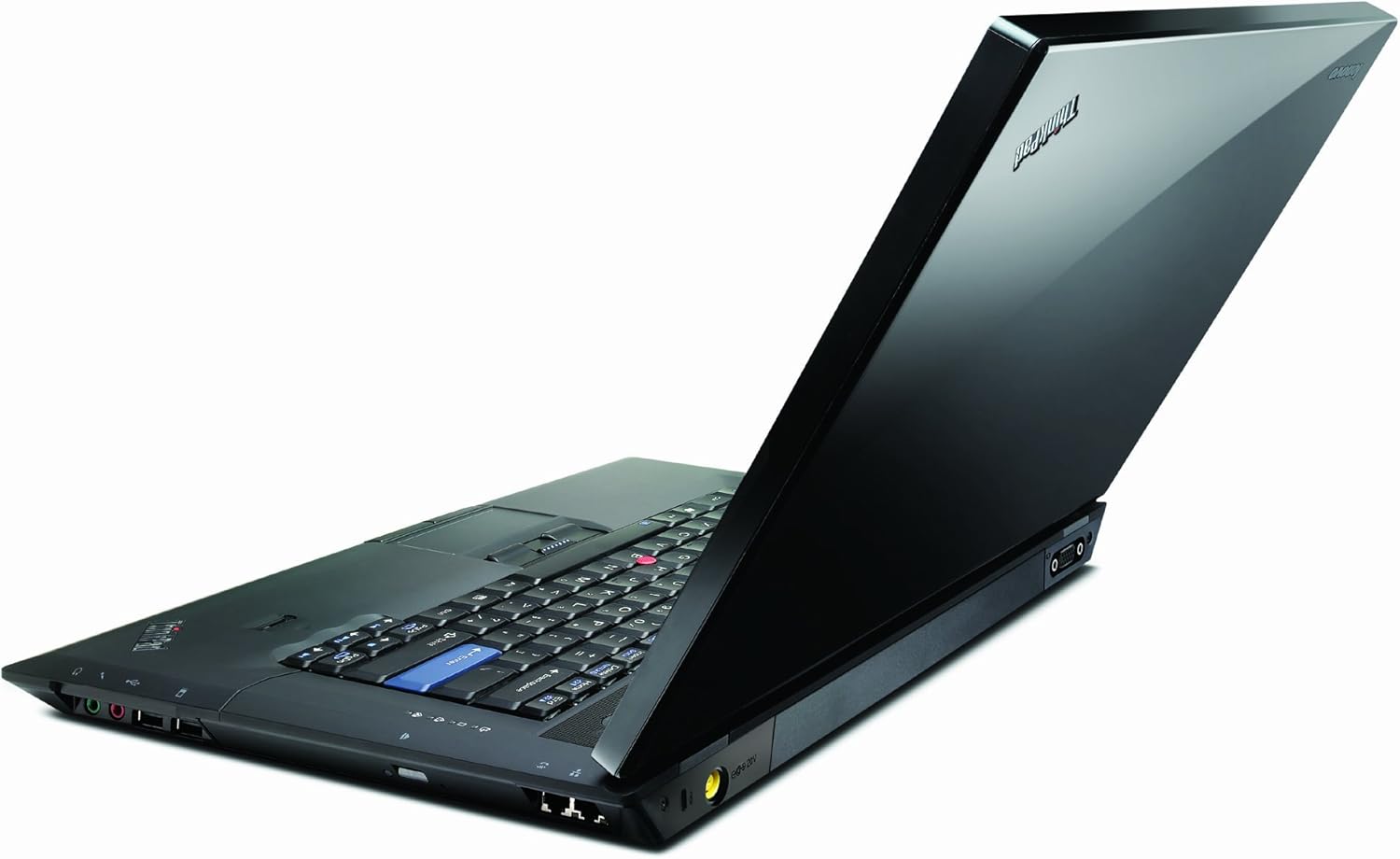
Figure 2: Side view of the laptop, illustrating the location of various ports, including the power input.
3.3. Initial Boot and Operating System Setup
- Open the laptop lid and press the power button.
- Follow the on-screen instructions to complete the Windows 7 Professional setup, including language selection, user account creation, and network configuration.
4. Operating Instructions
4.1. Power On/Off and Sleep Modes
- Power On: Press the power button located above the keyboard.
- Shut Down: Click the Start button in Windows, then select "Shut down".
- Sleep Mode: Close the laptop lid or select "Sleep" from the Start menu.
- Hibernate: Select "Hibernate" from the Start menu power options.
4.2. Keyboard and Pointing Devices
The ThinkPad SL410 features a full-sized keyboard, a TrackPoint pointing device (red dot in the center of the keyboard), and a multi-touch touchpad.
- TrackPoint: Use the red cap to move the cursor and the three buttons below the spacebar for left-click, right-click, and scroll functions.
- Touchpad: Use your finger to move the cursor. The integrated buttons below the touchpad function as left and right clicks.
- Function Keys (Fn): Combine the Fn key with the F1-F12 keys for special functions like adjusting brightness, volume, or enabling/disabling wireless.

Figure 3: Detailed view of the keyboard, TrackPoint, and touchpad for navigation and input.
4.3. Connecting Peripherals
The laptop includes various ports for connecting external devices:
- USB Ports: For connecting USB devices such as mice, keyboards, and external storage.
- HDMI Port: For connecting to external displays or projectors.
- VGA Port: For connecting to older external displays.
- Ethernet Port: For wired network connections.
- Audio Jacks: For headphones and microphones.
4.4. Optical Drive Usage
The integrated DVD Recordable Drive allows you to read and write CDs and DVDs.
- Press the eject button on the drive to open the tray.
- Place a CD or DVD onto the tray with the label side facing up.
- Gently push the tray back into the laptop until it closes.
5. Maintenance
5.1. Cleaning Your Laptop
- Use a soft, lint-free cloth slightly dampened with water or a screen cleaner to clean the display.
- For the keyboard and casing, use a soft cloth. Avoid harsh chemicals or abrasive materials.
- Periodically use compressed air to clear dust from vents and keyboard crevices.
5.2. Battery Care
- To prolong battery life, avoid fully discharging the battery frequently.
- Store the laptop in a cool, dry place when not in use for extended periods.
- If storing for a long time, ensure the battery is charged to about 50%.
5.3. Software Updates
Regularly check for and install operating system updates (Windows Update) and driver updates from the Lenovo support website to ensure optimal performance and security.
6. Troubleshooting Common Issues
This section addresses common problems you might encounter with your ThinkPad SL410.
- Laptop does not power on:
- Ensure the AC adapter is securely connected to both the laptop and a working power outlet.
- Verify the battery is properly installed and charged.
- Try removing the battery and powering on with only the AC adapter.
- No display on screen:
- Check if the laptop is powered on.
- Adjust screen brightness using the Fn + Fx keys (refer to keyboard layout).
- Connect an external monitor to check if the display output works.
- Wireless connection issues:
- Ensure the wireless function is enabled (often via an Fn key combination or a physical switch).
- Check if your Wi-Fi router is working correctly.
- Restart the laptop and the Wi-Fi router.
- Slow performance:
- Close unnecessary programs running in the background.
- Run a disk cleanup and defragmentation (Windows 7 tools).
- Check for malware or viruses.
For more detailed troubleshooting, refer to the Lenovo support website or contact customer service.
7. Technical Specifications
| Feature | Specification |
|---|---|
| Model | Lenovo ThinkPad SL410 (2842F7U) |
| Processor | Intel Core 2 Duo T6570 (2.1 GHz) |
| RAM | 2 GB DDR4 (Expandable to 8 GB) |
| Hard Drive | 250 GB HDD (Serial ATA, 5400 RPM) |
| Graphics | Intel GMA 4500MHD |
| Display | 14.0-inch HD Glossy (1366 x 768 pixels) |
| Optical Drive | DVD Recordable Drive |
| Wireless | 802.11n |
| Operating System | Windows 7 Professional 32-bit |
| Battery Life | Approximately 4 hours |
| Weight | 5.1 pounds (2.31 kg) |
| Dimensions (LxWxH) | 9.17 x 13.54 x 1.42 inches (23.3 x 34.4 x 3.6 cm) |
8. Warranty and Support
Your Lenovo ThinkPad SL410 is covered by a limited warranty. For specific warranty terms and conditions, please refer to the warranty documentation included with your product or visit the official Lenovo support website.
For technical assistance, driver downloads, or further support, please visit the Lenovo support portal:


