
Introduction
Thank you for choosing the Dynex USB Microphone DX-USBMIC13. This manual provides essential information for the proper setup, operation, and maintenance of your new microphone. Please read these instructions carefully before use to ensure optimal performance and longevity of the product.
Product Features
- USB Connectivity: Designed for easy plug-and-play operation with personal computers.
- Clear Audio: Produces clear, distortion-free sound suitable for various applications.
- Versatile Use: Ideal for internet voice chat, video conferencing, gaming, and speech recognition software.
- Stable Design: Features a stable base with an integrated LED power indicator to show operational status.
- Unidirectional Polar Pattern: Focuses on sound from one direction, reducing background noise.
Package Contents
The Dynex USB Microphone DX-USBMIC13 package includes:
- Dynex USB Microphone (DX-USBMIC13) with integrated USB cable
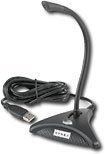
Image: The Dynex USB Microphone DX-USBMIC13, featuring a black flexible gooseneck microphone attached to a round, stable base. The base includes an LED indicator.
Setup
- Connect the Microphone: Plug the USB connector of the Dynex USB Microphone into an available USB port on your computer.
- Driver Installation: Your operating system (Windows, macOS) should automatically detect and install the necessary drivers. This is typically a plug-and-play process and may take a few moments.
- Verify Connection: Once connected, the LED power indicator on the microphone's base will illuminate, indicating it is powered on.
- Configure Audio Settings:
- Windows: Go to Control Panel > Sound > Recording tab. Select the Dynex USB Microphone as your default recording device. Adjust the microphone level as needed.
- macOS: Go to System Preferences > Sound > Input tab. Select the Dynex USB Microphone from the list of devices. Adjust the input volume.
- Application Settings: For specific applications (e.g., Skype, Zoom, gaming software, recording software), ensure the Dynex USB Microphone is selected as the input device within that application's audio settings.
Operating Instructions
- Positioning: Place the microphone on a stable surface. For optimal sound quality, position the microphone approximately 6-12 inches (15-30 cm) from your mouth. The flexible gooseneck allows for easy adjustment.
- Speaking Clearly: Speak directly towards the microphone. The unidirectional polar pattern is designed to pick up sound primarily from the front, minimizing ambient noise.
- Monitoring: If your application allows, monitor your audio input to ensure proper levels and clarity. Adjust microphone sensitivity in your computer's sound settings or the application's settings if the sound is too quiet or too loud.
- Usage Scenarios:
- Voice Chat/Video Conferencing: Ensure the microphone is selected in your communication software.
- Gaming: Configure the microphone in your game's audio settings for in-game voice communication.
- Speech Recognition: For best results, speak clearly and consistently at a comfortable distance from the microphone.
- Recording: Use with your preferred audio recording software. Perform a test recording to check levels and sound quality.
Maintenance
- Cleaning: Use a soft, dry cloth to wipe the microphone and its base. Do not use liquid cleaners or abrasive materials, as they may damage the device.
- Storage: When not in use, store the microphone in a clean, dry place away from extreme temperatures and direct sunlight.
- Handling: Avoid dropping the microphone or subjecting it to strong impacts. Do not forcefully bend the gooseneck beyond its natural range of motion.
Troubleshooting
- No Sound / Microphone Not Detected:
- Ensure the USB cable is securely plugged into both the microphone and the computer.
- Try plugging the microphone into a different USB port on your computer.
- Check your computer's sound settings (Control Panel > Sound > Recording on Windows; System Preferences > Sound > Input on macOS) to confirm the Dynex USB Microphone is selected and not muted.
- Restart your computer.
- Distorted or Low Sound Quality:
- Adjust the microphone input level in your computer's sound settings or the application you are using.
- Ensure you are speaking at an appropriate distance (6-12 inches) from the microphone.
- Check for any physical obstructions or damage to the microphone head.
- Minimize background noise in your environment.
- LED Indicator Not On:
- Verify the USB connection.
- Try a different USB port.
- If the issue persists, the microphone may require service.
Specifications
| Feature | Specification |
|---|---|
| Model Number | DX-USBMIC13 |
| Connectivity Technology | USB |
| Connector Type | USB |
| Power Source | USB |
| Polar Pattern | Unidirectional |
| Signal-to-Noise Ratio | 78 dB |
| Number of Channels | 1 |
| Compatible Devices | Personal Computer |
| Microphone Form Factor | Table Array |
| Item Dimensions (L x W x H) | 12.2 x 5.8 x 1.7 inches |
| Item Weight | 10.4 ounces |
| Manufacturer | DYNEX |
| UPC | 600603150371, 600603122903 |
Warranty and Support
For warranty information or technical support, please refer to the documentation provided at the time of purchase or visit the official Dynex website. Keep your proof of purchase for warranty claims.
Contact Information:
- Website: www.dynexproducts.com (Note: This is a placeholder URL, please refer to actual product documentation for correct support links.)
- Customer Service: Refer to your product packaging or the manufacturer's website for current contact details.


