
1. Introduction
This manual provides essential information for the proper use and maintenance of your Roland OCTAPAD SPD-30 Digital Percussion Pad. Please read it thoroughly to ensure optimal performance and longevity of your instrument.

Figure 1: Top view of the Roland OCTAPAD SPD-30 Digital Percussion Pad.
The Roland OCTAPAD SPD-30 is a versatile digital percussion pad designed for drummers and percussionists. It features advanced triggering technology, a wide array of onboard sounds, and robust construction suitable for various performance environments.
Product Overview Video
Video 1: An overview of the Roland OCTAPAD Digital Percussion Pad, highlighting its features and capabilities.
2. Setup
Proper setup ensures stable performance and optimal sound quality.
2.1 Unpacking and Placement
Carefully remove the SPD-30 from its packaging. Place the unit on a stable, flat surface or mount it securely on a drum stand using a compatible clamp (stand and clamp sold separately).
2.2 Power Connection
Connect the dedicated AC adaptor to the DC IN jack on the rear panel of the SPD-30. Plug the adaptor into a standard AC outlet. Ensure the power switch is in the OFF position before connecting or disconnecting the power supply.
2.3 Audio Connections
Connect the OUTPUT (L/MONO, R) jacks to your amplifier, mixer, or headphones using appropriate audio cables. For stereo output, use both L and R jacks. For mono output, use only the L/MONO jack.
2.4 External Trigger Inputs
The SPD-30 features four dual-trigger inputs and a hi-hat controller input. These allow you to connect external pads, acoustic drum triggers, or a hi-hat control pedal to expand your setup.

Figure 2: Rear panel connections of the Roland OCTAPAD SPD-30, including power, audio outputs, and external trigger inputs.
2.5 USB Connectivity
The USB port allows for MIDI communication with a computer and memory storage for kits and phrases. Connect a USB cable from the SPD-30 to your computer for these functions.
3. Operating the SPD-30
The SPD-30 is designed for intuitive operation, even in low-light conditions.
3.1 Power On/Off
After all connections are made, turn the power switch to the ON position. The large backlit LCD will illuminate, indicating the unit is ready for use.
3.2 Pad Triggering
The SPD-30 utilizes advanced pad-sensing technology for accurate and even triggering. Strike the pads with drumsticks or your hands to produce sounds. The pad indicator lights will illuminate upon impact.

Figure 3: Demonstrating the responsive pads of the Roland OCTAPAD SPD-30.
3.3 Kit Selection
Use the navigation buttons and the value dial to browse and select from the onboard drum kits. Each kit contains a unique set of sounds assigned to the pads.
3.4 Phrase Loop Function
The Phrase Loop function allows you to record your playing in real-time and overdub up to three layers. This is ideal for creating complex rhythms or practicing with backing tracks. Control phrase loops using pad velocity, button presses, or an optional foot switch.
4. Key Features
The Roland OCTAPAD SPD-30 offers a range of features designed to enhance your percussion experience:
- Rugged, Road-Worthy Design: Built to withstand the rigors of live performance and travel.
- Large Backlit LCD and Pad Indicator Lights: Ensures easy operation and visibility in low-light conditions.
- Latest Pad-Sensing Technology: Derived from V-Drums, provides even and accurate pad triggering with excellent isolation between pads.
- Four Dual-Trigger Inputs: Allows for adding external pads to create a mini kit or connecting triggers from acoustic drums.
- Hi-Hat Controller Input: For connecting a hi-hat control pedal.
- Phrase Loop Function: Record and overdub up to three layers for creative rhythm development.
- USB Connectivity: For MIDI communication and memory storage.
- Version 2 System Upgrade: Expands onboard kit and phrase libraries, adding powerful new features and functions. This upgrade includes 49 new kits (totaling 99 preset kits) with a selection of world-percussion sounds, improved control functions for live performance, new preset kit chains for quick access to specific musical sounds and styles, and a programmable output gain of +6dB for a stronger signal when needed.
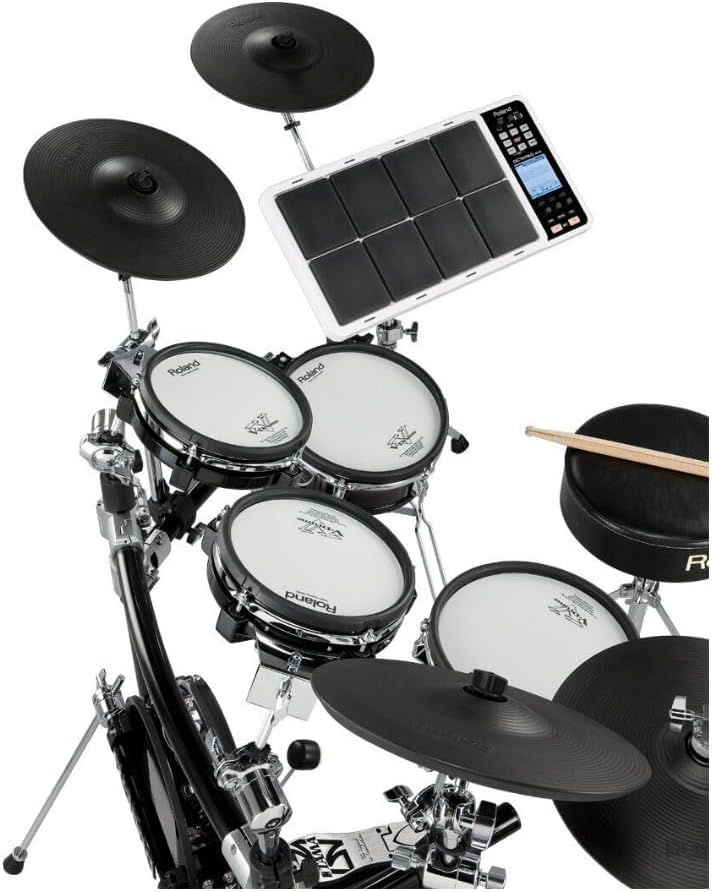
Figure 4: The SPD-30 seamlessly integrates with other electronic drum components.
5. Maintenance
Regular maintenance helps preserve your SPD-30's condition and performance.
5.1 Cleaning
Wipe the unit with a soft, dry cloth. For stubborn dirt, use a slightly damp cloth and then dry thoroughly. Avoid using abrasive cleaners, waxes, or solvents as they can damage the finish.
5.2 Storage
When not in use, store the SPD-30 in a cool, dry place away from direct sunlight, extreme temperatures, and high humidity. If storing for an extended period, disconnect the AC adaptor.
5.3 Pad Care
Avoid striking the pads with excessive force or sharp objects, as this can damage the sensors. Periodically check the pads for wear and tear.
6. Troubleshooting
If you encounter issues with your SPD-30, refer to the following common solutions:
6.1 No Sound
- Check if the power is on and the AC adaptor is securely connected.
- Ensure audio cables are correctly connected to the OUTPUT jacks and your amplifier/mixer.
- Verify the volume levels on the SPD-30 and your connected audio equipment are not set to zero.
- If using headphones, ensure they are properly plugged into the PHONES jack.
6.2 Pads Not Responding
- Check the sensitivity settings for the pads in the SPD-30's menu.
- Ensure no foreign objects are lodged between the pads or around the edges.
- If using external pads, verify their connections to the TRIGGER INPUT jacks.
6.3 Display Issues
- If the LCD is dim, check the contrast settings in the utility menu.
- If the display is frozen, try restarting the unit by turning the power off and on.
For persistent issues, consult the full owner's manual available on the Roland website or contact Roland customer support.
7. Specifications
| Feature | Specification |
|---|---|
| Brand | Roland |
| Model Name | SPD-30 |
| Item Weight | 8.44 pounds |
| Product Dimensions | 10.75 x 21.3 x 3.5 inches |
| Body Material | Plastic |
| Color | Standard (White) |
| Connector Type | USB |
| Hardware Interface | 1/4-inch Audio |
| Date First Available | January 21, 2010 |
8. Warranty and Support
8.1 Product Warranty
The Roland OCTAPAD SPD-30 comes with a limited manufacturer's warranty. Please refer to the warranty card included with your product for specific terms, conditions, and duration. Retain your proof of purchase for warranty claims.
8.2 Customer Support
For technical assistance, service, or additional information, please visit the official Roland website or contact their customer support department. You can find contact details and further resources on the Roland website: www.roland.com