
1. Introduction
This manual provides essential information for the safe and effective use of your Kodak Easyshare M530 Digital Camera. Please read it thoroughly before operating the device and retain it for future reference. The Kodak Easyshare M530 is a compact digital camera featuring a 12-megapixel sensor, 3x optical zoom, and a 2.7-inch LCD screen, designed for capturing high-quality photos and videos with ease.
2. What's in the Box
- Kodak Easyshare M530 Digital Camera
- USB Cable
- Rechargeable Lithium-Ion Battery
- Wrist Strap
- Instruction Manual (this document)
3. Camera Overview
Familiarize yourself with the main components of your camera.

Figure 1: Front view of the Kodak Easyshare M530 Digital Camera, showing the lens, flash, and brand logo.

Figure 2: Back view of the Kodak Easyshare M530 Digital Camera, displaying the 2.7-inch LCD screen and control buttons.

Figure 3: Top view of the Kodak Easyshare M530 Digital Camera, highlighting the power button and shutter release.

Figure 4: Side view of the Kodak Easyshare M530 Digital Camera, illustrating the USB port for connectivity.
4. Setup
4.1. Installing the Battery
- Open the battery compartment cover located on the bottom of the camera.
- Insert the rechargeable Lithium-Ion battery with the contacts facing the correct direction, as indicated inside the compartment.
- Close the battery compartment cover securely until it clicks into place.
4.2. Installing a Memory Card
The camera supports SD/SDHC memory cards (not included).
- Open the memory card slot cover, usually located near the battery compartment.
- Insert the SD/SDHC card with the label facing the front of the camera until it clicks into place.
- Close the memory card slot cover.
4.3. Charging the Battery
- Ensure the battery is correctly installed in the camera.
- Connect the supplied USB cable to the camera's USB port.
- Connect the other end of the USB cable to a compatible USB power adapter or a computer's USB port.
- The charging indicator light will illuminate. Charging is complete when the light turns off or changes color (refer to camera display for exact status).
5. Operating the Camera
5.1. Power On/Off
- To power on: Press the Power button located on the top of the camera.
- To power off: Press and hold the Power button until the camera shuts down.
5.2. Taking Photos
- Turn on the camera.
- Frame your shot using the 2.7-inch LCD screen.
- Press the Shutter button halfway down to focus. The focus frame will turn green when focus is achieved.
- Press the Shutter button all the way down to capture the photo.
5.3. Recording Videos
- Switch the camera to video mode (refer to your camera's specific mode dial or menu for this option).
- Press the Shutter button to start recording. A red indicator will typically appear on the screen.
- Press the Shutter button again to stop recording.
5.4. Zoom Function
Use the zoom lever (often labeled W for Wide and T for Telephoto) to adjust the 3x optical zoom.
- Push the lever towards T to zoom in (telephoto).
- Push the lever towards W to zoom out (wide-angle).
5.5. Flash Modes
Press the Flash button (often indicated by a lightning bolt icon) to cycle through available flash modes:
- Auto Flash: Camera automatically determines if flash is needed.
- Fill Flash: Flash fires for every shot.
- Red-Eye Reduction: Fires a pre-flash to reduce red-eye effect.
- Flash Off: Flash is disabled.
5.6. Reviewing Photos and Videos
- Press the Review button (often indicated by a play icon).
- Use the directional pad to navigate through your captured images and videos.
- Press the OK or Select button to view a selected item.
5.7. Smart Capture and Face Recognition
The Kodak Easyshare M530 features Smart Capture, which automatically adjusts camera settings for optimal results, and Face Recognition, which detects and optimizes settings for faces in your shots.
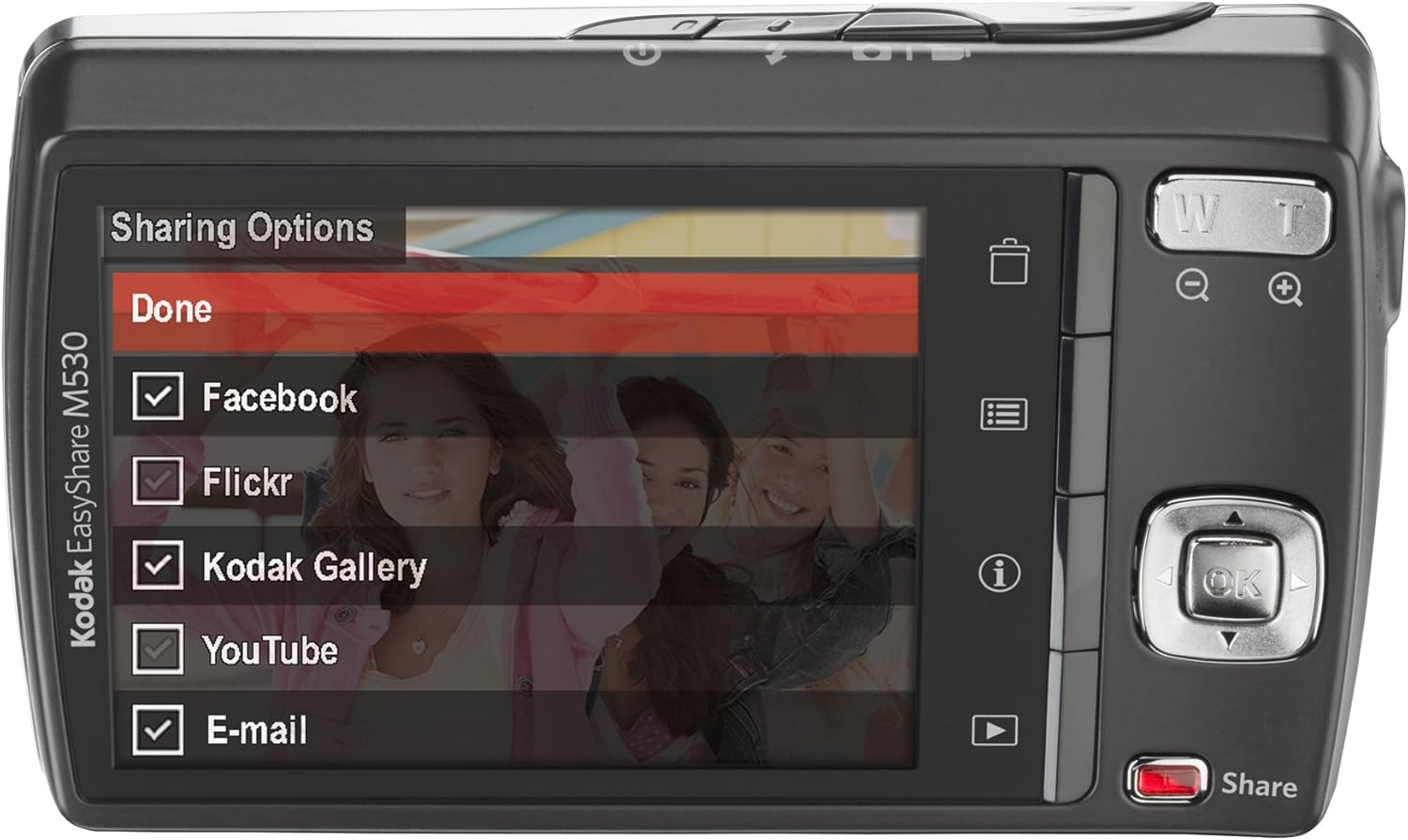
Figure 5: The camera's LCD screen displaying sharing options, including Facebook, Flickr, Kodak Gallery, YouTube, and Email.
5.8. Sharing Your Content
Utilize the dedicated Share button for easy uploading of your photos and videos to various platforms when connected to a computer with Kodak's EasyShare software.
6. Maintenance
6.1. Cleaning the Camera
- Use a soft, lint-free cloth to clean the camera body.
- For the lens and LCD screen, use a specialized lens cleaning cloth and solution. Avoid harsh chemicals.
6.2. Battery Care
- Store batteries in a cool, dry place when not in use.
- Avoid exposing batteries to extreme temperatures.
- Charge the battery fully before extended storage.
6.3. Storage
When storing the camera for long periods, remove the battery and memory card. Store the camera in a dry, dust-free environment, preferably in a camera bag.
7. Troubleshooting
| Problem | Possible Cause | Solution |
|---|---|---|
| Camera does not turn on | Low or depleted battery | Charge the battery fully. |
| Battery incorrectly inserted | Reinsert the battery correctly. | |
| Blurred images | Camera shake | Hold the camera steady or use a tripod. |
| Subject out of focus | Ensure the camera focuses before fully pressing the shutter. | |
| Memory card error | Card not inserted correctly or corrupted | Reinsert the card. If the problem persists, try formatting the card (this will erase all data) or use a different card. |
| Flash not firing | Flash mode set to 'Off' | Change the flash mode to Auto or Fill Flash. |
8. Specifications
- Photo Sensor Resolution: 12 MP
- Optical Zoom: 3x
- Screen Size: 2.7 Inches (LCD)
- Video Resolution: 640 x 480 (30 fps)
- Battery Type: Lithium Ion
- Image Stabilization: None
- Supported File Format: RAW
- Connectivity Technology: USB
- Item Weight: 0.33 Pounds
- Color: Blue (for this specific model variant)
9. Warranty and Support
Your Kodak Easyshare M530 Digital Camera comes with a 30-day warranty from the manufacturer, Eastman Kodak Company. This warranty covers defects in materials and workmanship under normal use. For warranty claims or technical support, please refer to the contact information provided with your purchase documentation or visit the official Kodak support website.
For additional support and resources, you may visit the KODAK Store on Amazon.