
Introduction
This manual provides comprehensive instructions for the installation, operation, and maintenance of your Quorum 7-101-06 Door Chime. Please read these instructions carefully before beginning installation or use to ensure proper function and safety. Keep this manual for future reference.
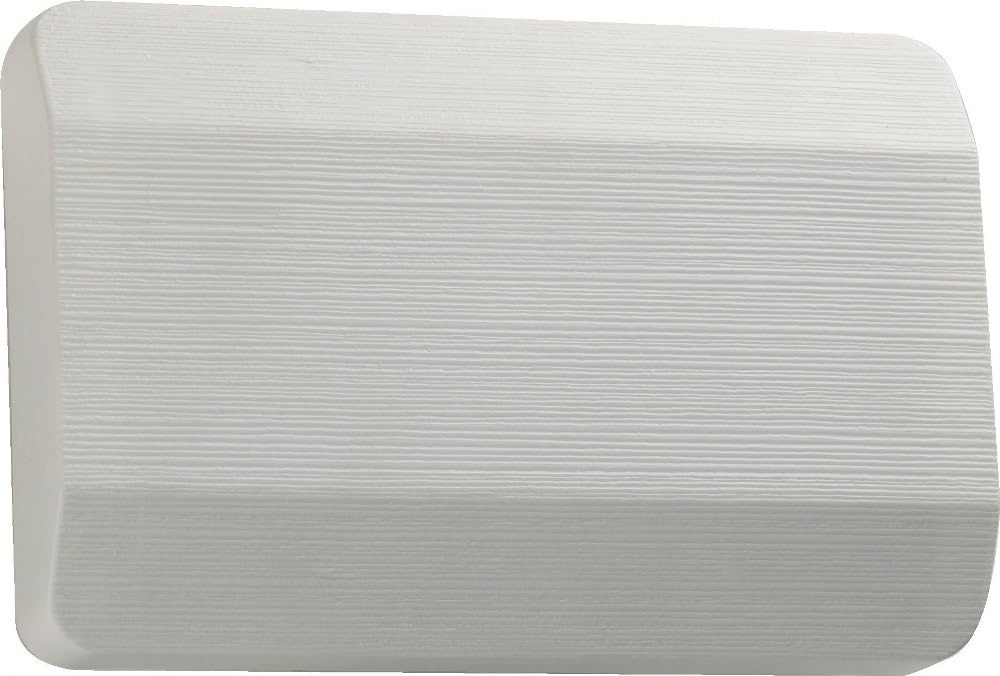
Image: Quorum 7-101-06 Door Chime. This image displays the white, rectangular door chime unit, typically mounted on a wall.
Safety Information
Always disconnect power at the circuit breaker before installing or servicing the door chime. Failure to do so may result in electrical shock or injury. Consult a qualified electrician if you are unsure about any part of the installation process. Ensure all wiring complies with local electrical codes.
Package Contents
Verify that all components are present before beginning installation:
- Quorum 7-101-06 Door Chime Unit
- Mounting Hardware (screws, anchors)
- Instruction Manual (this document)
- (Optional: Doorbell button, transformer - check your specific kit)
Setup and Installation
- Prepare the Installation Area:
Choose a suitable location for the chime unit, typically near the front door or in a central hallway. Ensure there is access to existing doorbell wiring or a power source for a transformer.
- Disconnect Power:
Turn off the power to your doorbell circuit at the main electrical panel. Verify power is off using a voltage tester.
- Remove Old Chime (if applicable):
Carefully remove your existing doorbell chime unit. Disconnect the wires, noting which wire goes to the transformer (TRANS), front door (FRONT), and rear door (REAR) terminals.
- Mount the New Chime:
Position the Quorum 7-101-06 chime unit on the wall. Mark the screw hole locations. Drill pilot holes if necessary and secure the chime unit to the wall using the provided mounting hardware.
- Wire the Chime:
Connect the wires to the corresponding terminals on the new chime unit. Typically, the transformer wire connects to the "TRANS" terminal, the front doorbell button wire to the "FRONT" terminal, and the rear doorbell button wire (if applicable) to the "REAR" terminal. Ensure connections are secure.
- Restore Power and Test:
Once wiring is complete and secure, restore power at the circuit breaker. Press your doorbell button(s) to test the chime's operation.
Operating Instructions
The Quorum 7-101-06 Door Chime operates automatically when a connected doorbell button is pressed. It is designed for standard wired doorbell systems.
- Front Door: Pressing the front doorbell button will typically produce a two-note chime sound.
- Rear Door (if connected): Pressing the rear doorbell button will typically produce a single-note chime sound.
No user adjustments are typically required for this model once installed.
Maintenance
The Quorum 7-101-06 Door Chime requires minimal maintenance.
- Cleaning: Wipe the exterior of the chime unit with a soft, dry cloth. Do not use abrasive cleaners or solvents.
- Inspection: Periodically check the wiring connections to ensure they remain secure.
- No User-Serviceable Parts: The internal components are not designed for user servicing. Do not attempt to open the chime unit beyond its cover.
Troubleshooting
| Problem | Possible Cause | Solution |
|---|---|---|
| Chime does not sound. |
|
|
| Chime sounds continuously or incorrectly. |
|
|
| Weak or distorted chime sound. |
|
|
Specifications
- Model: Quorum 7-101-06
- Color: White
- Product Dimensions: 5.5 x 8.25 x 5.5 inches
- Item Weight: 1.2 pounds
- Manufacturer: Quorum Lighting
- ASIN: B0030MY8YO
- Date First Available: August 30, 2013
- Power Requirement: Typically 16V AC (requires doorbell transformer, not included)
Warranty and Support
For warranty information and customer support, please contact Quorum International directly. Details regarding specific warranty periods and terms are typically provided with the product packaging or can be found on the manufacturer's official website.
Manufacturer: Quorum Lighting
Website: www.quorumintl.com
Contact: Refer to the manufacturer's website for current contact information, including phone numbers and email support.