
1. Introduction
Thank you for choosing the LogiLink PX0014 7-inch Digital Photo Frame. This device allows you to display your digital photos in a convenient and stylish manner. This manual provides essential information for setting up, operating, and maintaining your digital photo frame to ensure optimal performance and longevity.
2. Product Overview
2.1 Key Features
- 7-inch LCD display with a resolution of 480 x 234 pixels.
- 16:10 aspect ratio for wide-screen viewing.
- Supports JPEG image format.
- Equipped with a USB port for external storage.
- Supports SD/SDHC and Multimedia Card (MMC) memory cards.
- Includes Calendar and Clock functions.
2.2 Package Contents
Please check the package for the following items:
- LogiLink PX0014 Digital Photo Frame
- Power Adapter
- User Manual (this document)
- Remote Control (if included)
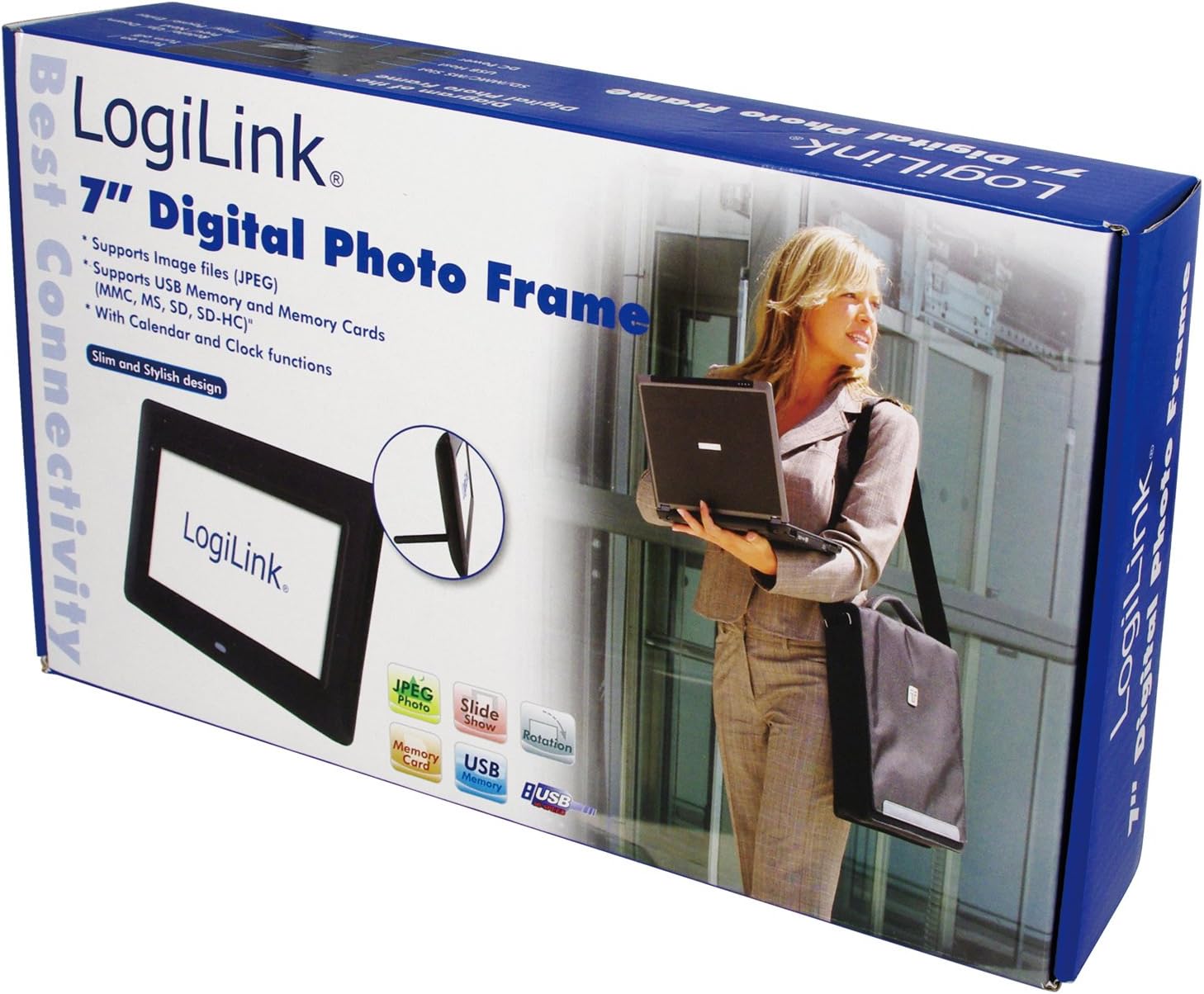
Image 1: The LogiLink PX0014 Digital Photo Frame packaging, showing the product box with a woman holding a laptop and an inset image of the frame itself.
2.3 Device Layout
Familiarize yourself with the various parts of your digital photo frame:

Image 2: The LogiLink PX0014 Digital Photo Frame, a black rectangular frame with a white screen displaying the LogiLink logo, positioned in front of its product packaging.
Refer to the diagram in the included quick start guide for specific button and port locations, typically including:
- Power Button: To turn the device on/off.
- Navigation Buttons: For menu navigation and photo selection.
- Memory Card Slots: For SD/SDHC and MMC cards.
- USB Port: For connecting USB flash drives.
- DC IN Port: For connecting the power adapter.
- Stand Slot: For attaching the included stand.
3. Setup
3.1 Power Connection
- Insert the small end of the power adapter into the DC IN port on the back or side of the photo frame.
- Plug the other end of the power adapter into a standard electrical outlet.
- The frame should power on automatically or can be turned on using the power button.
3.2 Inserting Memory Cards or USB Drives
The LogiLink PX0014 supports SD/SDHC, MMC memory cards, and USB flash drives.
- Ensure the photo frame is powered off or in standby mode before inserting or removing storage devices.
- For Memory Cards: Locate the appropriate memory card slot. Insert the card with the metal contacts facing down (or as indicated by the slot diagram) until it clicks into place.
- For USB Drives: Insert the USB flash drive into the USB port.
- Once inserted, power on the frame. The frame should automatically detect the storage device and display its contents or prompt you to select a source.
4. Operating Instructions
4.1 Basic Navigation
Use the buttons on the back/side of the frame or the remote control (if included) to navigate the menus. Typically, there are buttons for:
- MENU: Accesses the main menu.
- EXIT/RETURN: Goes back to the previous screen or exits the menu.
- ARROW Keys (Up/Down/Left/Right): Navigate through options.
- ENTER/OK: Confirms a selection.
4.2 Viewing Photos
- From the main menu, select 'Photo' or 'Browse'.
- Choose the desired storage source (e.g., 'SD Card', 'USB Drive').
- Navigate to the folder containing your JPEG images.
- Select an image to view it individually, or select 'Slideshow' to start an automatic presentation of all images in the folder.
- You can typically adjust slideshow intervals and transition effects in the settings menu.
4.3 Calendar and Clock Functions
The LogiLink PX0014 includes a built-in calendar and clock. To access and set these functions:
- Go to the main menu and select 'Settings' or 'System'.
- Look for options like 'Date & Time' or 'Calendar'.
- Adjust the current date, time, and time format as needed using the navigation buttons.
- Some models allow displaying the clock or calendar alongside photos during a slideshow. Check the settings for these display options.
5. Maintenance
5.1 Cleaning the Screen
To clean the LCD screen, gently wipe it with a soft, lint-free cloth. For stubborn smudges, slightly dampen the cloth with water or a non-abrasive screen cleaner. Avoid using harsh chemicals or abrasive materials, as these can damage the screen surface.
5.2 General Care and Storage
- Keep the digital photo frame away from direct sunlight, high temperatures, and excessive humidity.
- Avoid dropping the device or subjecting it to strong impacts.
- When not in use for extended periods, unplug the power adapter and store the frame in a cool, dry place.
6. Troubleshooting
If you encounter issues with your LogiLink PX0014, refer to the following common problems and solutions:
| Problem | Possible Cause | Solution |
|---|---|---|
| Frame does not power on. | Power adapter not connected or faulty; power outlet not working. | Ensure the power adapter is securely connected to both the frame and a working electrical outlet. Try a different outlet. |
| No images displayed. | No memory card/USB drive inserted; unsupported file format; corrupted files. | Insert a memory card or USB drive with JPEG images. Ensure images are in JPEG format. Try different images or reformat the storage device (backup data first). |
| Cannot read memory card/USB drive. | Improper insertion; incompatible format; faulty card/drive. | Reinsert the card/drive correctly. Ensure it is formatted to FAT32. Try a different card/drive. |
| Remote control not working. | Battery depleted; obstruction; remote not pointed at sensor. | Replace the battery. Ensure there are no obstructions between the remote and the frame's IR sensor. Point the remote directly at the sensor. |
7. Specifications
| Feature | Detail |
|---|---|
| Brand | LogiLink |
| Model Number | PX0014 |
| Product Dimensions | 24.99 x 24.99 x 15.01 cm |
| Item Weight | 300 g |
| Screen Size | 7 Inches |
| Resolution | 480 x 234 pixels |
| Aspect Ratio | 16:10 |
| Connectivity Technology | USB |
| Card Reader | Multimedia Card, Memory Card (SD/SDHC) |
| Power Source | Corded Electric |
| Control Method | Remote Control |
8. Warranty Information
LogiLink products are designed and manufactured to the highest quality standards. This product is covered by a limited warranty from the date of purchase. Please refer to the warranty card included in your package or visit the official LogiLink website for detailed warranty terms and conditions specific to your region.
9. Support
For technical assistance, product inquiries, or to report any issues not covered in this manual, please contact LogiLink customer support. You can typically find contact information, including phone numbers, email addresses, and online support portals, on the official LogiLink website (www.logilink.eu).


