
1. Product Overview
The Kingwin 80mm Silent Fan (Model CF-08LB) is designed to provide efficient and quiet cooling for various computer components. Its optimized blade design ensures maximum airflow while maintaining low noise levels, making it suitable for PC cases, CPU coolers, and other systems requiring effective thermal management.
Key Features:
- Quiet Operation: Engineered for silent performance, ideal for noise-sensitive environments.
- High Airflow: Delivers substantial airflow to dissipate heat effectively.
- Universal Compatibility: Fits standard 80mm mounting points in PC cases and CPU coolers.
- Durable Design: Features a long-life bearing for extended reliability and consistent cooling.
2. Package Contents
Verify that all items are present in the package:
- Kingwin 80mm Silent Fan (CF-08LB)
- Mounting Screws (4x)
3. Technical Specifications
| Feature | Specification |
|---|---|
| Model Number | CF-08LB |
| Dimensions | 80mm x 80mm x 25mm (3.15"L x 0.98"W x 3.15"H) |
| Voltage | 12 Volts |
| Noise Level | 25 dB |
| Maximum Rotational Speed | 1700 RPM |
| Air Flow Capacity | 30 Cubic Feet Per Minute (CFM) |
| Power Connector Type | 3-Pin |
| Bearing Type | Long Life Bearing |
| Material | Polyvinyl Chloride (PVC) |
| Compatible Devices | Desktop Computers |

Figure 3.1: Fan dimensions for proper fitment.
4. Safety Information
- Always disconnect power from your computer before installing or removing any components.
- Handle the fan by its frame to avoid damaging the blades or internal components.
- Ensure proper orientation of the fan for desired airflow (intake or exhaust).
- Keep fingers and loose objects away from spinning fan blades.
- Do not attempt to disassemble the fan.
5. Installation Guide
Follow these steps to install your Kingwin 80mm Silent Fan:
- Prepare Your System: Power off your computer and unplug it from the wall outlet. Open your computer case to access the fan mounting locations.
- Identify Mounting Location: Locate an available 80mm fan mounting point in your PC case or on your CPU cooler. Common locations include the rear, front, or side panels of the case.
- Determine Airflow Direction: The fan typically has arrows on its side indicating the direction of airflow and blade rotation. Decide whether you need the fan to act as an intake (bringing cool air in) or exhaust (pushing hot air out). Position the fan accordingly.
- Mount the Fan: Align the fan with the screw holes on the mounting location. Use the provided mounting screws to secure the fan firmly. Do not overtighten the screws.
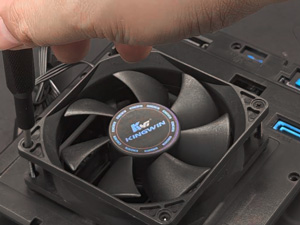
Figure 5.1: Securing the fan with mounting screws.
- Connect Power: The Kingwin CF-08LB fan uses a 3-pin connector.
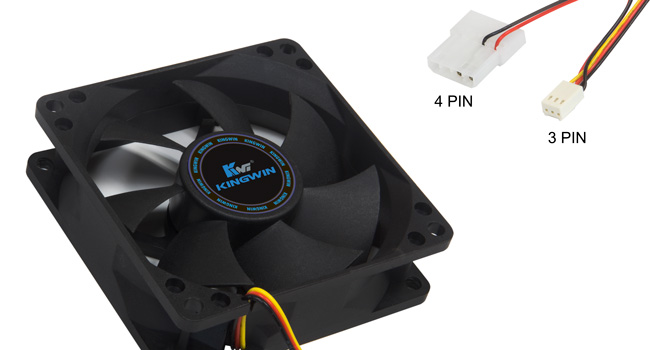
Figure 5.2: Fan connection options.
- To Motherboard (3-Pin): Connect the fan's 3-pin connector to an available 3-pin or 4-pin fan header on your motherboard. A 3-pin connection provides power and RPM monitoring, but typically no PWM speed control.
- To Power Supply (4-Pin Molex Adapter): If your motherboard lacks available headers, use a 3-pin to 4-pin Molex adapter (not included) to connect the fan directly to your power supply. This will run the fan at full speed.
- Cable Management: Route the fan cable neatly to avoid interference with other components or airflow.
- Close Case and Power On: Close your computer case, plug in the power cord, and power on your system. Verify that the fan is spinning and operating correctly.
6. Operating Instructions
Once installed and powered, the Kingwin 80mm Silent Fan will operate continuously to provide cooling. The fan's speed and noise level are designed for optimal balance.
- If connected to a motherboard 3-pin header, the fan will typically run at a constant speed, or a speed controlled by the motherboard's BIOS/UEFI settings if it supports voltage-based control.
- If connected directly to a power supply via a Molex adapter, the fan will run at its maximum rotational speed (1700 RPM).

Figure 6.1: Illustrative diagram of fan airflow.
7. Maintenance
Regular maintenance helps ensure optimal performance and longevity of your fan.
- Cleaning: Periodically (every 3-6 months, or more frequently in dusty environments) power off your computer and use compressed air to gently remove dust buildup from the fan blades and frame. Avoid touching the blades directly.
- Inspection: Check for any obstructions around the fan that might impede airflow. Ensure the fan is securely mounted and that cables are not interfering with its operation.
- Bearing: The long-life bearing is designed for maintenance-free operation. No lubrication is required.
8. Troubleshooting
| Problem | Possible Cause | Solution |
|---|---|---|
| Fan not spinning | No power, loose connection, faulty fan header, or fan failure. | Ensure power cable is securely connected. Try a different fan header or power source. If still not spinning, the fan may be faulty. |
| Excessive noise | Dust buildup, loose mounting screws, cable interference, or bearing wear. | Clean the fan blades. Tighten mounting screws. Ensure no cables are touching the blades. If noise persists, bearing wear may be present. |
| Poor cooling performance | Incorrect airflow direction, obstructions, or insufficient fan speed. | Verify fan is oriented for correct airflow (intake/exhaust). Remove any obstructions. Ensure fan is receiving full power if connected via Molex, or check motherboard settings for 3-pin control. |
9. Warranty and Support
Kingwin products are manufactured to high-quality standards. For specific warranty information, please refer to the documentation provided with your purchase or visit the official Kingwin website.
For further assistance or to explore other Kingwin products, please visit the Kingwin Store.