
SanDisk SDCZ50-016G-B35
Contents
SanDisk 16GB Cruzer Blade USB 2.0 Flash Drive User Manual
Brand: SanDisk | Model: SDCZ50-016G-B35
Introduction
The SanDisk 16GB Cruzer Blade USB 2.0 Flash Drive is an ultra-compact and portable storage solution designed for easy transfer of your files. It allows you to carry your photos, videos, music, and other important documents with ease. This manual provides essential information on setting up, operating, maintaining, and troubleshooting your Cruzer Blade flash drive.
Setup
The SanDisk Cruzer Blade USB 2.0 Flash Drive is designed for plug-and-play functionality, requiring minimal setup. It is compatible with Windows Vista, Windows 7, Windows 8, Windows 10, and Mac OS X v10.6+.
- Unpacking: Carefully remove the flash drive from its packaging.
- Connecting to a Computer: Locate an available USB Type-A port on your computer. Gently insert the SanDisk Cruzer Blade flash drive into the USB port. Ensure the drive is inserted correctly to avoid damage.
- Automatic Recognition: Your operating system should automatically detect and install the necessary drivers for the flash drive. A notification may appear indicating that the device is ready for use.

Figure 1: Inserting the SanDisk Cruzer Blade into a laptop's USB port.
Operating the Flash Drive
Once connected, your SanDisk Cruzer Blade will appear as a removable drive in your computer's file explorer (e.g., "This PC" on Windows, "Finder" on Mac).
Transferring Files
- Copying Files To: Open the flash drive's folder. Drag and drop files or folders from your computer into the flash drive's folder, or copy and paste them.
- Copying Files From: Drag and drop files or folders from the flash drive's folder to a location on your computer, or copy and paste them.
Using SanDisk SecureAccess Software
The Cruzer Blade includes SanDisk SecureAccess software to protect your private files with password protection using 128-bit AES encryption. This software is supported by Windows Vista, Windows 7, Windows 8, Windows 10, and Mac OS X v10.6+.
- Software Download: For Mac users, software download is required. Refer to the official SanDisk SecureAccess website for detailed instructions and download links.
- Creating a Password-Protected Folder: Follow the on-screen instructions within the SanDisk SecureAccess application to set up your personal vault.
- Storing Files Securely: Drag and drop sensitive files into the SecureAccess vault to encrypt them.

Figure 2: SanDisk Cruzer Blade USB Flash Drive.

Figure 3: Compact design of the Cruzer Blade.
Maintenance
Proper care of your SanDisk Cruzer Blade will ensure its longevity and reliable performance.
- Safe Removal: Always use the "Safely Remove Hardware" option (Windows) or drag the drive to the Trash/Eject icon (Mac) before physically disconnecting the flash drive from your computer. This prevents data corruption.
- Physical Protection: The Cruzer Blade features a durable design, but avoid exposing it to extreme temperatures, direct sunlight, water, or strong impacts.
- Cleaning: If necessary, gently wipe the exterior of the flash drive with a soft, dry, lint-free cloth. Do not use liquid cleaners or solvents.
- Storage: When not in use, store the flash drive in a clean, dry place away from dust and static electricity.
Troubleshooting
If you encounter issues with your SanDisk Cruzer Blade, try the following solutions:
- Drive Not Recognized:
- Try plugging the flash drive into a different USB port on your computer.
- Restart your computer and try again.
- Ensure the drive is fully inserted into the USB port.
- Check your computer's Device Manager (Windows) or System Information (Mac) to see if the drive is listed.
- Slow Transfer Speeds:
- Ensure you are using a USB 2.0 compatible port for optimal performance.
- Avoid running multiple demanding applications while transferring files.
- Defragment your flash drive (Windows) or verify disk permissions (Mac) if performance issues persist.
- Cannot Write Files to Drive:
- Check if the drive is full. Delete unnecessary files to free up space.
- Ensure the drive is not set to read-only mode (though this is rare for flash drives).
- If using SanDisk SecureAccess, ensure you are logged into the secure vault to access protected files.
Specifications
Key technical specifications for the SanDisk 16GB Cruzer Blade USB 2.0 Flash Drive:
| Feature | Detail |
|---|---|
| Brand | SanDisk |
| Model Name | Cruzer Blade |
| Item Model Number | SDCZ50-016G-B35 |
| Memory Storage Capacity | 16 GB |
| Connectivity Technology | USB |
| Hardware Interface | USB 2.0 |
| Color | Black |
| Product Dimensions (LxWxH) | 1.63 x 0.69 x 0.29 inches |
| Item Weight | 0.088 ounces |
| Compatible Platforms | Mac, PC |
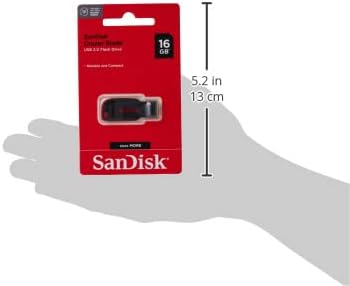
Figure 4: Packaging with approximate dimensions.
Warranty and Support
For information regarding product warranty, technical support, or additional resources, please visit the official SanDisk support website. SanDisk also offers optional data recovery plans for purchase, such as 2-year and 3-year Photo and Data Recovery Plans, which can be found on the product's retail page.
For the most up-to-date information and assistance, refer to the SanDisk website or contact their customer service directly.
Ask a question about this manual
Ask about setup, troubleshooting, compatibility, parts, safety, or missing instructions. Manuals+ will review the question and use this page’s manual context to help answer it.