
Pure VL-61220
Pure Siesta FLOW Digital Radio Alarm Clock
User Manual
Introduction
This manual provides comprehensive instructions for setting up, operating, and maintaining your Pure Siesta FLOW digital radio alarm clock. Please read this manual thoroughly before using the device to ensure proper functionality and to maximize your user experience.

Front view of the Pure Siesta FLOW digital radio alarm clock, showcasing its display and front controls.
Setup
1. Unpacking and Placement
- Carefully remove the Siesta FLOW from its packaging.
- Place the unit on a stable, flat surface, away from direct sunlight, heat sources, or excessive moisture.
- Ensure adequate ventilation around the unit.
2. Power Connection
Connect the supplied power adapter to the DC input port on the back of the Siesta FLOW, then plug the adapter into a wall outlet. The unit will power on automatically.
3. Initial Setup Wizard
Upon first power-on, the Siesta FLOW will guide you through an initial setup wizard. Use the navigation buttons (Up/Down/Select) to configure the following:
- Language: Select your preferred language.
- Time and Date: The unit can synchronize time via DAB or internet. You may set it manually if needed.
- Network Connection (Wi-Fi):
- Select your Wi-Fi network from the list.
- Enter your Wi-Fi password using the navigation controls. The touch-sensitive buttons on the front panel require a light touch for input.
- Confirm the connection.

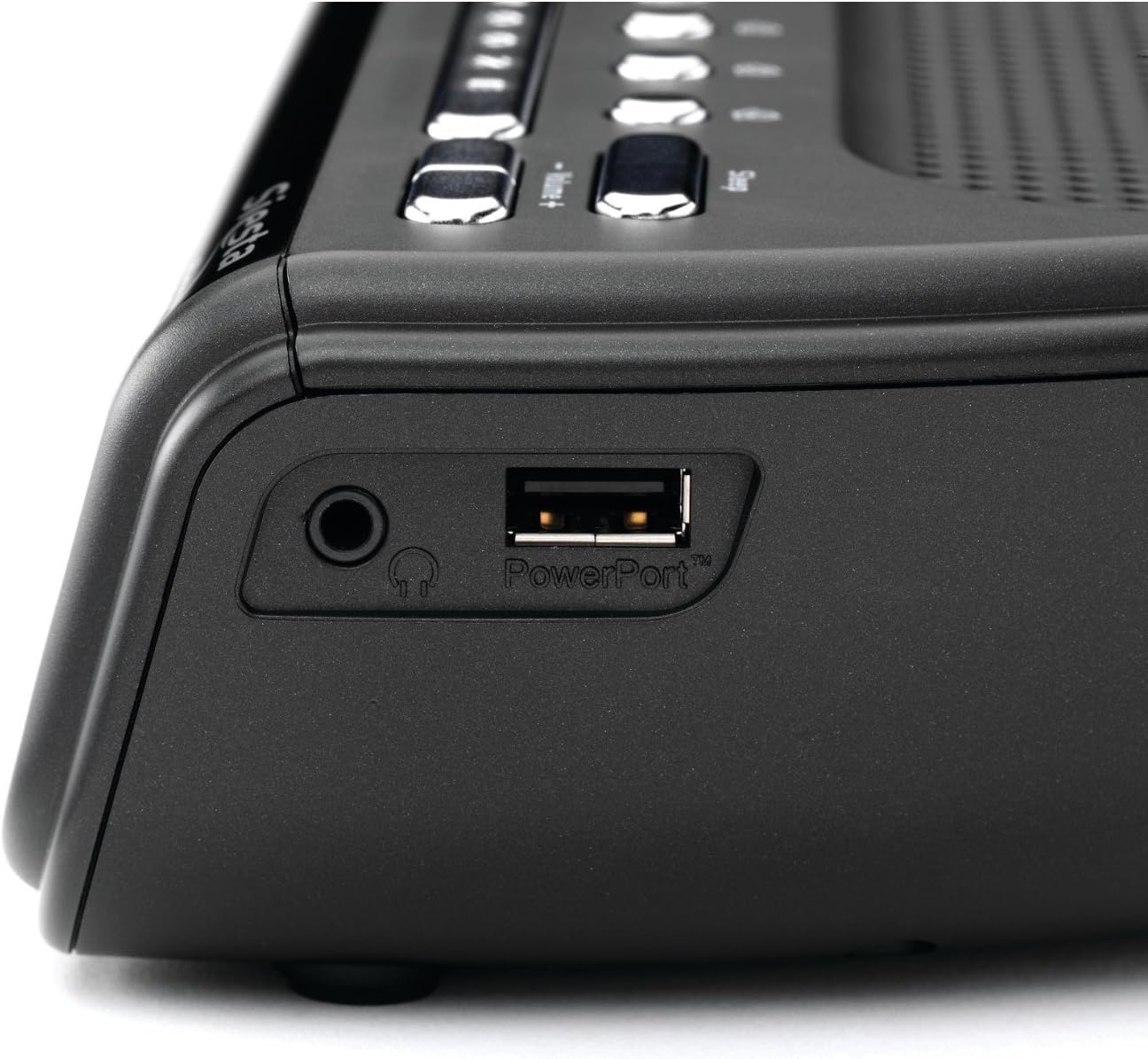
Side view of the Pure Siesta FLOW, highlighting the headphone jack and the PowerPort USB connection for charging external devices.
4. Antenna Adjustment
Extend the telescopic antenna fully for optimal DAB and FM radio reception. Adjust its position to improve signal strength if necessary.
Operating Instructions
1. Controls Overview

Top view of the Pure Siesta FLOW, illustrating the layout of the control buttons including Standby, Source, Presets, Snooze, and Volume.
- Standby Button: Powers the unit on or off (to standby mode).
- Source Button: Cycles through available audio sources (DAB, FM, Internet Radio, Aux In).
- Preset Buttons (1-4): Quick access to saved radio stations.
- Snooze Button: Temporarily silences an active alarm.
- Volume +/- Buttons: Adjusts the audio output level.
- Navigation Buttons (Up/Down/Select) & Back Button: Used for menu navigation and selection on the front panel. These are touch-sensitive.
2. Radio Functions
- DAB/FM Radio:
- Press the Source button to select DAB or FM.
- The unit will scan for available stations. Use navigation buttons to browse and select.
- To save a preset, tune to the desired station, then press and hold one of the Preset buttons (1-4) until "Preset Saved" appears.
- Internet Radio:
- Ensure the unit is connected to Wi-Fi.
- Select "Internet Radio" as the source.
- Browse stations by location, genre, or search. You can also manage favorites via the Pure Lounge website.
3. Alarm Functions
The Siesta FLOW supports multiple alarms (up to 4). Access alarm settings via the main menu.
- Setting an Alarm:
- Select an alarm slot (e.g., Alarm 1).
- Set the alarm time.
- Choose the alarm source: DAB, FM, Internet Radio, or built-in tones/sounds.
- Select the alarm frequency (Daily, Weekdays, Weekends, Once).
- Adjust the alarm volume.
- Ensure the alarm is set to "On".
- Snooze: When an alarm sounds, press the Snooze button to temporarily pause it. The snooze duration can be configured in settings.
- Stopping an Alarm: Press any button other than Snooze to turn off the active alarm.
The display of the Pure Siesta FLOW, showing the selection of a built-in sound, "Forest Birds," as an alarm or relaxation option.
4. Sleep Timer
The sleep timer allows the radio to play for a set duration before automatically turning off. Access the Sleep Timer option from the main menu and select your desired duration.
5. Display Settings
The Siesta FLOW features an auto-dimming display that adjusts to ambient light. You can also manually adjust the brightness or set a minimum brightness level in the display settings menu.
6. USB PowerPort
The USB PowerPort on the side of the unit (labeled "PowerPort") can be used to charge compatible external devices, such as smartphones or MP3 players. This port is for charging only and does not support data transfer.
Maintenance
1. Cleaning
- Disconnect the power adapter before cleaning.
- Wipe the unit with a soft, dry, lint-free cloth.
- Do not use abrasive cleaners, waxes, or solvents as they may damage the finish.
2. Software Updates
Periodically check for software updates via the system settings menu. Updates can provide new features and performance improvements. Follow the on-screen instructions to install any available updates.
Troubleshooting
| Problem | Possible Cause | Solution |
|---|---|---|
| No power / Unit unresponsive | Power adapter not connected or faulty outlet. | Ensure power adapter is securely connected and try a different power outlet. |
| Poor radio reception (DAB/FM) | Antenna not extended or poor signal area. | Fully extend and adjust the telescopic antenna. Try relocating the unit to an area with better reception. |
| Internet radio buffering or disconnecting | Weak Wi-Fi signal or network congestion. | Ensure the unit is within range of your Wi-Fi router. Restart your router. Check for other devices consuming bandwidth. |
| Touch buttons unresponsive or slow | Incorrect touch technique or temporary software glitch. | Use a light, firm touch. Restart the unit by unplugging and re-plugging the power. |
| Unit freezes or becomes unresponsive | Software error. | Disconnect the power adapter for 10 seconds, then reconnect it to perform a soft reset. If issues persist, consider a factory reset (see manual for specific steps). |
Factory Reset
If problems persist, a factory reset may resolve them. This will erase all saved settings, presets, and alarms. Refer to the system settings menu on your device for the "Factory Reset" option.
Specifications
| Feature | Detail |
|---|---|
| Brand | Pure |
| Model Number | VL-61220 |
| Dimensions (L x W x H) | 16.6 x 18 x 6.6 cm |
| Weight | 420 g |
| Power Output | 4.6 watts |
| Special Features | Alarm, Snooze, Radio (DAB/FM/Internet), Timer, USB PowerPort |
| Power Source | Corded Electric |
| Mounting Type | Tabletop |
Warranty and Support
For warranty information and technical support, please refer to the documentation provided with your purchase or visit the official Pure website. Keep your proof of purchase for warranty claims.
Related documentsVL-61220


Ask a question about this manual
Ask about setup, troubleshooting, compatibility, parts, safety, or missing instructions. Manuals+ will review the question and use this page’s manual context to help answer it.