
Introduction
This manual provides detailed instructions for the operation and maintenance of your Samsung HT-TZ225 remote control. This remote is specifically designed to control compatible Samsung Home Cinema DVD Players, offering convenient access to various functions from a distance.
Safety Information
Battery Safety: Always insert batteries with the correct polarity (+/-). Do not mix old and new batteries, or different types of batteries. Remove batteries if the remote will not be used for an extended period to prevent leakage.
Disposal: Dispose of used batteries according to local regulations. Do not dispose of batteries in fire.
Environment: Keep the remote control away from direct sunlight, heat sources, and moisture. Avoid dropping the remote or subjecting it to strong impacts.
Package Contents
Please check that the following item is included in your package:
Samsung HT-TZ225 Remote Control (1 unit)
Note: Batteries are typically not included and must be purchased separately.
Product Overview
The Samsung HT-TZ225 remote control features an ergonomic design for comfortable handling and intuitive button placement for easy operation of your Home Cinema DVD Player.
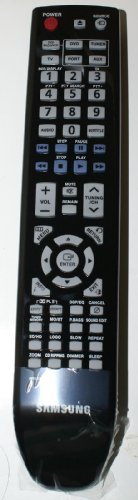
Image: Front view of the Samsung HT-TZ225 remote control, showing various function buttons.
Button Functions
While the exact layout may vary slightly, typical buttons on the HT-TZ225 remote control include:
Power Button: Turns the Home Cinema system on or off.
Source/Function Button: Selects input sources (e.g., DVD, AUX, TV).
Volume Up/Down: Adjusts the audio volume.
Mute Button: Silences the audio output.
Number Pad (0-9): For direct track selection or inputting numbers.
Navigation Buttons (Up, Down, Left, Right): Used to navigate menus and selections.
Enter/OK Button: Confirms a selection or enters a menu option.
Return/Exit Button: Goes back to the previous menu or exits the current menu.
Playback Controls (Play, Pause, Stop, Fast Forward, Rewind, Skip): Controls DVD playback.
Menu/Title Button: Accesses the DVD menu or title menu.
Audio/Subtitle Button: Selects audio tracks or subtitle languages.
Setup
Battery Installation
Locate the battery compartment cover on the back of the remote control.
Slide the cover downwards or press the latch and lift to open the compartment.
Insert two AA batteries (not included) into the compartment, ensuring the positive (+) and negative (-) terminals align correctly with the indicators inside the compartment.
Replace the battery compartment cover by sliding it back into place until it clicks securely.
Note: For optimal performance, use high-quality alkaline batteries.
Operating Instructions
Ensure your Samsung Home Cinema DVD Player is powered on and connected to your display device before using the remote control.
Basic Functions
Power On/Off: Point the remote at the Home Cinema system and press the Power button once to turn it on or off.
Selecting a Source: Press the Source or Function button repeatedly to cycle through available input sources (e.g., DVD, AUX, TV).
Adjusting Volume: Press the Volume Up or Volume Down buttons to increase or decrease the sound level.
Muting Audio: Press the Mute button to temporarily silence the audio. Press it again to restore sound.
DVD Playback Functions
Play: Press the Play button to start DVD playback.
Pause: Press the Pause button to temporarily stop playback. Press Play again to resume.
Stop: Press the Stop button to end playback and return to the DVD menu or beginning.
Fast Forward/Rewind: Press the Fast Forward or Rewind buttons to scan through the content. Press Play to resume normal speed.
Skip Track/Chapter: Use the Skip Forward or Skip Back buttons to jump to the next or previous track/chapter.
Menu Navigation: Use the Up, Down, Left, Right arrow buttons to navigate through DVD menus. Press Enter/OK to make a selection.
Accessing DVD Menu: Press the Menu or Title button to access the main DVD menu.
Maintenance
Cleaning the Remote Control
Wipe the surface with a soft, dry cloth. For stubborn dirt, slightly dampen the cloth with water or a mild, non-abrasive cleaner.
Do not use harsh chemicals, solvents, or abrasive cleaning pads, as these can damage the remote's finish or internal components.
Ensure no liquid enters the remote control through button gaps or the battery compartment.
Battery Replacement
Replace the batteries when the remote control's range decreases significantly or if it stops responding. Follow the battery installation steps outlined in the "Setup" section.
Troubleshooting
| Problem | Possible Cause | Solution |
|---|---|---|
| Remote control does not work. | Batteries are depleted or inserted incorrectly. Obstruction between remote and Home Cinema system. Remote is out of range. | Replace batteries with new ones, ensuring correct polarity. Remove any objects blocking the signal path. Move closer to the Home Cinema system (within 10 meters). |
| Remote control works intermittently. | Weak batteries. Infrared sensor on Home Cinema system is dirty or obstructed. | Replace batteries. Clean the infrared sensor on your Home Cinema system. Ensure no strong light sources are interfering with the signal. |
| Specific buttons do not respond. | Button may be stuck or damaged. | Gently press the button multiple times. If the issue persists, the remote may require service or replacement. |
Specifications
Model Name: HT-TZ225
Brand: Samsung
Compatible Devices: Home Cinema DVD Player
Connectivity Technology: Infrared
Controller Type: Button Control
Maximum Range: 10 Meters
Battery Description: AA (x2, not included)
Color: Black
Warranty and Support
This remote control is an authentic Samsung part. For specific warranty information, please refer to the documentation provided with your original Samsung Home Cinema DVD Player or visit the official Samsung support website.
For technical assistance or further inquiries, please contact Samsung customer support through their official channels.
Note: Warranty terms may vary by region and retailer. Keep your purchase receipt for warranty claims.


