Introduction
This manual provides detailed instructions for the Panasonic CN-MW200D 7V-inch Wide Monitor 2DIN AV System. This system integrates digital TV, DVD, CD, and SD card navigation functionalities into a single unit. It features a customizable 'Two-Top Menu' that allows users to tailor the main menu to their preferences. For frequent searches by genre or address, you can set these as 'frequently used buttons' for more convenient operation. Please read this manual thoroughly before use to ensure proper installation, operation, and maintenance.
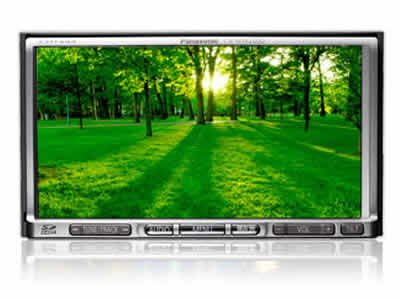
Front view of the Panasonic CN-MW200D car navigation system, showing the 7V-inch wide monitor and control buttons.
Setup
Proper installation is crucial for optimal performance and safety. It is recommended that installation be performed by a qualified professional.
1. Installation Location
Ensure the 2DIN unit is securely mounted in the vehicle's dashboard. Verify that the unit does not obstruct the driver's view or interfere with vehicle controls.
2. Power Connection
- Connect the yellow wire (battery) to a constant 12V power source.
- Connect the red wire (accessory) to a switched 12V power source that turns on/off with the ignition.
- Connect the black wire (ground) to a clean metal point on the vehicle chassis.
- Ensure all connections are secure and insulated to prevent short circuits.
3. Antenna Connections
- Connect the GPS antenna to the designated port on the rear of the unit. Position the GPS antenna in a location with a clear view of the sky, typically on the dashboard.
- Connect the digital TV antenna(s) to the corresponding ports. Ensure antennas are properly installed for optimal signal reception.
4. Initial Settings
After power-up, follow the on-screen prompts to configure initial settings such as language, time zone, and navigation preferences. Perform a GPS signal acquisition test to confirm proper antenna function.
Operating
This section details the primary functions of your Panasonic CN-MW200D system.
1. Navigation System
- Destination Search: From the main menu, select 'Navigation' and then choose your preferred search method (e.g., address, point of interest, genre, frequently used buttons).
- Route Guidance: Once a destination is set, the system will calculate and display the optimal route. Follow the voice prompts and on-screen map for guidance.
- Map View: Adjust the map display (2D/3D, zoom level) using the on-screen controls. The clear and realistic map display provides confidence during travel.
2. AV System (Digital TV, DVD, CD, SD)
- Digital TV: Select 'TV' from the main menu. Use the channel scan function to find available digital TV broadcasts.
- DVD/CD Playback: Insert a DVD or CD into the disc slot. The system will automatically detect and begin playback. Use the on-screen controls for playback functions (play, pause, skip).
- SD Card Playback: Insert an SD card containing audio or video files into the SD card slot. Select 'SD' from the main menu to browse and play media files.
3. Two-Top Menu Customization
Access the 'Two-Top Menu' settings from the system menu to customize frequently used functions. Drag and drop icons to personalize your main screen for quick access to navigation, media, or other features.
Maintenance
Regular maintenance helps ensure the longevity and optimal performance of your system.
1. Screen Cleaning
Gently wipe the screen with a soft, dry cloth. For stubborn smudges, use a cloth lightly dampened with a screen cleaner specifically designed for electronic displays. Avoid abrasive materials or harsh chemicals.
2. Software Updates
Periodically check the Panasonic support website for available software or map updates. Follow the instructions provided with the update package carefully to ensure a successful update process. Typically, updates involve downloading files to an SD card and inserting it into the unit.
3. Disc Slot Care
Keep the disc slot free of dust and debris. Avoid inserting damaged or dirty discs, as this can harm the playback mechanism.
Troubleshooting
This section addresses common issues you might encounter with your CN-MW200D system.
| Problem | Possible Cause | Solution |
|---|---|---|
| No power | Loose power connection, blown fuse | Check power wiring (yellow, red, black). Inspect vehicle fuses related to the AV system. |
| No GPS signal | GPS antenna not connected, obstructed view of sky, faulty antenna | Ensure GPS antenna is securely connected and placed with a clear view of the sky. Test in an open area. |
| No sound | Volume too low, mute activated, speaker wiring issue | Increase volume. Check if mute function is active. Verify speaker connections. |
| Disc not playing | Disc is dirty, scratched, or incompatible format | Clean the disc. Try a different disc. Ensure the disc format is supported by the unit. |
| Touch screen unresponsive | System freeze, calibration issue | Perform a soft reset (refer to the full manual for specific reset procedures). If available, recalibrate the touch screen. |
If the problem persists after attempting these solutions, please contact Panasonic customer support or a qualified service center.
Specifications
Key technical specifications for the Panasonic CN-MW200D:
- Brand: Panasonic
- Model: CN-MW200D
- Screen Size: 7V-inch
- Display Type: LCD
- Media Type: Memory (SD Card), DVD, CD
- System Type: 2DIN AV System with Digital TV and Navigation
- ASIN: B002OD8DHS
Warranty and Support
For detailed warranty information, please refer to the warranty card included with your product or visit the official Panasonic website. For technical support, service, or inquiries, please contact Panasonic customer service through their official channels. Keep your purchase receipt and product model number (CN-MW200D) handy when contacting support.


