
1. Product Overview
The Mad Catz Officially Licensed Controller for Xbox 360 is designed to enhance your gaming experience. This controller features analog triggers and joysticks, along with vibration feedback technology, to immerse you in your favorite games. Its soft touch elastomere finish ensures comfort during extended gaming sessions.
Key Features:
- Officially Licensed Product for Xbox 360
- Integrated vibration feedback technology
- Responsive analog triggers and joysticks
- PC USB compatible for versatile use
- Durable construction with a comfortable soft touch elastomere finish
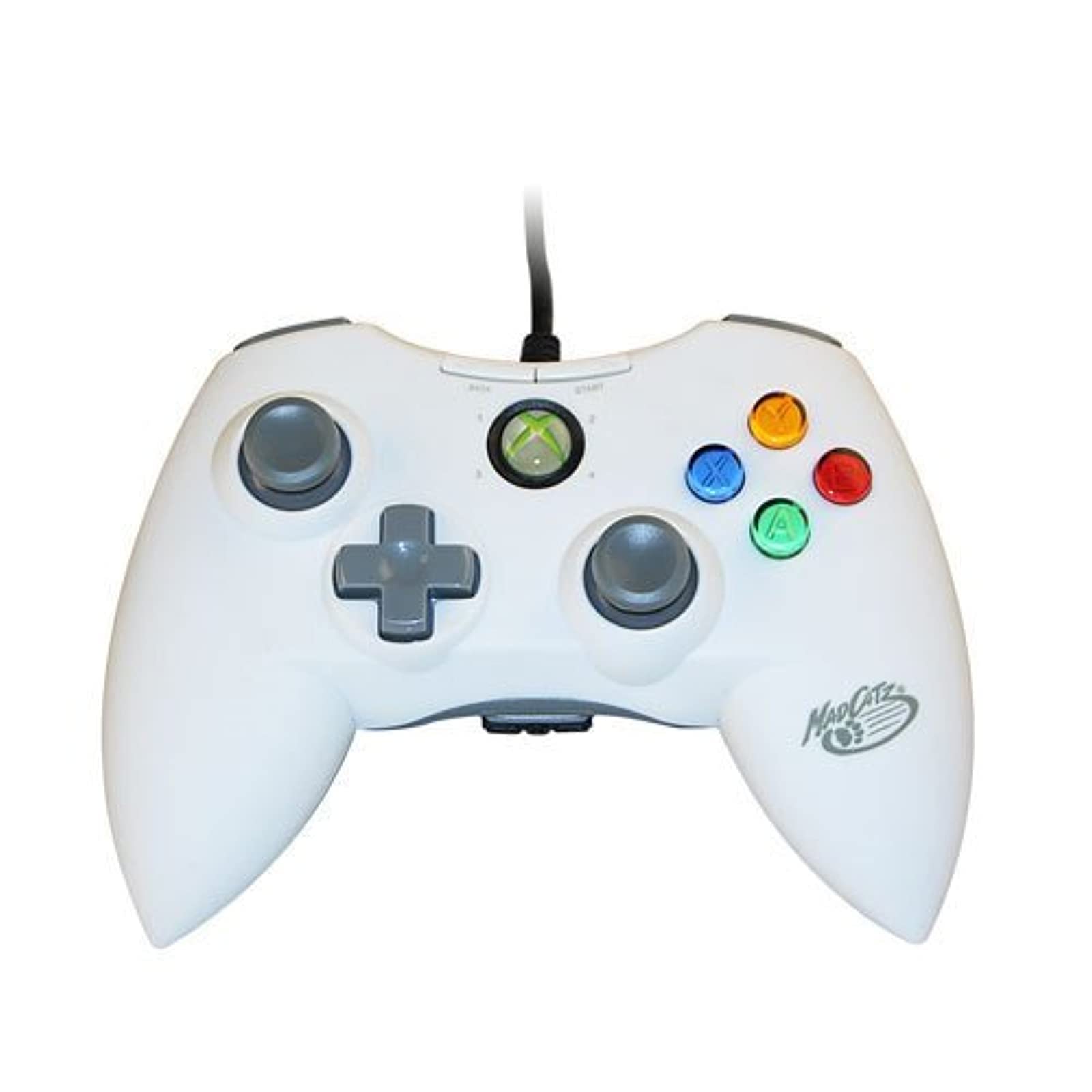
Image 1.1: Front view of the Mad Catz Officially Licensed Controller for Xbox 360 in White.
2. Setup Instructions
2.1 Connecting to Xbox 360
- Locate an available USB port on your Xbox 360 console.
- Plug the USB connector of the Mad Catz controller firmly into the USB port.
- The controller will automatically be recognized by the console. The guide button LED will illuminate to indicate a successful connection and assigned player number.
2.2 Connecting to PC
- Locate an available USB port on your personal computer.
- Plug the USB connector of the Mad Catz controller firmly into the USB port.
- For most Windows operating systems, the necessary drivers will install automatically. Follow any on-screen prompts.
- Once drivers are installed, the controller should be ready for use with compatible PC games. You may need to configure controller settings within individual game menus.
3. Operating the Controller
The Mad Catz controller features a standard layout for Xbox 360, ensuring familiarity and ease of use.
- Left and Right Analog Sticks: Used for character movement, camera control, or menu navigation.
- D-Pad (Directional Pad): Provides precise directional input, often used for menu navigation or specific in-game actions.
- A, B, X, Y Buttons: Primary action buttons, typically color-coded and labeled.
- Start and Back Buttons: Used for pausing games, accessing in-game menus, or confirming selections.
- Left and Right Bumpers (LB, RB): Located on the top edge of the controller, used for various in-game functions.
- Left and Right Triggers (LT, RT): Analog triggers located on the underside of the controller's top edge, providing pressure-sensitive input for actions like acceleration or firing weapons.
- Guide Button: The central button with the Xbox logo, used to access the Xbox Guide or dashboard.
Vibration Feedback: The controller incorporates vibration motors that provide tactile feedback during gameplay, enhancing immersion by simulating in-game events like impacts or explosions.
4. Maintenance
Proper care will extend the life of your Mad Catz controller.
- Cleaning: Use a soft, dry cloth to wipe down the controller. Avoid using liquid cleaners, solvents, or abrasive materials, as these can damage the finish or internal components.
- Storage: Store the controller in a cool, dry place away from direct sunlight and extreme temperatures. Avoid placing heavy objects on the controller.
- Cable Care: Do not sharply bend or pull the USB cable. Always grasp the plug when disconnecting the controller.
5. Troubleshooting
If you encounter issues with your controller, refer to the following common solutions:
- Controller Not Responding:
- Ensure the USB cable is securely plugged into both the controller and the console/PC.
- Try connecting the controller to a different USB port.
- Restart your Xbox 360 console or PC.
- Vibration Feedback Not Working:
- Check the in-game settings of the game you are playing to ensure vibration feedback is enabled.
- Verify that the controller is properly connected and recognized by the system.
- Buttons or Analog Sticks Malfunctioning:
- Inspect for any visible debris or obstructions around the buttons or analog sticks.
- If issues persist, the controller may require service.
- PC Compatibility Issues:
- Ensure your PC's operating system is up to date.
- For some PC games, manual configuration of controller settings within the game's options menu may be necessary.
6. Specifications
| Brand | Mad Catz |
| Model Number | MCP471600M01/04/1 |
| Hardware Platform | Xbox 360 |
| Compatible Console Models | Microsoft Xbox 360, Microsoft Xbox 360 E |
| Color | White |
| Item Weight | 233 Grams |
| Item Dimensions (L x W x H) | 8 x 5.5 x 3.5 inches |
| UPC | 071030164833, 080050412176, 072090440974, 151903469828, 728658009656 |
7. Warranty and Support
Specific warranty details and direct support contact information are not provided in this manual. Please refer to the product packaging or the official Mad Catz website for the most current warranty information and customer support options.