
1. Overview
The Microsoft LifeCam Cinema is a high-definition webcam designed for clear and smooth video communication. It features 720p HD video chat capabilities, a high-precision glass element lens for sharp image quality, and is certified for Skype. The webcam offers 360° rotation and incorporates TrueColor Technology with face tracking for bright and colorful video output.
Key Features:
- 720p HD video chat
- High precision glass element lens for sharp image quality
- Certified for Skype
- 360° rotation
- TrueColor Technology with face tracking for bright and colorful video
2. What's in the Box
Upon opening the package, ensure all the following components are present:
- Microsoft LifeCam Cinema Webcam
- USB Cable (integrated)
- User Manual (this document)
- Curved Adhesive Mount
- Mounting Buckle
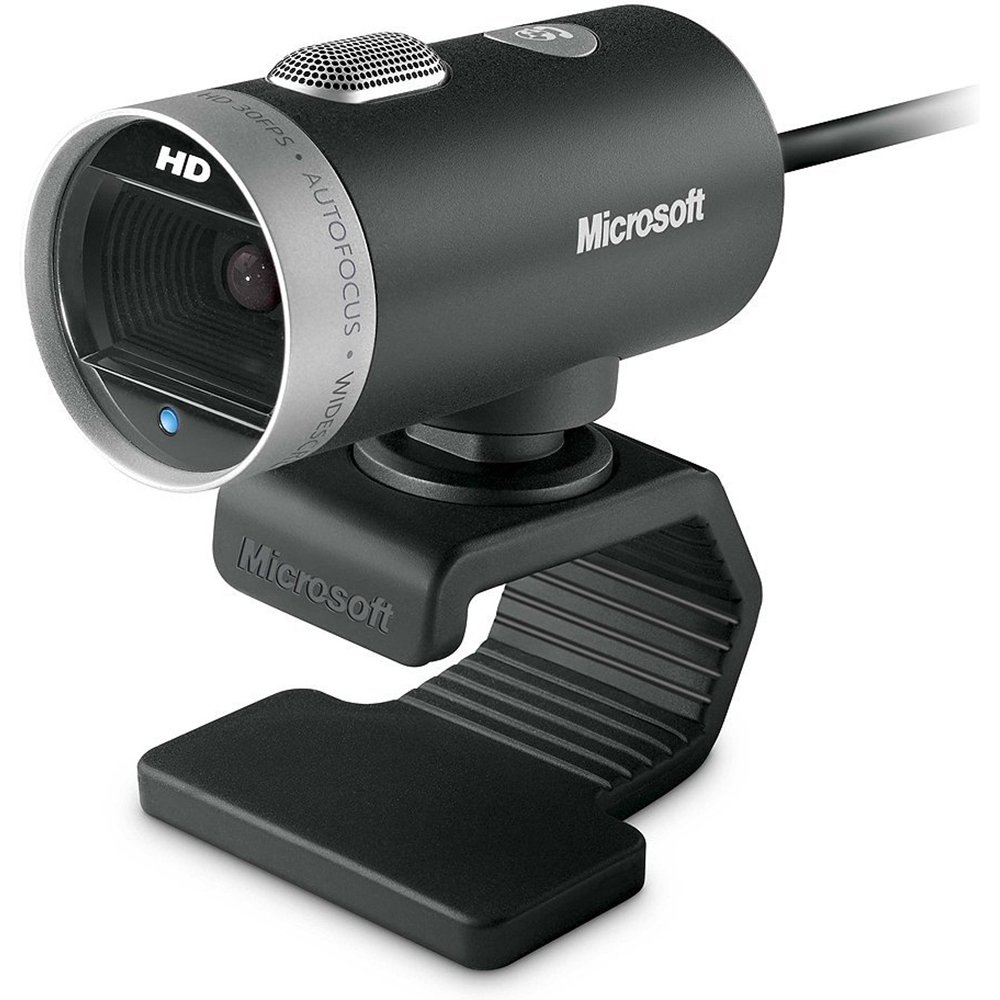
Image: The Microsoft LifeCam Cinema webcam, showing its main body, lens, microphone, and flexible stand with integrated USB cable.
3. Setup
- Positioning the Webcam: Place the LifeCam Cinema on top of your monitor or a flat surface. The flexible stand allows for stable placement.
- Connecting to your Computer: Plug the integrated USB cable into an available USB port on your computer.
- Driver Installation: Your operating system (Windows is supported) should automatically detect the device and install the necessary drivers. If prompted, follow the on-screen instructions. You may need to download the latest drivers from the official Microsoft support website for optimal performance.
- Software Installation: Install any accompanying LifeCam software if desired, which may offer additional features or settings.

Image: The Microsoft LifeCam Cinema webcam securely positioned on top of a computer monitor, demonstrating its stable mounting design.
Video: An official product video demonstrating the features and usage of the Microsoft LifeCam Cinema webcam, including its 720p HD widescreen video, auto focus, high-precision glass element lens, ClearFrame Technology, and digital microphone.
4. Operating Instructions
- Starting a Video Call: Open your preferred video conferencing application (e.g., Skype, Zoom, Microsoft Teams). The LifeCam Cinema should be automatically recognized as your primary camera and microphone.
- Adjusting Position: The webcam features 360° rotation, allowing you to easily adjust the camera angle without moving the base.
- Autofocus: The camera automatically adjusts focus to keep you sharp and clear during video calls.
- TrueColor Technology: This feature automatically adjusts exposure for bright and colorful video, even in varying lighting conditions.
- Digital Microphone: The built-in digital microphone provides clear audio capture. Ensure it is selected as the input device in your application settings if you experience audio issues.
5. Maintenance
- Cleaning the Lens: Use a soft, lint-free cloth specifically designed for optics to gently wipe the camera lens. Avoid abrasive materials or harsh chemicals.
- Cleaning the Body: Wipe the webcam's body with a soft, damp cloth. Do not immerse the device in water or use excessive moisture.
- Storage: When not in use, store the webcam in a clean, dry place away from extreme temperatures and direct sunlight.
- Cable Care: Avoid bending or twisting the USB cable excessively to prevent internal damage.
6. Troubleshooting
- No Video/Camera Not Detected:
- Ensure the USB cable is securely plugged into both the webcam and the computer.
- Try plugging the webcam into a different USB port.
- Restart your computer.
- Check your computer's Device Manager (Windows) to see if the webcam is listed and if there are any driver issues. Reinstall drivers if necessary.
- Verify that your video conferencing software is configured to use the LifeCam Cinema as the video input device.
- No Audio/Microphone Not Working:
- Check your computer's sound settings to ensure the LifeCam Cinema microphone is selected as the default recording device.
- Verify that your video conferencing software is configured to use the LifeCam Cinema as the audio input device.
- Ensure the microphone is not muted in your system settings or within the application.
- Poor Video Quality:
- Ensure the camera lens is clean.
- Check your internet connection speed; a slow connection can affect video quality.
- Ensure adequate lighting in your environment. TrueColor Technology helps, but sufficient ambient light is always best.
- Close other applications that might be consuming system resources.
7. Specifications
| Feature | Detail |
|---|---|
| Brand | Microsoft |
| Model Number | H5D-00001 |
| Video Capture Resolution | 720p |
| Photo Sensor Technology | CMOS |
| Connectivity Technology | USB |
| Color | Black |
| Features | Low Light, Auto Focus, TrueColor Technology, Digital Microphone |
| Item Dimensions (D x W x H) | 0.71"D x 2.19"W x 1.81"H |
| Item Weight | 0.87 Pounds |
| Operating System | Windows |
| Viewing Angle | 360 Degrees (rotation) |
| Image Capture Speed | 30 fps |
| Compatible Devices | PCs with specified system requirements; Skype |
8. Warranty and Support
The Microsoft LifeCam Cinema (Model H5D-00001) comes with a 3 Years Limited Warranty from the manufacturer, Microsoft.
For technical support, driver downloads, or further assistance, please visit the official Microsoft support website or refer to the contact information provided in your product packaging.
You can also find additional resources and FAQs on the Microsoft support pages for LifeCam products.


