
1. Introduction
This manual provides detailed instructions for the installation, operation, and maintenance of your Motorola SURFboard SB5101U DOCSIS 2.0 Cable Modem. The SB5101U is designed to provide high-speed internet access over your cable television network. It is compatible with major U.S. cable providers and offers reliable connectivity for your home or office network.
Please read this manual thoroughly before beginning the installation process to ensure proper setup and optimal performance.
2. Package Contents
Upon opening the package, verify that all items are present and in good condition. The standard package for the Motorola SURFboard SB5101U Cable Modem typically includes:
- Motorola SURFboard SB5101U Cable Modem
- Power Adapter
- Quick Start Guide (if included)
Note: Coaxial cables, Ethernet cables, or USB cables are typically not included with the modem and must be purchased separately if you do not already have them. A coaxial cable splitter may also be required if you intend to connect both a cable TV and the modem to the same wall jack.
3. Product Overview
3.1 Front Panel
The front panel of the SB5101U features several LED indicators that provide status information about the modem's operation. These LEDs help in monitoring the connection status and troubleshooting potential issues.
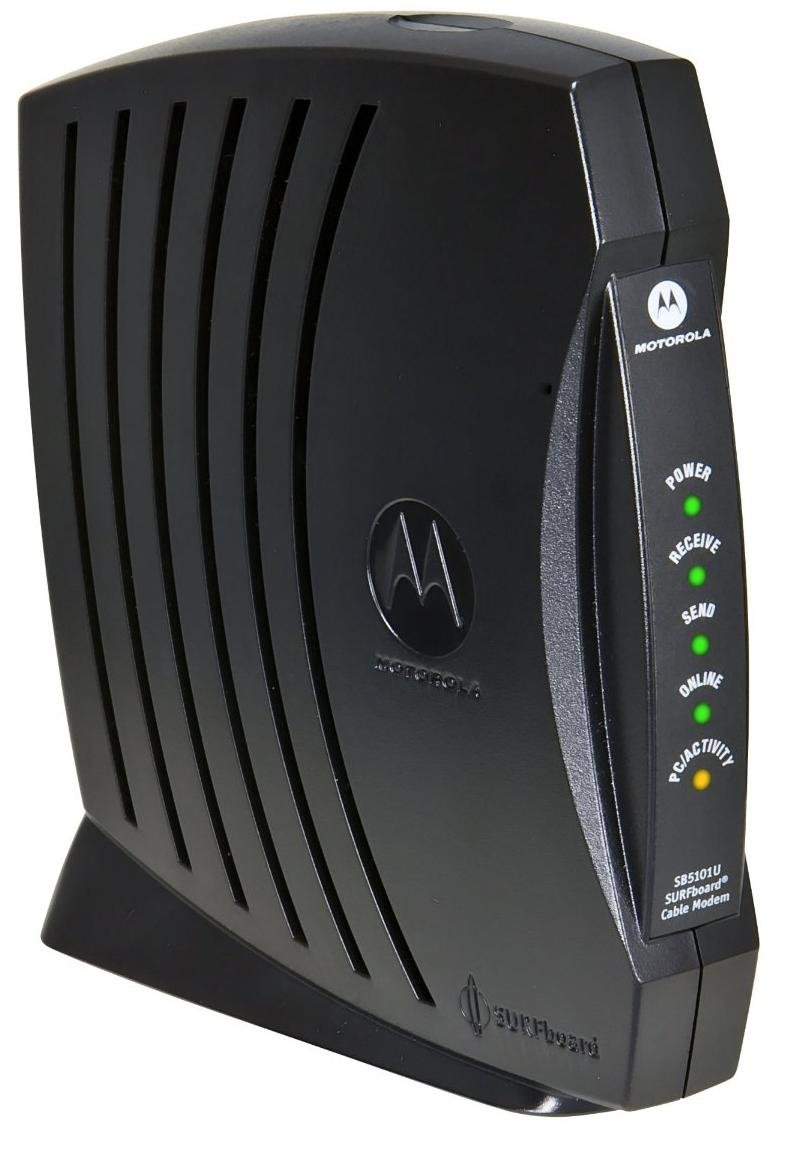
Figure 1: Front view of the Motorola SURFboard SB5101U Cable Modem. This image shows the modem's sleek black casing with ventilation grilles and the Motorola logo, indicating its general appearance.
| LED Name | Status | Description |
|---|---|---|
| Power | Solid Green | The modem is powered on. |
| Receive | Solid Green | The modem is receiving data from the cable network. |
| Send | Solid Green | The modem is sending data to the cable network. |
| Online | Solid Green | The modem is successfully connected to the internet. |
| Link | Solid Green | An Ethernet device is connected and active. |
| Activity | Flashing Green | Data is being transmitted or received over the Ethernet connection. |
3.2 Rear Panel
The rear panel of the SB5101U contains all the necessary ports for connecting the modem to your cable service and your computer or router.
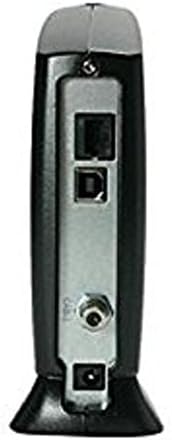
Figure 2: Rear view of the Motorola SURFboard SB5101U Cable Modem. This image displays the various connection ports, including the coaxial cable input, Ethernet port, USB port, and power input.
- Cable (Coaxial) Port: Connects to your cable wall outlet via a coaxial cable.
- Ethernet Port (RJ-45): Connects to your computer or a wireless router using an Ethernet cable. Supports 10/100 Mbps speeds.
- USB Port: An alternative connection option for a computer.
- Power Port: Connects to the provided power adapter.
- Reset Button: Used to restore the modem to factory default settings. (Typically recessed and requires a paperclip to press).
4. Setup Instructions
Follow these steps to properly install and activate your Motorola SURFboard SB5101U Cable Modem.
4.1 Connecting the Modem
- Connect Coaxial Cable: Screw one end of a coaxial cable (not included) into the Cable port on the rear of the SB5101U and the other end into a cable wall outlet. Ensure the connection is finger-tight.
- Connect Ethernet/USB Cable:
- For a single computer: Connect one end of an Ethernet cable (not included) to the Ethernet port on the modem and the other end to the Ethernet port on your computer. Alternatively, you can use a USB cable (not included) to connect the modem to your computer's USB port.
- For a router: Connect one end of an Ethernet cable (not included) to the Ethernet port on the modem and the other end to the WAN/Internet port on your wireless router.
- Connect Power Adapter: Plug the small end of the provided power adapter into the Power port on the rear of the modem. Then, plug the larger end into an electrical outlet.
- Power On: The modem will automatically power on. Observe the front panel LEDs. The Power, Receive, Send, and Online LEDs should eventually turn solid green. This process may take several minutes.
4.2 Activating Your Internet Service
After connecting the modem, you will need to contact your Internet Service Provider (ISP) to activate your service. Have the following information ready:
- Your account information.
- The modem's MAC Address (also known as HFC MAC ID or CM MAC). This is typically found on a sticker on the bottom or back of the modem.
- The modem's Serial Number (S/N). This is also found on the same sticker.
Your ISP will guide you through the activation process. Once activated, your Online LED should remain solid green, indicating a successful internet connection.
5. Operating the Modem
The Motorola SURFboard SB5101U operates automatically once connected and activated. The front panel LEDs provide a quick visual status of its operation.
5.1 Understanding LED Status
Refer to the table below for a detailed explanation of the LED indicators during normal operation and potential issues.
| LED Name | Status | Meaning |
|---|---|---|
| Power | Off | No power. Check power adapter and outlet. |
| Solid Green | Modem is powered on. | |
| Receive | Off | No downstream signal detected. Check coaxial cable connection. |
| Flashing Green | Scanning for downstream channel. | |
| Solid Green | Downstream channel locked. | |
| Send | Off | No upstream signal detected. Check coaxial cable connection. |
| Flashing Green | Scanning for upstream channel. | |
| Solid Green | Upstream channel locked. | |
| Online | Off | Modem not registered with the cable network. |
| Flashing Green | Modem is registering with the cable network. | |
| Solid Green | Modem is online and connected to the internet. | |
| Link | Off | No Ethernet or USB device connected, or device is off. |
| Solid Green | Ethernet or USB device is connected and active. | |
| Activity | Flashing Green | Data is being transmitted or received over the Ethernet/USB connection. |
6. Maintenance
To ensure the longevity and optimal performance of your SB5101U cable modem, follow these simple maintenance guidelines:
- Keep it Clean: Periodically wipe the modem's exterior with a soft, dry cloth. Avoid using liquid cleaners or aerosols, which can damage the device.
- Ensure Ventilation: Place the modem in a location with adequate airflow to prevent overheating. Do not cover ventilation openings.
- Avoid Extreme Conditions: Keep the modem away from direct sunlight, excessive heat sources, moisture, and extreme cold.
- Secure Connections: Occasionally check that all cables (coaxial, Ethernet, power) are securely connected.
- Power Cycle (if needed): If you experience connectivity issues, a simple power cycle (unplugging the power adapter for 10-15 seconds and then plugging it back in) can often resolve minor problems.
7. Troubleshooting
If you encounter issues with your Motorola SURFboard SB5101U, refer to the following common troubleshooting steps:
| Problem | Possible Cause | Solution |
|---|---|---|
| No Power (Power LED Off) | Power adapter not connected or faulty outlet. | Ensure power adapter is securely plugged into the modem and a working electrical outlet. Try a different outlet. |
| No Internet Connection (Online LED Off/Flashing) | Coaxial cable issue, ISP service outage, or modem not activated. |
|
| Slow Internet Speed | Network congestion, ISP issue, or outdated modem. |
|
| Ethernet/USB Connection Not Working (Link LED Off) | Cable issue, device off, or driver problem (for USB). |
|
If problems persist after trying these steps, contact your Internet Service Provider for further assistance.
8. Specifications
| Model Number | SB5101U |
| DOCSIS Version | 2.0 |
| Connectivity Technology | Ethernet, USB |
| Ethernet Port Speed | 10/100 Mbps |
| Download Speed (Max) | Up to 38 Mbps (dependent on ISP service) |
| Upload Speed (Max) | Up to 30 Mbps (dependent on ISP service) |
| Compatible Devices | Personal Computer, Routers |
| Compatible ISPs | Cox, Optimum, Spectrum, Xfinity (check with your specific provider) |
| Product Dimensions (L x W x H) | 6.88 x 2.68 x 10.5 inches |
| Item Weight | 1.57 pounds |
| Color | Black |
| Manufacturer | Motorola |
9. Warranty and Support
For specific warranty information regarding your Motorola SURFboard SB5101U Cable Modem, please refer to the warranty card included with your product or visit the official Motorola support website. Warranty terms and conditions can vary based on region and retailer.
For technical support, troubleshooting beyond this manual, or service-related inquiries, please contact your Internet Service Provider (ISP) directly. They are responsible for your internet service and modem activation.
You may also find additional support resources and FAQs on the Motorola support website.


