
1. Introduction
Thank you for purchasing the Best Price Square TG77 7-Day Digital Timer. This device is designed to automatically control the power supply to electrical appliances, helping you save energy and enhance convenience. Please read this manual carefully before use to ensure proper operation and to maximize the timer's features. Keep this manual for future reference.
2. Safety Information
Always observe the following safety precautions to prevent injury or damage to the device:
- Do not immerse the timer in water or any other liquid.
- Do not connect any appliance that exceeds the timer's maximum load rating. Refer to the specifications section for details.
- Ensure the timer is securely plugged into a grounded outlet.
- Do not disassemble or attempt to repair the timer. Contact qualified service personnel for assistance.
- Keep out of reach of children.
- Use only indoors in dry conditions.
3. Product Overview
The TG77 digital timer features a clear LCD display and intuitive buttons for easy programming. It allows for up to 22 ON/OFF programs per day across a 7-day cycle.
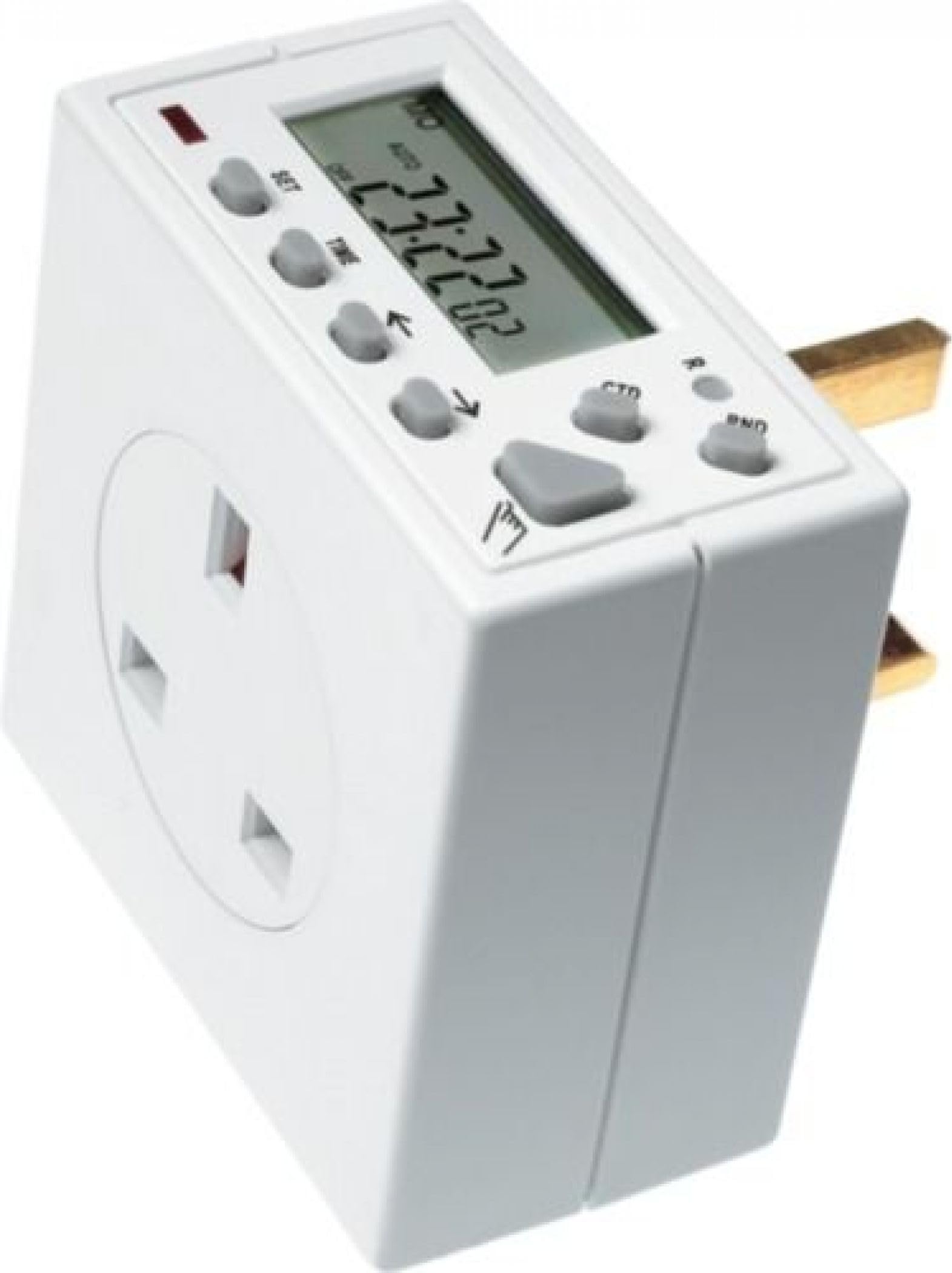
Figure 1: Front view of the Best Price Square TG77 Digital Timer. This image shows the compact square design, the digital display, and the control buttons located below the screen.
3.1. Components
- LCD Display: Shows current time, day, program status, and operating mode.
- Clock Button: Used to set the current time and day.
- Timer Button: Used to enter and exit program setting mode.
- Day Button: Selects the day of the week during setting.
- Hour/Min Buttons: Adjusts hour and minute settings.
- Random Button: Activates/deactivates the random ON/OFF function.
- Manual Override Button: Toggles between ON, OFF, and AUTO modes.
- Reset Button: Clears all settings and restores factory defaults (recessed, requires a pointed object).
4. Setup
4.1. Initial Power-Up and Reset
- Plug the timer into a standard wall outlet for at least 15 minutes to charge the internal backup battery. This battery retains settings during power outages.
- Using a small pointed object (e.g., a pen tip), press the Reset button. The display will show all segments briefly, then clear to 00:00. This clears any previous settings.
4.2. Setting Current Time and Day
- Press and hold the Clock button.
- While holding the Clock button, press the Day button repeatedly until the correct day of the week is displayed (MO, TU, WE, TH, FR, SA, SU).
- Continue holding the Clock button and press the Hour button to set the correct hour (12 or 24-hour format may be available, check display for AM/PM).
- Continue holding the Clock button and press the Min button to set the correct minute.
- Release the Clock button. The current time and day are now set.
5. Operating Instructions
5.1. Programming ON/OFF Times
The timer allows for up to 22 ON/OFF programs. Each program consists of an ON time and an OFF time.
- Press the Timer button once. The display will show "1 ON". This is the first ON program.
- Press the Day button repeatedly to select the desired day(s) for this program. Options include individual days, weekdays, weekends, or all 7 days.
- Press the Hour button to set the desired ON hour.
- Press the Min button to set the desired ON minute.
- Press the Timer button again. The display will show "1 OFF". This is the first OFF program.
- Repeat steps 3 and 4 to set the desired OFF time for this program.
- Press the Timer button to advance to the next program (e.g., "2 ON"). Repeat the process for all desired programs.
- Once all programs are set, press the Clock button to return to the current time display.
5.2. Manual Override
The Manual Override button allows you to temporarily change the timer's output state without affecting programmed settings.
- Press the Manual Override button repeatedly to cycle through the modes:
- AUTO ON: The timer will follow programmed ON times and is currently ON.
- ON: The timer output is continuously ON, overriding all programs.
- AUTO OFF: The timer will follow programmed OFF times and is currently OFF.
- OFF: The timer output is continuously OFF, overriding all programs.
To resume automatic operation, ensure the display shows either "AUTO ON" or "AUTO OFF" depending on the current program state.
5.3. Random Function
The random function can be used to give the impression that a home is occupied, by randomly switching an appliance ON and OFF within a set period.
- Press the Random button to activate the random function. A small 'R' will appear on the display.
- The timer will now switch ON and OFF randomly within a specific time window (e.g., 6 PM to 6 AM), typically with varying ON/OFF durations.
- Press the Random button again to deactivate the function. The 'R' will disappear.
6. Maintenance
6.1. Cleaning
To clean the timer, wipe it with a soft, dry cloth. Do not use abrasive cleaners, solvents, or immerse the unit in water.
6.2. Internal Battery
The TG77 timer contains an internal, non-replaceable backup battery designed to retain programmed settings during power outages. This battery charges automatically when the timer is plugged into an active outlet. No user maintenance is required for the battery.
7. Troubleshooting
| Problem | Possible Cause | Solution |
|---|---|---|
| Display is blank or dim. | Timer not plugged in or internal battery discharged. | Plug the timer into an active outlet for at least 15 minutes to charge the battery. |
| Appliance does not turn ON/OFF at programmed times. | Incorrect program settings; Timer is in Manual ON/OFF mode; Random function is active. | Review and correct program settings (Section 5.1). Ensure the timer is in "AUTO ON" or "AUTO OFF" mode (Section 5.2). Deactivate the Random function (Section 5.3). |
| All settings are lost. | Power outage and internal battery not sufficiently charged; Timer was reset. | Plug the timer in for longer to ensure the internal battery is fully charged. Reprogram the timer. |
| Buttons are unresponsive. | Temporary software glitch. | Perform a full reset using a pointed object (Section 4.1) and reprogram. |
8. Specifications
- Brand: Best Price Square (Manufacturer: Timeguard)
- Model: TG77
- Color: White
- Material: Plastic
- Product Dimensions: 3.94"D x 3.94"W x 3.94"H
- Item Weight: 175 Grams (6.2 ounces)
- Number of Settings: Up to 22 ON/OFF programs
- Power Supply: 120V AC, 60Hz (Standard US outlet)
- Max Load: (Please refer to product packaging or label for specific amperage/wattage limits)
- Batteries Required: No (Internal backup battery)
9. Warranty and Support
This Best Price Square TG77 Digital Timer is covered by a 3-year manufacturer's warranty provided by Timeguard. This warranty covers defects in materials and workmanship under normal use.
For warranty claims, technical support, or further assistance, please contact the retailer where the product was purchased or refer to the manufacturer's official website for contact information. Please have your model number (TG77) and proof of purchase available when contacting support.