
Avery 15695
Avery Printable Return Address Labels (Model 15695) - Instruction Manual
Comprehensive guide for setup, operation, and care of your Avery labels.
1. Product Overview
The Avery Matte Clear Return Address Labels (Model 15695) are designed for creating professional-looking labels that virtually disappear on white, textured, or light-colored paper. These labels feature Sure Feed technology for reliable printer feeding and Easy Peel for quick application. They are optimized for use with laser printers.

Image: Packaging for Avery Matte Clear Return Address Labels, highlighting key features like Sure Feed and Easy Peel.
These labels are versatile and can be used for return addresses, mailing, product packaging, and organizing. Each sheet contains 60 labels, measuring 2/3" x 1-3/4".
2. Setup and Preparation
2.1 Software Installation (Avery Design & Print)
To design and print your labels, it is recommended to use Avery Design & Print software. This browser-based tool provides templates and design options. No download is required.
- Visit the official Avery website for templates.
- Select your product (Model 15695) to access specific templates.
- Utilize the design tools to create your desired label content, including text, graphics, and mail merge data.

Image: Screenshot of Avery Design & Print software on desktop, tablet, and mobile, illustrating its use for label design.
2.2 Printer Compatibility
Important: These labels are optimized for use with laser printers only. Using them with inkjet printers may cause the print to smear.
2.3 Loading Labels into Printer
The labels feature Sure Feed technology, which includes a blue, textured strip at the top of each sheet. This strip provides better grip for printer rollers, helping to feed the sheet smoothly through your printer and reduce jams.
- Ensure your printer is clean and free of debris.
- Load the label sheets into your printer's paper tray according to your printer's instructions, paying attention to the correct orientation for printing on the label side. The blue Sure Feed strip should be positioned to facilitate proper feeding.

Image: A sheet of Avery labels with the blue Sure Feed strip being inserted into a laser printer's paper tray.
3. Operating Instructions
3.1 Designing Your Labels
Using Avery Design & Print, you can easily customize your labels. The software allows for mail merge functionality, enabling you to import data fields (like names, addresses) to create multiple unique labels efficiently.
Video: An official video demonstrating the features of Avery Matte Clear Address Labels, including design, printing, and application. This video highlights the smooth, non-reflective finish, mail merge capabilities, Sure Feed technology, Easy Peel feature, and the labels' ability to virtually disappear on light-colored surfaces, as well as their permanent adhesive on various materials.
3.2 Printing Your Labels
Once your design is complete in Avery Design & Print, follow the on-screen prompts to print. Ensure your laser printer settings are appropriate for label printing (e.g., paper type, quality settings) to achieve optimal results.
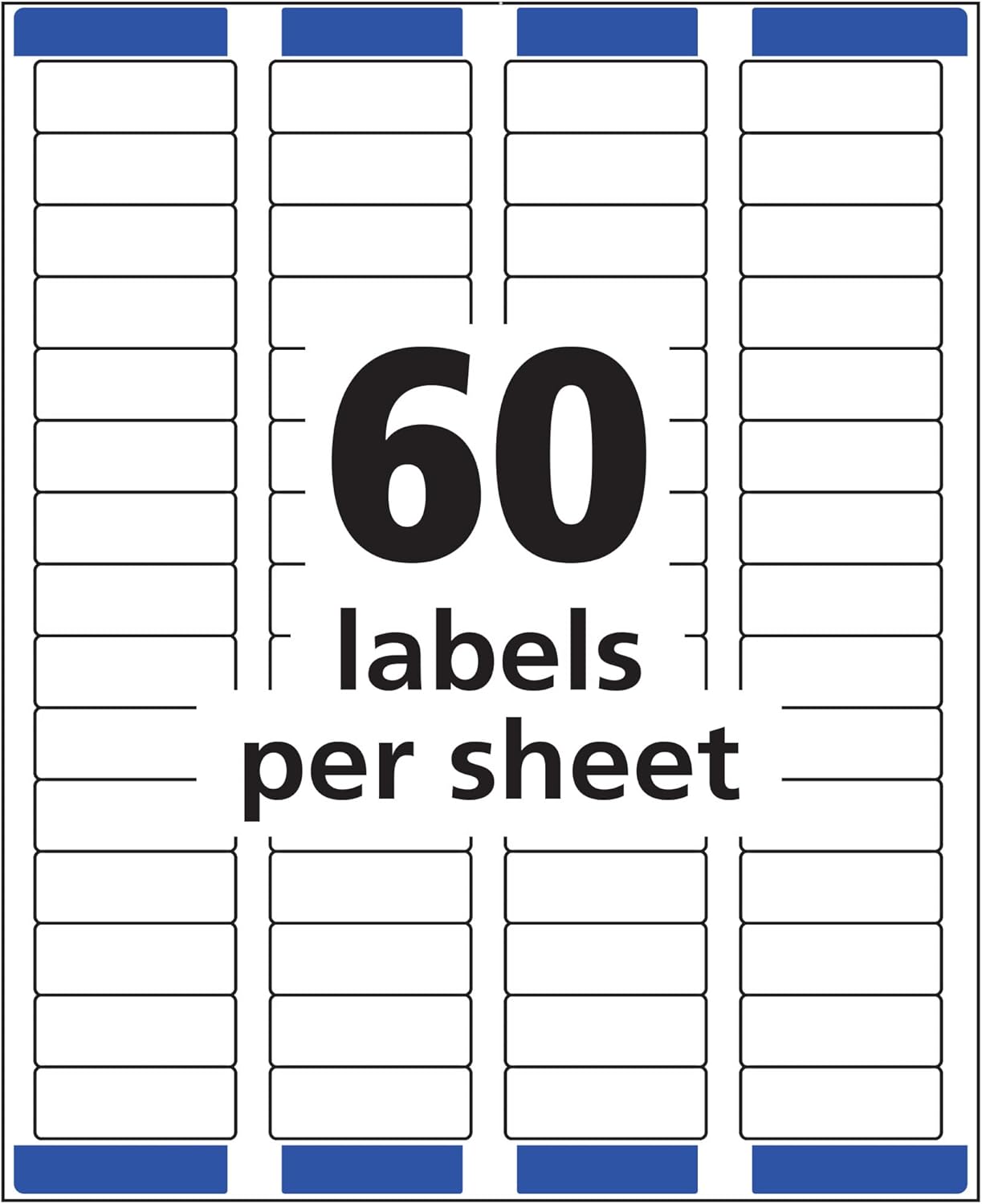
Image: A visual representation of a full sheet of Avery labels, indicating 60 labels per sheet, designed for efficient printing.
3.3 Applying Your Labels (Easy Peel)
The patented Easy Peel design simplifies label application. To peel a label:
- Gently bend the label sheet along the perforated line to expose the Pop-up Edge.
- Peel off the desired label from the sheet.
- Fold the sheet back flat.
- Apply the label to your desired surface. The Ultrahold permanent adhesive ensures the label sticks securely to various materials like paper, cardboard, plastic, glass, film, and painted metals.

Image: A hand demonstrating the Easy Peel feature, bending the label sheet to lift the edge of a label for easy removal.

Image: A matte clear Avery label applied to a light-colored envelope, demonstrating its virtually invisible appearance.

Image: Three glass jars labeled with Avery matte clear labels, showcasing their use for organizing kitchen items like sprinkles, marshmallows, and sugar.
4. Maintenance and Storage
To ensure the longevity and quality of your Avery labels, store them in a cool, dry place away from direct sunlight and excessive humidity. Keep the original packaging to protect unused sheets from dust and damage. Avoid bending or creasing the sheets before use, as this can affect printer feeding and label adhesion.
5. Troubleshooting
5.1 Print Smearing
If your labels are smearing after printing, the most common cause is using an inkjet printer. These labels are specifically designed for laser printers. Ensure you are using a laser printer for optimal, smudge-free results.
5.2 Printer Jams or Misalignment
Avery labels feature Sure Feed technology to minimize jams. If you experience issues:
- Verify that the label sheets are loaded correctly into the printer tray, with the blue Sure Feed strip positioned as intended.
- Check your printer's paper settings to ensure they match the label type (e.g., "Labels" or "Heavy Paper").
- Ensure the printer rollers are clean and free of adhesive residue.
- Confirm that your design in Avery Design & Print is correctly aligned with the label template.
5.3 Labels Not Sticking
The labels use Ultrahold permanent adhesive. If labels are not adhering properly:
- Ensure the application surface is clean, dry, and free of dust, oil, or other contaminants.
- Apply firm, even pressure across the entire label when adhering.
- Avoid applying labels to extremely textured or porous surfaces that may not allow for full adhesive contact.
6. Specifications
| Feature | Detail |
|---|---|
| Brand | Avery |
| Model Number | 15695 |
| Label Dimensions | 2/3" x 1-3/4" |
| Labels Per Sheet | 60 |
| Total Labels | 600 (10 sheets) |
| Color | Matte Clear |
| Material Type | Polypropylene |
| Adhesive Type | Ultrahold Permanent |
| Printer Compatibility | Laser Printers Only |
| Special Features | Sure Feed Technology, Easy Peel with Pop-up Edge |
7. Warranty and Support
For product support, templates, and additional resources, please visit the official Avery website. You can find FAQs, design tips, and contact information for customer service there.
Information regarding specific product warranties can typically be found on the product packaging or the official Avery website. Please refer to these sources for the most current warranty details.
Ask a question about this manual
Ask about setup, troubleshooting, compatibility, parts, safety, or missing instructions. Manuals+ will review the question and use this page’s manual context to help answer it.