
Introduction
The Altec Lansing Inmotion Mix IMT800 Digital Portable Boom Box is designed to deliver high-quality audio for your portable music devices. This system allows for versatile connectivity, enabling multiple users to share their music seamlessly.
This manual provides essential information for setting up, operating, maintaining, and troubleshooting your IMT800 system. Please read it thoroughly before use to ensure optimal performance and longevity of your device.
Product Features
- Advanced Speaker Configuration: Features dual 2.5 cm silk dome tweeters, 7.6 cm polypropylene mid-range drivers, a 13.3 cm woofer, and a passive radiator for rich, full-range sound.
- Flexible Connectivity: Equipped with a universal 30-pin dock for iPhone/iPod and two front 3.5mm auxiliary input jacks for connecting other portable music players, smartphones, or laptops.
- Informative LCD Display: High-contrast LCD screen shows iPod information (song name, artist, album) and FM Radio Data System (RDS) details.
- Wireless Remote Control: An enhanced carabiner-style wireless remote allows for convenient song and playlist navigation.
- Customizable Audio: Includes a 7-band graphic equalizer with multiple preset EQ modes to fine-tune your audio experience.
Setup Guide
Unpacking
Carefully remove all components from the packaging. Ensure you have the Altec Lansing IMT800 unit, AC power adapter, and wireless remote control.
Powering the Unit
- AC Power: Connect the provided AC power adapter to the DC IN jack on the back of the IMT800 unit. Plug the other end into a standard wall outlet.
- Battery Power: For portable use, the IMT800 requires 8 D-cell batteries (not included). Open the battery compartment on the bottom of the unit and insert the batteries, observing the correct polarity (+/-) markings.
Initial Placement
Place the IMT800 on a stable, flat surface. Ensure there is adequate space around the unit for optimal sound dispersion, especially for the side-firing subwoofers.
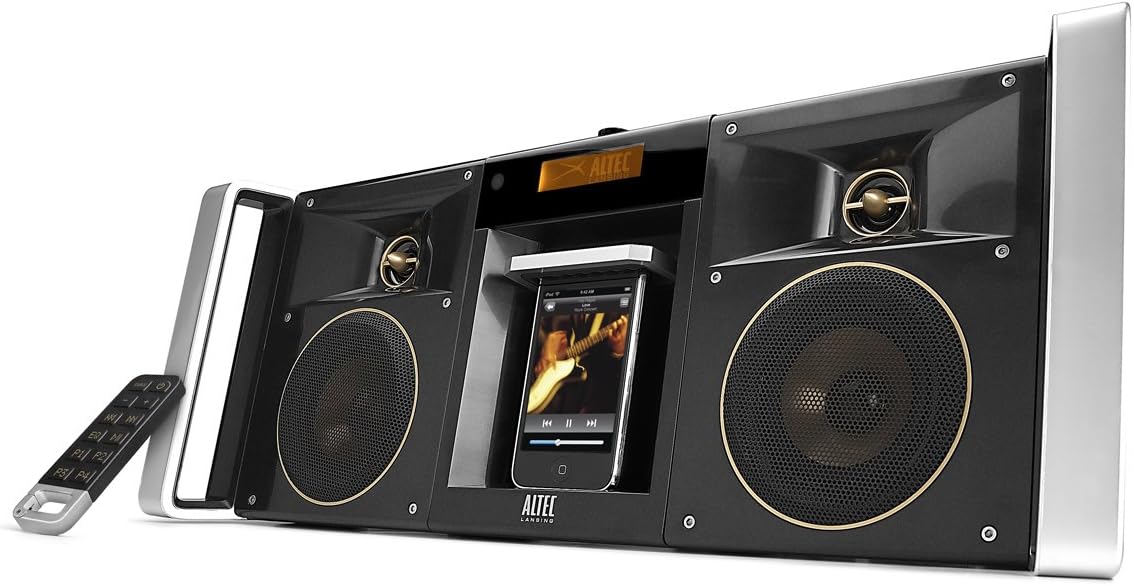
Figure 1: Front view of the Altec Lansing IMT800 with an iPod docked and the remote control.
Operating Instructions
Connecting Devices
- iPhone/iPod Dock: Gently place your iPhone or iPod onto the 30-pin dock connector located in the center of the unit. Ensure it is seated firmly. The device will begin charging if the IMT800 is powered on.
- Auxiliary Input: For other devices (MP3 players, smartphones, laptops), connect a 3.5mm audio cable (not included) from your device's headphone jack to one of the two AUX IN jacks on the front of the IMT800.
Selecting Audio Source
Press the SOURCE button on the unit's control panel or the remote control to cycle through available input sources: iPod Dock, AUX 1, AUX 2, and FM Radio.

Figure 2: Detail of the control panel and LCD display.
Volume Control
Adjust the volume using the + and - buttons on the unit or the remote control.
Equalizer Settings
Press the EQ button on the unit or remote to cycle through preset equalizer modes or to access the 7-band graphic equalizer for manual adjustment. Use the navigation buttons to adjust individual frequency bands.
Remote Control Functions

Figure 3: The wireless remote control.
- Power Button: Turns the unit on or off.
- Source Button: Switches between input sources.
- Volume +/-: Adjusts the master volume.
- Track Navigation: Skips forward or backward through tracks.
- Play/Pause: Controls playback for docked devices.
- EQ Button: Cycles through EQ modes.
- P1, P2, P3, P4: Preset buttons for playlist navigation or other functions depending on the source.
Maintenance
Cleaning
Use a soft, dry cloth to clean the exterior of the IMT800. Do not use liquid cleaners or abrasive materials, as they may damage the finish. Keep the dock connector free of dust and debris.
Battery Care
If using battery power, remove batteries if the unit will not be used for an extended period to prevent leakage. Dispose of used batteries responsibly according to local regulations.
Storage
Store the unit in a cool, dry place away from direct sunlight and extreme temperatures when not in use.
Troubleshooting
| Problem | Possible Cause | Solution |
|---|---|---|
| No power | AC adapter not connected; Batteries drained or incorrectly inserted. | Ensure AC adapter is securely plugged in. Check battery polarity and replace if necessary. |
| No sound | Incorrect source selected; Volume too low; Device not playing. | Press SOURCE to select correct input. Increase volume. Ensure connected device is playing audio. |
| Distorted sound | Volume too high; EQ settings incorrect; Poor audio source quality. | Reduce volume. Adjust EQ settings. Try a different audio source. |
| Remote control not working | Batteries drained; Obstruction between remote and unit. | Replace remote control batteries. Ensure clear line of sight to the unit's sensor. |
| iPod/iPhone not charging | Unit not powered on; Device not properly docked. | Ensure IMT800 is powered on. Re-seat the device firmly in the dock connector. |
Specifications
| Feature | Detail |
|---|---|
| Model Name | IMT800 |
| Speaker Type | Subwoofer, Tweeters, Mid-range drivers |
| Subwoofer Diameter | 13.3 cm (5.25 inches) |
| Tweeter Diameter | 2.5 cm (1 inch) silk dome |
| Mid-range Driver Diameter | 7.6 cm (3 inches) polypropylene |
| Audio Output Mode | Stereo |
| Connectivity Technology | 30-pin Dock Connector, 3.5mm Auxiliary (x2) |
| Compatible Devices | iPhone, iPod, MP3 Player, Laptop, Tablet, Smartphone |
| Power Source | AC Adapter, 8 x D-cell Batteries |
| Color | Black |
| Product Dimensions (L x W x H) | 50.8 x 22.86 x 19.05 cm (20 x 9 x 7.5 inches) |
| Product Weight | 5.9 kg (13 lbs) |
| Manufacturer | Altec Lansing |
Warranty and Support
Limited Warranty
The Altec Lansing IMT800 comes with a limited warranty. Please refer to the warranty card included with your product for specific terms and conditions, or visit the official Altec Lansing website for detailed warranty information.
Customer Support
For technical assistance, troubleshooting beyond this manual, or warranty claims, please contact Altec Lansing customer support. Contact information can typically be found on the manufacturer's official website or on the product packaging.
Note: If you decide to return the product, restocking fees may apply accordingly.


